














































































Introduction to WordPress and Plugins
WordPress powers over 40% of the websites on the internet, making it one of the most popular content management systems available. Its flexibility and user-friendliness have drawn millions to create everything from personal blogs to complex e-commerce platforms.
The secret sauce? Plugins. These powerful tools extend your site’s functionality, allowing you to customize your website without any coding knowledge.
Whether you’re a seasoned WordPress developer or just starting in WordPress development, knowing which plugins are essential can make all the difference. From optimizing SEO to enhancing security and improving site speed, choosing the right plugins will elevate your online presence while simplifying maintenance tasks.
Ready to dive into the world of WordPress plugins? Let’s explore ten must-have options that every WordPress website should consider for optimal performance and user experience.
Importance of Using Plugins
Plugins are vital for enhancing the functionality of your WordPress website. They allow you to add features without needing extensive coding knowledge. This flexibility makes it easier for anyone, from beginners to advanced users, to create a tailored online presence.
Using plugins can significantly improve user experience. They help streamline navigation, enhance site performance, and simplify communication with visitors through contact forms or chat options.
Moreover, security is another crucial aspect where plugins shine. With threats ever-evolving in the digital landscape, having robust security measures integrated into your site protects sensitive data and builds trust with users.
Additionally, plugins facilitate better search engine optimization (SEO). Tools like Yoast SEO guide you in optimizing content effectively so that it ranks higher on search engines.
Overall, leveraging the right plugins transforms a standard WordPress site into a powerful tool for growth and engagement.
Criteria for Choosing the Right Plugins
Choosing the right plugins for your WordPress site can significantly impact its performance and functionality. Start by evaluating compatibility. Ensure that the plugin works well with your current theme and other installed plugins.
Next, consider user reviews and ratings. A highly-rated plugin often indicates reliability and effectiveness. Look for feedback on usability, support response times, and any potential issues users have encountered.
Security is another critical factor. Opt for plugins that are regularly updated to patch vulnerabilities. This helps safeguard your site against threats.
Lastly, assess the features offered versus what you actually need. Avoid overloading your website with unnecessary functionalities; instead, focus on essential tools that enhance user experience or streamline management tasks efficiently.
Top 10 Essential Plugins for Every WordPress Website:
1. Yoast SEO
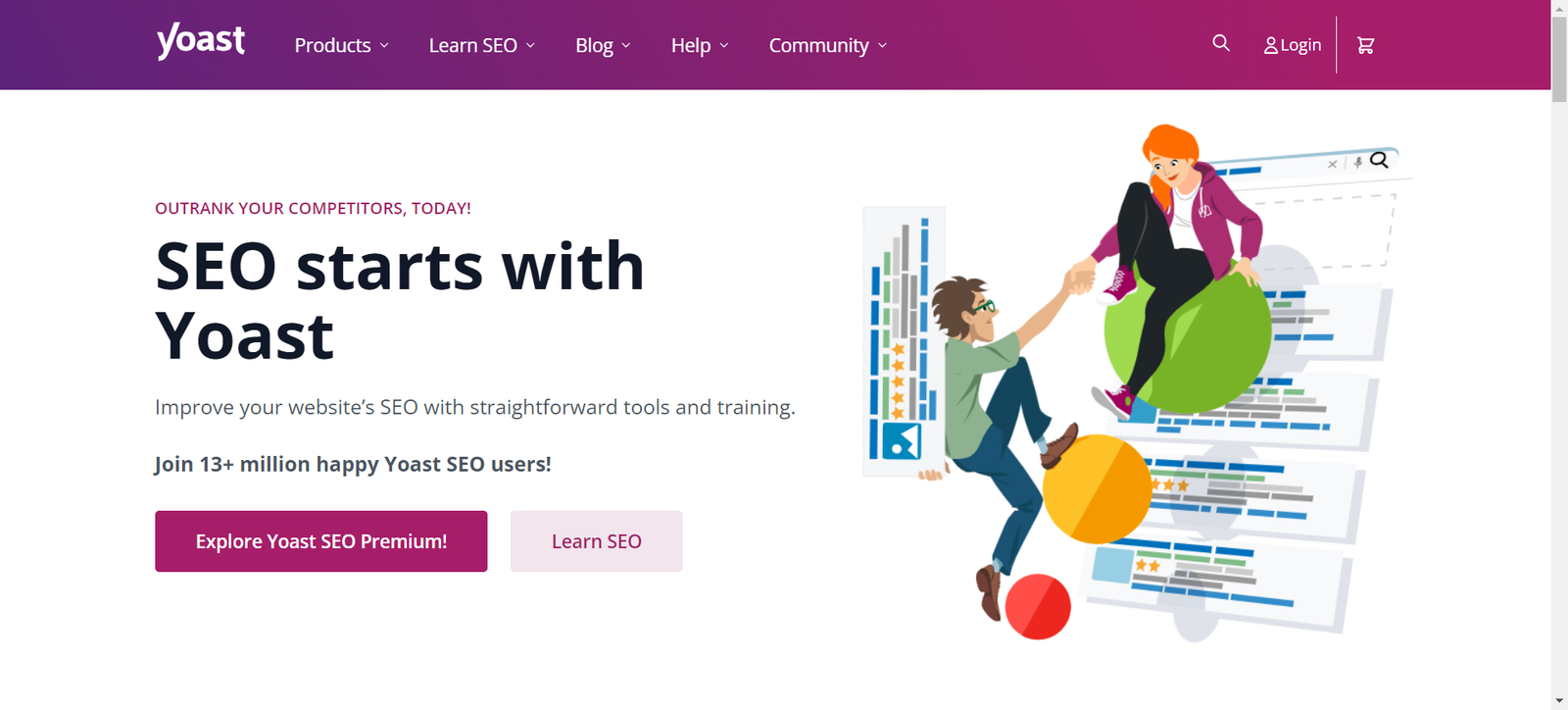
Yoast SEO is a powerhouse for any WordPress website development company focused on search engine optimization. This plugin takes the guesswork out of improving your site’s visibility.
With its user-friendly interface, Yoast guides you through optimizing content effortlessly. You can analyze readability, keyword usage, and meta descriptions all in one place.
The real magic lies in its ability to provide actionable suggestions. Whether you’re a seasoned developer or just diving into WordPress development services, these insights help elevate your site’s performance.
Additionally, it integrates seamlessly with other tools, allowing for smooth tracking of organic traffic and overall SEO health. Regular updates ensure that you stay ahead of algorithm changes without additional effort.
or anyone serious about maintaining their online presence effectively, Yoast SEO is an essential addition to your toolkit. It empowers users to make data-driven decisions while enhancing their website’s potential reach.
2. Contact Form 7
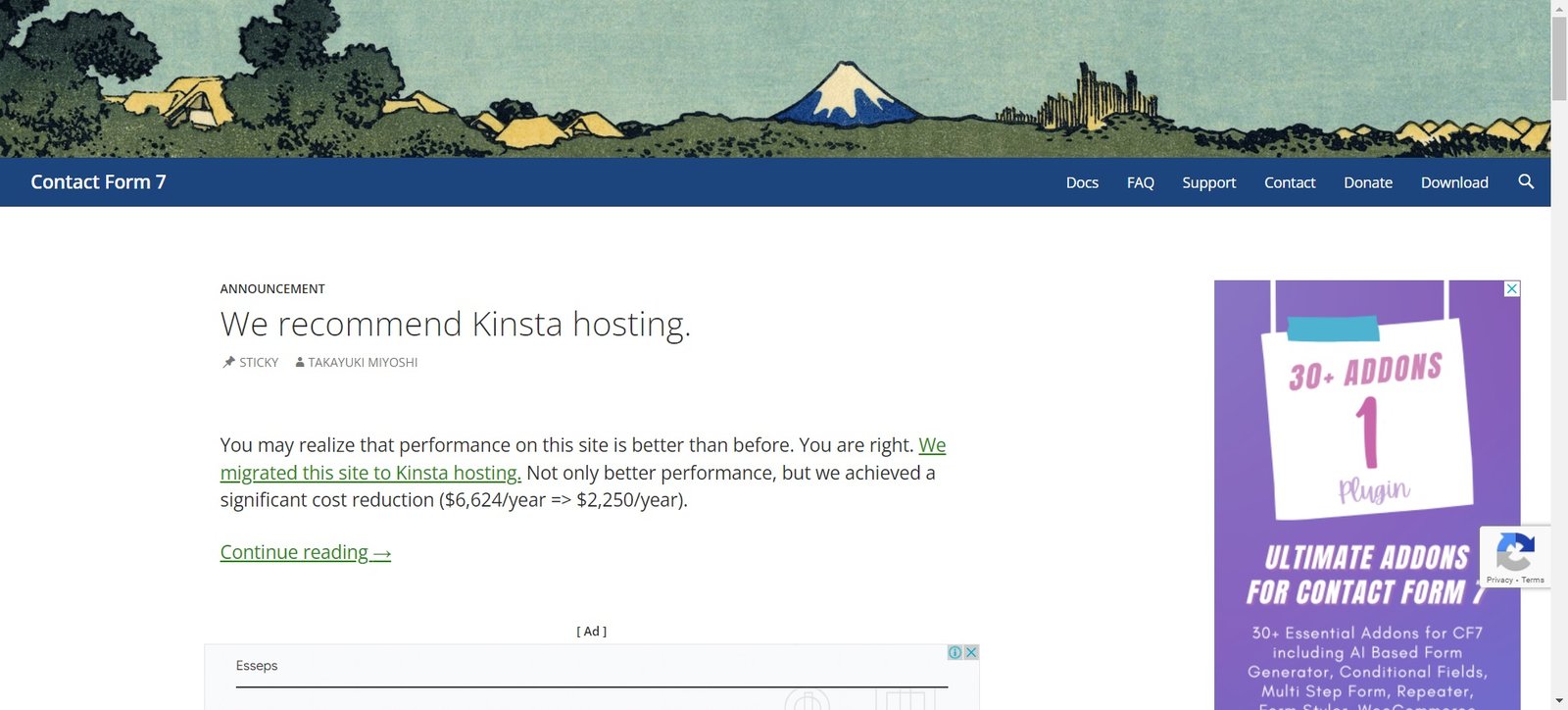
Contact Form 7 is a powerful tool for any WordPress website. It allows users to create and manage multiple contact forms with ease.
Customization options are plentiful. You can tailor the form fields to suit your needs, whether you require just a name and email or more detailed information from your visitors. The intuitive interface makes it simple, even for beginners.
This plugin also supports Ajax-powered submitting. This means that when someone fills out the form, they won’t be redirected away from your page—an essential feature for keeping visitors engaged.
Additionally, Contact Form 7 integrates seamlessly with other plugins like Akismet for spam filtering. That ensures only genuine inquiries make it through.
With its flexibility and user-friendly setup, it’s no wonder many WordPress development services recommend this plugin as essential for effective communication on websites.
3. Jetpack by WordPress.com
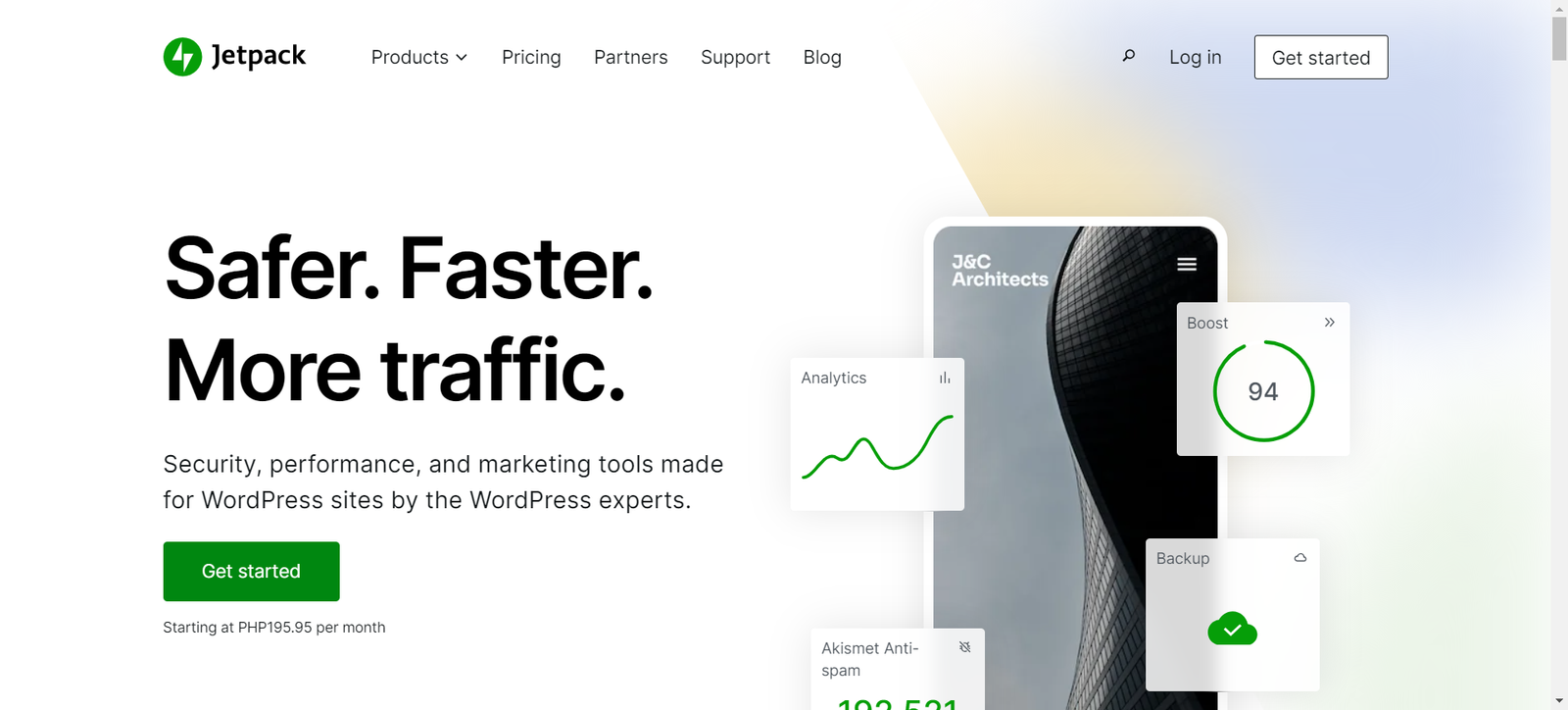
Jetpack by WordPress.com is a powerhouse plugin that elevates your website functionality. It’s like having a Swiss Army knife for your site.
With features ranging from security to performance, Jetpack provides essential tools in one package. You can monitor downtime and manage backups effortlessly. This helps maintain the health of your WordPress site.
Additionally, its traffic insights feature allows you to understand visitor behavior better. Knowing what attracts visitors means you can tailor content more effectively.
Another standout aspect is the social sharing capabilities. Jetpack enables easy integration with various social media platforms, boosting your online presence without extra effort.
Whether you’re running a personal blog or managing a business portal, Jetpack adapts to fit your needs seamlessly. It’s an indispensable asset for any WordPress development company looking to enhance their services.
4. W3 Total Cache
W3 Total Cache is a powerhouse when it comes to optimizing your WordPress website’s performance. It enhances the user experience by significantly increasing page load speeds. Faster websites not only keep visitors engaged but also improve SEO rankings.
This plugin implements browser caching, which stores static versions of your pages for returning visitors. As a result, they don’t have to wait for the server to generate each page anew.
Moreover, W3 Total Cache supports Content Delivery Network (CDN) integration. This means that users around the globe can access your site more quickly through distributed servers.
With an easy-to-navigate interface and detailed settings, even those new to WordPress can tap into its powerful features. By utilizing this plugin effectively, you set a strong foundation for stellar website performance in any competitive digital landscape.
5. Akismet Anti-Spam
Akismet Anti-Spam is a must-have for any WordPress website. As a business owner, you want to focus on growing your brand, not sifting through spam comments. This plugin tackles that issue head-on.
It automatically checks all incoming comments and contact form submissions against its global database of spam. If something looks suspicious, it gets flagged or sent straight to the spam folder.
What sets Akismet apart is its continual learning feature. The more it’s used, the smarter it becomes at identifying unwanted content. This means less manual moderation for you over time.
For those running an online blog or forum, this plugin can save countless hours. Plus, it’s user-friendly with a straightforward setup process that doesn’t require technical expertise.
With Akismet in place, your site stays clean and professional while enhancing user experience by keeping discussions constructive and relevant.
6. UpdraftPlus Backup and Restoratio
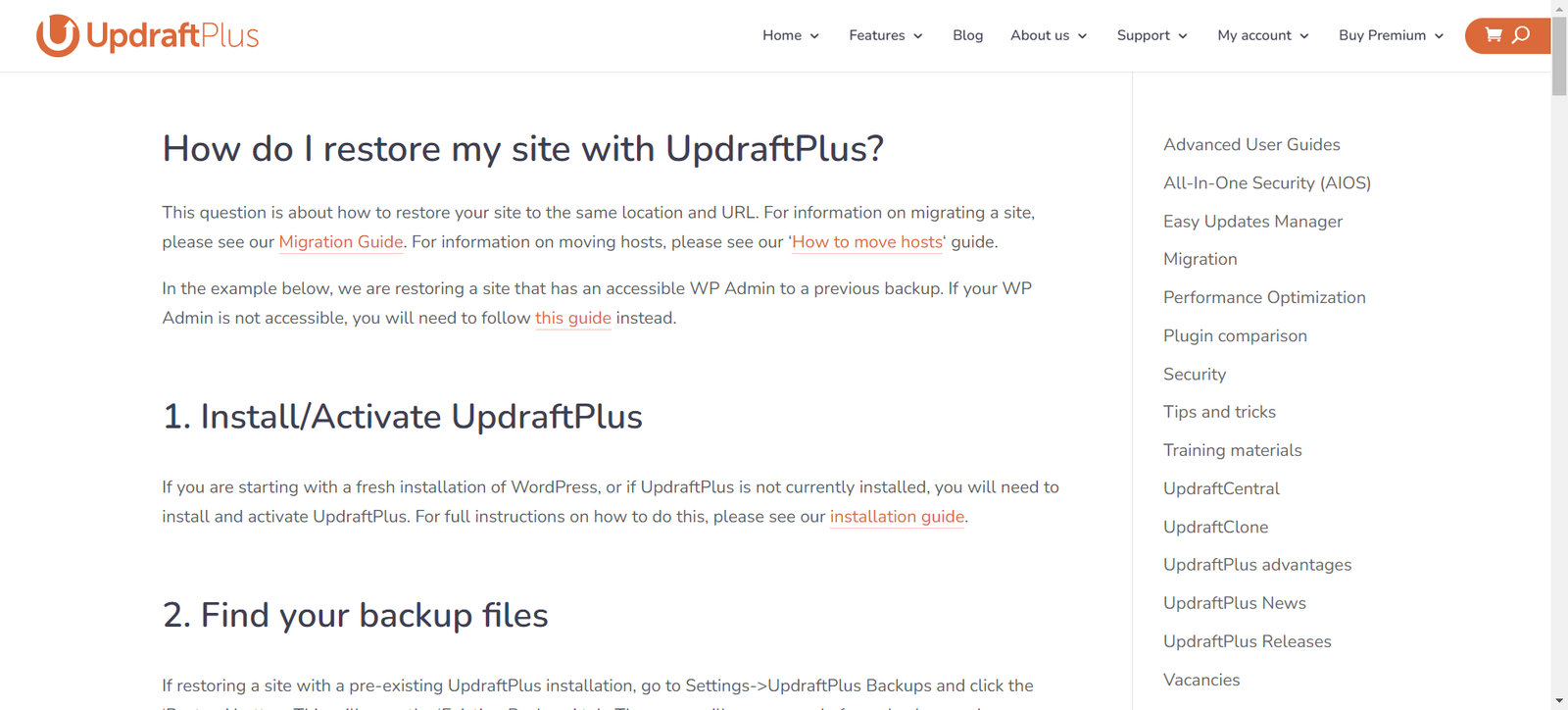
UpdraftPlus Backup and Restoration is a vital plugin for any WordPress website. With the unpredictable nature of the web, safeguarding your data is critical. This tool makes backing up your site straightforward and efficient.
You can schedule automatic backups, ensuring that you never lose precious content. Whether it’s posts, pages, or even themes and plugins, UpdraftPlus has you covered.
When emergencies arise—be it accidental deletions or server crashes—you can restore your site with just a few clicks. The user-friendly interface allows users at all levels to navigate effortlessly through their backup options.
Moreover, it supports remote storage solutions like Google Drive and Dropbox. This means your backups are stored securely offsite, providing an extra layer of protection.
Choosing this plugin not only enhances security but also promotes peace of mind in managing your online presence effectively.
7. WooCommerce (for e-commerce websites)
WooCommerce is the go-to plugin for anyone venturing into e-commerce with WordPress. It transforms a standard website into a fully functional online store, making it incredibly user-friendly.
Setting up products, managing inventory, and processing payments can all be done seamlessly. The flexibility of WooCommerce allows you to customize your shop in countless ways, catering to various business needs.
With features like product variations and shipping options, you have the tools needed to create an engaging shopping experience. Plus, integration with major payment gateways ensures that transactions are smooth and secure.
One standout aspect is its scalability. Whether you’re selling handmade crafts or managing complex inventories for large businesses, WooCommerce grows alongside your ambitions.
For those seeking robust e-commerce solutions without sacrificing control over their site’s design or functionality, this plugin stands out as a prime choice in WordPress development services.
If you do not have much knowledge about WooCommerce, hire a professional WooCommerce development company to help you with its setup.
8. Elementor (for website design)

Elementor is a powerful page builder that transforms the way you design your WordPress website. With its drag-and-drop interface, creating stunning layouts becomes an effortless task.
One of the standout features is the live editing capability. You see changes in real time, allowing for instant adjustments without switching back and forth between tabs. This makes it especially appealing for both beginners and advanced users.
The template library offers numerous pre-designed blocks and full-page templates to kickstart your creativity. Whether you’re building a blog or an online store, there’s something for every niche.
Additionally, Elementor integrates seamlessly with most themes and plugins, enhancing flexibility in design choices. Responsive settings ensure your site looks great on all devices—a must-have in today’s mobile-driven world.
With continuous updates and improvements, Elementor remains at the forefront of WordPress development services aimed at delivering exceptional user experiences.
9. Smush Image Compression and Optimization
Images can significantly impact your site’s loading speed. Large image files often slow down page performance, leading to a poor user experience and lower search engine rankings. This is where Smush comes into play.
Smush Image Compression and Optimization helps reduce the file size of your images without sacrificing quality. It automatically compresses images upon upload, ensuring that every visual element on your site loads quickly.
Beyond compression, Smush also provides features like lazy loading. This means only the images visible in the user’s viewport are loaded initially, enhancing overall site performance.
With an intuitive interface, even beginners can easily navigate its settings. You’ll save storage space while maintaining high-quality visuals that engage visitors effectively.
For any WordPress website development company or developer offering WordPress development services, integrating Smush is essential for optimizing website maintenance and user satisfaction.
10. Wordfence Security
Website security is a top priority for any WordPress website. With cyber threats ever-evolving, having robust protection is essential.
Wordfence Security stands out as one of the best plugins available. It provides comprehensive firewall protection and malware scanning in real-time. This means your site can fend off potential attacks before they even begin.
The plugin also offers login security features, like two-factor authentication, making unauthorized access much harder. Regular updates ensure you’re always protected against new vulnerabilities.
Moreover, its user-friendly interface makes it easy to monitor site activity and see who’s accessing your pages. Getting alerts about suspicious behavior helps you respond quickly.
With Wordfence installed, you’ll have peace of mind knowing that your site is fortified against threats. For businesses offering WordPress development services or those requiring ongoing maintenance, this plugin becomes indispensable for maintaining a secure environment.
How to Install and Activate Plugins
Installing and activating plugins on your WordPress website is a straightforward process. First, log in to your WordPress dashboard. Navigate to the “Plugins” section located in the left-hand menu.
Here, you’ll find an option for “Add New.” Click it to access the plugin repository. You can search for specific plugins using keywords or browse through featured and popular options.
Once you’ve found a plugin that suits your needs, click on “Install Now.” After installation, the button will change to “Activate.” A simple click here will enable the plugin on your site.
Some plugins may require additional configuration after activation. Check their settings page under the Plugins menu or follow any setup prompts provided. This ensures you get the most out of each tool tailored for optimal performance within your WordPress development services.
Tips for Managing Plugins
Managing plugins effectively is crucial for a smooth WordPress experience. Start by regularly reviewing your installed plugins. Deactivate and delete any that you no longer use. This helps reduce clutter and enhances site performance.
Keep your plugins updated to their latest versions. Developers frequently release updates for security fixes, new features, or compatibility improvements. Ignoring these can leave your site vulnerable.
Another smart tip is to limit the number of active plugins. While many offer valuable functionalities, too many can lead to conflicts or slow loading times.
Lastly, always have backups before making changes. This ensures that if something goes wrong during a plugin update or installation, you can quickly restore your site without losing data or functionality. Prioritizing backups will save time and effort in the long run.
Conclusion
When it comes to creating a successful WordPress website, choosing the right plugins is crucial. Each plugin on this list serves a unique purpose that can enhance your site’s functionality, improve user experience, and bolster security.
Whether you’re working with a WordPress maintenance company or managing your own site, these essential plugins will help you maximize efficiency and set up robust features.
Regularly maintaining and updating your site is equally important. By integrating these plugins into your WordPress website maintenance routine, you’ll ensure that everything runs smoothly while providing visitors with an engaging experience.
Empower your online presence by leveraging the power of these tools to create an effective and professional-looking digital space tailored to meet your goals.








 in India