Why the “Googlebot Cannot Access CSS & JS” Warning Kills Your Rankings
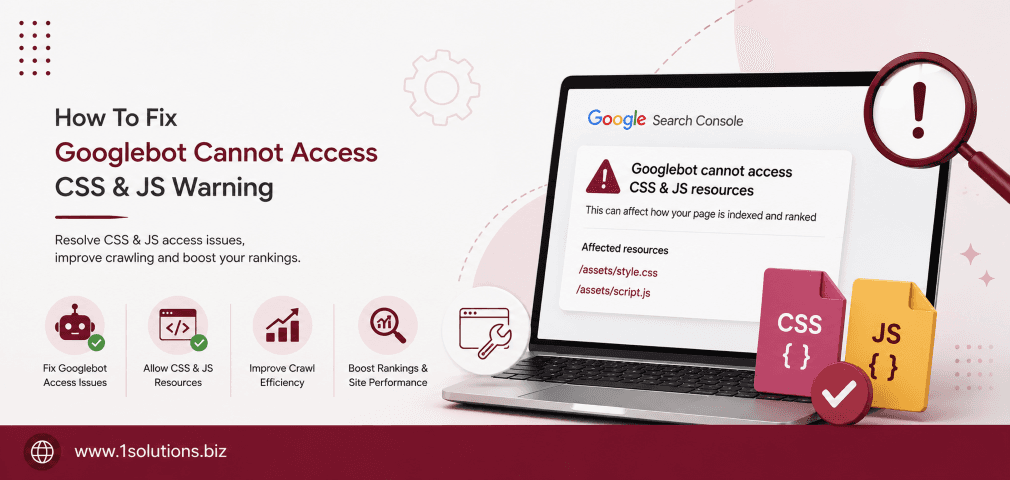
To fix the “Googlebot Cannot Access CSS & JS” warning, you must remove the restrictions blocking Google from crawling your asset folders inside your robots.txt file. This is not a cosmetic issue. When Googlebot cannot render your pages properly, it cannot evaluate your layout, your mobile responsiveness, or your structured content, all of which directly affect how your pages rank. Google has explicitly stated since 2014 that rendering is core to how it understands pages, and blocking CSS or JavaScript is one of the fastest ways to accidentally tank your technical SEO. This guide walks you through every step needed to diagnose, fix, and verify the issue correctly.
Blocking Googlebot from accessing your CSS and JavaScript files through robots.txt prevents Google from rendering your pages correctly, which harms your rankings. The fix requires identifying which asset folders are blocked, updating your robots.txt rules, and then verifying the change using Google Search Console. This guide covers every step in plain language.
⚡ Key Takeaways
- A disallow rule in robots.txt targeting folders like /wp-content/ or /assets/ is the most common cause of this warning.
- Google uses rendering to understand page layout, mobile design, and JavaScript-driven content, so blocking CSS/JS is a ranking risk.
- You can reproduce the problem in seconds using the URL Inspection tool inside Google Search Console.
- The fix is a targeted robots.txt edit, not a full rewrite. Remove only the blocking rules for asset folders.
- After editing, always validate your robots.txt using the Search Console robots.txt Tester before saving.
- Re-crawl requests in Search Console speed up Google’s recognition of your fix, but full re-indexing can take days to weeks.
- Preventing this issue going forward requires a robots.txt review as part of any site migration, CMS update, or theme change.
What the Warning Actually Means and Why Google Cares
The warning “Googlebot cannot access CSS and JavaScript files” appears in Google Search Console under the Coverage or Page Indexing reports. It tells you that when Googlebot visited a page and tried to load the resources needed to render it, some of those resources were blocked by your robots.txt file.
Google switched to a JavaScript-first rendering pipeline called Googlebot Evergreen around 2019. According to Google’s own documentation (Google, 2023), Googlebot now renders pages using a headless Chromium browser, meaning it needs full access to CSS, JavaScript, image files, and font files to understand a page the same way a real user would. If those resources are blocked, Google sees a broken or unstyled version of your page. That broken version is what it uses to assess quality and rank your content.
According to a study by Portent (2019), pages that load and render correctly for Googlebot have measurably better indexing rates and keyword rankings. A separate analysis by Ahrefs (2022) found that rendering errors are one of the top five technical SEO issues found during site audits, affecting millions of pages across large and small sites alike.
If your site has been struggling with indexing, it is worth checking our related guide on why Google is not indexing your pages, which covers several overlapping causes.
Step 1: Confirm the Warning Exists and Identify the Blocked Resources
Before touching your robots.txt file, confirm what is actually blocked. Guessing and editing blindly can create new problems.
Use Google Search Console URL Inspection
- Open Google Search Console and select your property.
- Paste a URL that you suspect is affected into the URL Inspection bar at the top.
- Click “Test Live URL” rather than relying on cached data.
- Once the test completes, click “View Tested Page” and then select the “Screenshot” tab. If the screenshot shows an unstyled or broken page, rendering is failing.
- Click the “More Info” tab and look for any resources listed as blocked by robots.txt. These will usually be paths ending in .css or .js, or entire folder paths like /wp-content/themes/ or /static/assets/.
Use the Rich Results Test as a Secondary Check
Google’s Rich Results Test tool (search.google.com/test/rich-results) also renders pages and will flag blocked resources. Enter the same URL and check the rendered output. This is especially useful for ecommerce sites where structured data depends on rendered JavaScript.
💡 Pro Tip: Screenshot the full list of blocked resource URLs before you edit anything. You will need these exact paths to confirm your robots.txt fix is targeting the right directories.
Step 2: Open and Audit Your robots.txt File
Your robots.txt file lives at the root of your domain, accessible at yourdomain.com/robots.txt. You can view it in any browser. To edit it, you need server or CMS access.
What a Blocking Rule Looks Like
Common problematic rules that cause this warning include:
- Disallow: /wp-content/ — blocks all WordPress uploads, themes, and plugin CSS/JS files
- Disallow: /assets/ — blocks compiled front-end assets
- Disallow: /static/ — common in custom or framework-based builds
- Disallow: /*.js — wildcard rule blocking every JavaScript file sitewide
- Disallow: /*.css — wildcard rule blocking every CSS file sitewide
These rules are often added by developers trying to keep admin areas or plugin logic private, but they accidentally sweep up front-end assets that Googlebot needs.
Finding the Robots.txt File on Different Platforms
| Platform | Where to Edit robots.txt | Notes |
|---|---|---|
| WordPress | Yoast SEO / Rank Math plugin, or via FTP at root | Plugin-generated files override physical files |
| Shopify | Online Store > Themes > Actions > Edit Code | Shopify has limited robots.txt editing |
| Custom / Server | Root directory via FTP, SSH, or cPanel File Manager | Full control, direct text editing |
| Wix | SEO Settings > robots.txt Editor | Built-in UI, no file access needed |
| Squarespace | Settings > Advanced > robots.txt | Limited customization options |
If you are running a WordPress site and need help managing technical configurations, our team offers full WordPress development and optimization services that include robots.txt audits as part of every technical SEO engagement.
Step 3: Edit the robots.txt File to Remove Blocking Rules
This is the core fix. The goal is surgical: remove only the rules that block CSS and JS resources, while keeping any legitimate restrictions you have on private admin areas or duplicate content paths.
Scenario A: You Have a Broad Disallow Rule Blocking Asset Folders
If your robots.txt contains something like:
User-agent: *
Disallow: /wp-content/
You need to either remove that line entirely or replace it with more specific rules that allow asset subfolders. For example:
User-agent: *
Disallow: /wp-content/plugins/private-plugin/
Allow: /wp-content/themes/
Allow: /wp-content/uploads/
This keeps the restriction on a specific folder while allowing Googlebot to access the themes and uploads directories it needs for rendering.
Scenario B: You Have Wildcard Rules Blocking File Types
If your file contains:
User-agent: *
Disallow: /*.js$
Disallow: /*.css$
Delete both lines completely. There is no valid SEO reason to block all JS and CSS files from Googlebot. These rules should be removed without replacement.
Scenario C: A Plugin or CMS Generated the Rule Automatically
This is common with security plugins on WordPress. Plugins like Wordfence or some caching tools sometimes add broad disallow rules during setup. In this case, go into the plugin settings and look for a robots.txt editor or crawling permission section. Disable the rule from within the plugin rather than from the file directly, or the plugin will re-add it on the next update.
💡 Warning: Do not delete your entire robots.txt file as a shortcut. An empty or missing robots.txt allows crawling everywhere, including admin pages, login pages, and duplicate parameter URLs you may not want indexed. Always edit selectively.
Step 4: Validate Your robots.txt Before Publishing
Editing a live robots.txt without testing it first is a risk. Use these tools to validate before the change goes live.
Google Search Console robots.txt Tester
Inside Search Console, go to Settings and find the robots.txt report. This tool shows you the current live version of your file and lets you test specific URLs against your rules. After you have drafted your updated file, you can paste the new version into the tester and simulate what Googlebot would see. Test the exact asset URLs that were flagged in Step 1 to confirm they are now allowed.
Third-Party Validators
Tools like Screaming Frog (when configured to check robots.txt compliance) and RobotsTxt.com offer secondary validation. Run a crawl of your site after the edit and filter for any resources still returning a “blocked by robots.txt” status.
Step 5: Publish the Updated robots.txt and Request Re-Crawling
Once your edited file is validated, upload it to your server root. On WordPress with Yoast or Rank Math, save the updated version through the plugin interface. On custom servers, replace the file via FTP or File Manager.
Request Re-Crawling in Search Console
- Return to URL Inspection in Search Console.
- Enter the URL that originally triggered the warning.
- Click “Request Indexing.”
- Repeat this for your homepage and two or three other high-priority pages to signal to Google that the site is ready for re-evaluation.
Note that requesting re-crawling does not guarantee an immediate fix. Google’s systems process crawl requests in queues, and according to Google’s own crawl schedule guidance (Google Search Central, 2023), it can take anywhere from a few days to several weeks for changes to be fully reflected in Search Console reports and rankings.
Submit a Sitemap Ping
In addition to URL-level requests, resubmit your XML sitemap from Search Console under Sitemaps. This encourages broader re-crawling of your domain. This is particularly important if the blocked assets affected many pages, not just one or two.
Step 6: Verify the Fix Is Working
Verification is not optional. After waiting three to five days, return to the URL Inspection tool and re-run the live test on the pages that were previously flagged. This time, the screenshot should show a fully rendered page, and the blocked resources list should be empty.
Also check the Page Indexing report in Search Console. The “Crawled, currently not indexed” and “Discovered, currently not indexed” segments sometimes shrink after a rendering fix, because Google can now properly assess pages it was previously misjudging.
💡 Pro Tip: Set a monthly reminder to spot-check your robots.txt file, especially after CMS updates, theme changes, or plugin installations. These events silently overwrite robots.txt rules more often than most site owners realize.
For broader context on how technical factors like this connect to your overall search performance, our article on boosting SEO through page content analysis covers the intersection of technical health and content quality, both of which Google evaluates together during rendering.
Common Mistakes to Avoid When Fixing This Warning
- Removing too many rules at once: If you delete your entire robots.txt disallow section to “fix everything fast,” you risk exposing admin URLs, staging parameters, and duplicate pages to Google’s index.
- Fixing the file but ignoring the plugin: If a security or SEO plugin manages your robots.txt and you edit the physical file, the plugin overwrites it on the next save or update. Always trace whether the file is plugin-managed or file-managed.
- Only fixing one page’s assets: The blocked folder affects every page that loads from that folder. You need to fix the folder-level rule, not try to address pages individually.
- Not re-verifying in Search Console: Many site owners make the edit and assume it worked. Always re-run the URL Inspection live test to confirm rendering is restored.
- Assuming rankings recover immediately: Even after Googlebot can render correctly, your rankings may take weeks to adjust. This is normal. Do not undo the fix because results are not instant.
These types of technical SEO errors, left unaddressed, compound over time. If your site has been affected for months, you may benefit from a professional SEO audit and technical optimization service that goes beyond robots.txt and addresses the full range of crawlability and indexing factors.
For sites that have already experienced ranking drops from rendering issues, it is also worth reviewing patterns that look like algorithm-driven penalties. Our post on the Google March 2026 Spam Update explains how some rendering-related issues can overlap with quality signals Google evaluates during core updates.
How This Issue Appears Differently Across Site Types
The underlying fix is the same across platforms, but the symptoms and access paths differ based on what kind of site you are running.
For WordPress sites, the issue most frequently appears in /wp-content/themes/ and /wp-content/plugins/ directories. A broad disallow on /wp-content/ is the number one cause across WordPress installations globally. If you are comparing CMS options for a new build and want to understand how platform choice affects technical SEO, our WooCommerce vs Shopify comparison covers the robots.txt handling differences between both platforms.
For ecommerce sites specifically, blocked JavaScript is especially damaging because product carousels, dynamic filters, price displays, and cart functionality are all JavaScript-rendered. Googlebot that cannot render these sees a stripped page with little content, which dramatically harms product page rankings. Our ecommerce SEO packages include technical rendering audits as a standard component for this reason.
For sites using modern JavaScript frameworks like React, Vue, or Next.js, the risk is amplified further. If Googlebot cannot access the JS bundles that drive server-side or client-side rendering, entire pages may appear blank or near-empty in Google’s index. The Ahrefs (2022) study referenced earlier found that JavaScript-heavy sites had the highest rates of rendering-related indexing failures.
Practical Action Plan: Prioritized Next Steps
- Do This Now: Open Google Search Console, run the URL Inspection live test on your homepage and two key landing pages, and check the “More Info” tab for any blocked CSS or JS resources. If you see blocked resources, open yourdomain.com/robots.txt in a browser and look for any Disallow rules targeting /assets/, /static/, /wp-content/, /*.js, or /*.css. Remove or narrow those rules immediately.
- Worth Doing: After fixing the immediate block, audit your full robots.txt file against the list of resources Googlebot needs. Cross-reference using Screaming Frog to crawl your site and filter by “Blocked by robots.txt.” Also check whether any plugins manage your robots.txt and update rules through the plugin interface rather than the raw file.
- Low Priority: Once the immediate fix is confirmed and re-crawling is underway, document your robots.txt policy in a simple internal note that explains which rules exist and why. This prevents future developers or plugin updates from undoing your fix without understanding the implications. Set a quarterly robots.txt review reminder.
If you want to go deeper on the relationship between crawlability and search visibility, our guide on key SEO strategies for ranking in Google News covers how rendering and crawl access directly affect content discovery speed, which applies equally to standard web pages.
Conclusion
To fix the “Googlebot Cannot Access CSS & JS” warning, you must remove the restrictions blocking Google from crawling your asset folders inside your robots.txt file. The fix itself is straightforward once you know where to look, but the consequences of leaving it unfixed are serious: degraded rendering, inaccurate quality signals, and rankings that quietly decline because Google is evaluating a broken version of your site.
The process breaks down into six clear steps: confirm the warning using URL Inspection, identify the exact blocked resource paths, open your robots.txt and locate the offending rules, remove or narrow those rules, validate the updated file before publishing, and then request re-crawling and verify the fix holds. Every step matters. Skipping verification in particular is the most common reason sites end up with recurring versions of the same warning.
If you need professional support to diagnose and resolve technical SEO issues across your site, our team at 1Solutions has been helping businesses with these exact problems for over 15 years. Whether you need a one-time technical audit or ongoing professional SEO services, we can help you build a crawlable, renderable, high-performing site from the ground up.
Frequently Asked Questions
Will fixing the robots.txt immediately improve my rankings?
Not immediately. Once you remove the blocking rules and Google re-crawls your pages with full CSS and JS access, it takes time for the rendering data to feed back into ranking signals. For most sites, you will see measurable changes in Search Console data within two to four weeks. Rankings may shift gradually over the following weeks as Google re-evaluates pages it previously rendered incorrectly.
Is it safe to allow Googlebot to access all CSS and JavaScript files?
Yes, for front-end assets it is not only safe but recommended. Front-end CSS and JS files contain styling and layout information that helps Google understand your site, not sensitive business logic. The only files you should keep blocked are files that genuinely need to stay private, such as admin-only scripts or server-side configuration files, none of which should be web-accessible in the first place.
Can this warning appear even if I never edited my robots.txt?
Yes. Many CMS platforms, themes, and plugins write robots.txt rules automatically during installation or updates. WordPress security plugins and SEO plugins are frequent culprits. You may have never touched the file, yet it can contain blocking rules added by a plugin you installed months ago. Always check your current live robots.txt file, not just any local copy you might have saved.
How do I handle this warning on a Shopify store?
Shopify restricts how much you can customize the robots.txt file compared to WordPress or custom servers. However, Shopify’s default robots.txt does not block core asset folders. If you are seeing the warning on Shopify, it is more likely that a custom app or liquid template edit introduced the blocking rule. Check your theme code and any installed apps that modify site crawling behavior.
What is the difference between a robots.txt block and a noindex tag causing this warning?
A robots.txt block prevents Googlebot from downloading a resource at all. A noindex tag tells Google not to include a page in its index but still allows crawling and rendering. The “Googlebot Cannot Access CSS & JS” warning is specifically caused by robots.txt blocks, not noindex tags. If a page has a noindex tag but no rendering issues, it will not trigger this warning, though it will still be excluded from search results. Both issues can overlap, so checking both during a technical audit is good practice.