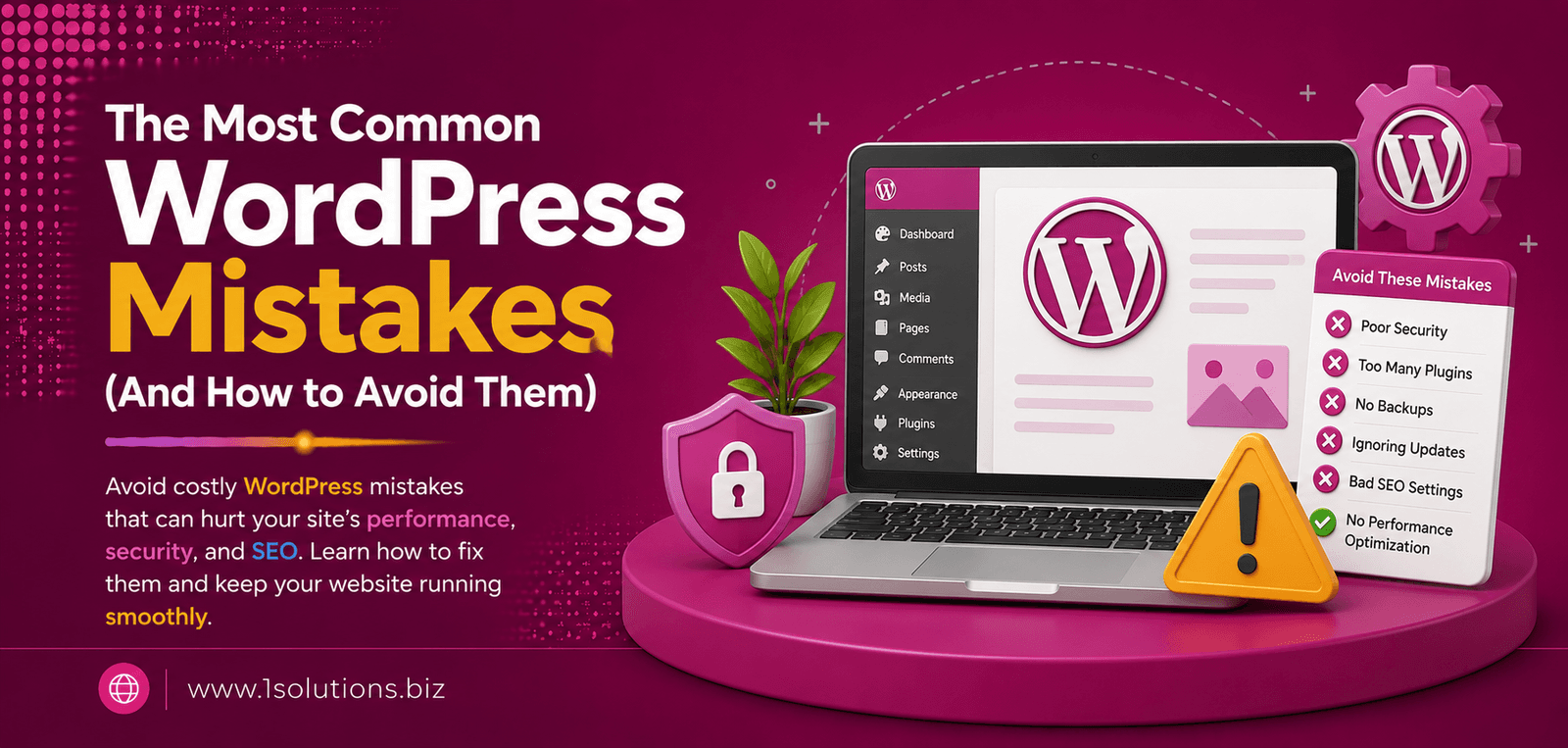
WordPress powers over 43% of all websites on the internet (W3Techs, 2024), making it the most widely used content management system in the world. But that popularity comes with a catch: most users, whether beginners or experienced site owners, repeat the same damaging errors that quietly kill performance, security, and search visibility. Understanding the most common WordPress mistakes (and how to avoid them) is essential if you want a site that actually works for your business goals.
Most WordPress problems come down to neglected updates, poor plugin management, weak security habits, and ignored SEO fundamentals. This guide walks you through each critical mistake step by step and shows you exactly what to do instead. Fix these issues and your site will be faster, safer, and far more visible in search.
⚡ Key Takeaways
- Never run WordPress on outdated core software, themes, or plugins. Updates patch security holes that attackers actively exploit.
- Installing too many plugins slows your site and creates conflict risks. Audit your plugin list regularly and keep only what you actively use.
- Skipping regular backups is a single point of failure that has destroyed countless sites. Automate offsite backups as a non-negotiable baseline.
- Not configuring an SEO plugin from day one means you are leaving metadata, sitemaps, and indexing controls completely unconfigured.
- Using the default admin username and weak passwords gives attackers a predictable entry point. Change both immediately after installation.
- Poor image optimization is one of the top causes of slow page load times, which directly harms both user experience and Google rankings.
- Ignoring SSL, HTTPS, and basic hardening steps puts visitor data at risk and triggers browser security warnings that kill trust instantly.
Why WordPress Mistakes Are So Costly
A poorly managed WordPress site does not just underperform. It actively costs you money, traffic, and credibility. According to Google, 53% of mobile users abandon a page that takes longer than three seconds to load (Google, 2018), and that statistic has only become more relevant as user expectations have risen. On the security side, Sucuri’s annual hacked website report (Sucuri, 2023) found that WordPress accounted for 96.2% of all CMS-based infected websites they remediated, with outdated plugins and themes being the leading cause in most cases.
The good news: virtually every mistake on this list is preventable with the right habits and the right setup. Let’s go through each one systematically.
Mistake 1: Not Updating WordPress Core, Themes, and Plugins
This is the single most common and most dangerous mistake WordPress site owners make. Every update that WordPress releases includes security patches, bug fixes, and performance improvements. When you delay or ignore updates, you leave known vulnerabilities open for automated bots and attackers to exploit.
How to Fix It
- Log into your WordPress dashboard and navigate to Dashboard > Updates. Run all pending updates.
- Enable automatic minor core updates by adding
define('WP_AUTO_UPDATE_CORE', 'minor');to your wp-config.php file. - For plugins and themes, consider using a managed hosting environment or a tool like ManageWP to schedule and monitor automatic updates.
- Before updating on a live site, always test on a staging environment first. Most quality hosts offer one-click staging clones.
💡 Pro Tip: Set a recurring calendar reminder every two weeks to manually check for updates even if auto-updates are enabled. Some plugins require manual intervention after major version changes.
Mistake 2: Using Weak Login Credentials and the Default Admin Username
When WordPress is installed, the default username is often “admin.” This is public knowledge, and brute-force bots target it constantly. Pairing that with a weak password is essentially leaving your front door unlocked.
How to Fix It
- If you still have a user named “admin,” create a new administrator account with a unique username, transfer all content to it, then delete the old admin account.
- Use a password manager to generate a 20-plus character password mixing upper and lowercase letters, numbers, and symbols.
- Install a plugin like Wordfence or Limit Login Attempts Reloaded to restrict failed login attempts and lock out repeat offenders.
- Enable two-factor authentication (2FA) for all administrator accounts. Wordfence and WP 2FA both handle this cleanly.
- Change your WordPress login URL from the default /wp-admin using a plugin like WPS Hide Login to reduce bot traffic to that endpoint.
Mistake 3: Installing Too Many Plugins (Or the Wrong Ones)
Plugins are one of WordPress’s greatest strengths, but they are also one of its biggest liability areas. Every plugin you install adds code that runs on every page load, increases the surface area for conflicts, and introduces potential security vulnerabilities if not maintained by its developer.
How to Fix It
- Audit your current plugin list. For each one, ask: Is this actively maintained? Was it updated in the last 6 months? Do I actually use it?
- Deactivate and delete plugins you no longer need. Deactivating alone is not enough as the code still sits on your server.
- Avoid installing multiple plugins that do overlapping things. For example, do not run two different SEO plugins simultaneously.
- Before installing any new plugin, check its rating, active install count, and last updated date in the WordPress.org repository.
| Plugin Category | Recommended Option | What to Avoid |
|---|---|---|
| SEO | Yoast SEO or Rank Math (one only) | Running both simultaneously |
| Security | Wordfence or Solid Security | Multiple security plugins conflicting |
| Caching | WP Rocket or W3 Total Cache | No caching plugin at all |
| Backups | UpdraftPlus or BlogVault | Relying only on host-side backups |
| Image Optimization | ShortPixel or Imagify | Uploading uncompressed images |
Mistake 4: Skipping Backups or Relying Solely on Your Host
Many site owners assume their hosting provider handles backups. Some do, but not all, and even when they do, host-level backups may be infrequent, stored on the same server, or not available at the granularity you need when something goes wrong.
How to Fix It
- Install a dedicated backup plugin like UpdraftPlus and configure it to back up to an offsite location: Google Drive, Amazon S3, or Dropbox.
- Set backups to run automatically on a schedule that matches how frequently you publish content. Daily for active sites, weekly for mostly static ones.
- Test your backups. Periodically restore a backup copy to a staging environment to confirm it actually works before you need it urgently.
- Keep multiple versions of backups, not just the most recent one, because sometimes corruption or a hack is not noticed immediately.
Mistake 5: Ignoring SSL and Basic Security Hardening
Running a website without SSL in 2025 is no longer just a security problem. It is an SEO problem and a trust problem. Google has used HTTPS as a ranking signal since 2014, and modern browsers display prominent “Not Secure” warnings on any site without a valid SSL certificate.
How to Fix It
- Install a free SSL certificate through your host. Most reputable hosts offer Let’s Encrypt SSL at no cost and will install it with one click.
- After activating SSL, update your WordPress Address and Site Address in Settings > General to use https://.
- Install a plugin like Really Simple SSL to handle any mixed content warnings that arise from internal links or media still pointing to http://.
- For a deeper introduction to why this matters, the guide to SSL security fundamentals covers the technical and business case clearly.
- Disable XML-RPC if you do not use it, as it is a common attack vector. Add
add_filter('xmlrpc_enabled', '__return_false');to your functions.php or use a security plugin toggle.
💡 Pro Tip: After switching to HTTPS, set up a 301 redirect from all HTTP URLs to their HTTPS equivalents. Missing this step means you will have duplicate content issues and lose any link equity pointing to the old HTTP versions.
Mistake 6: Poor Image Optimization Destroying Page Speed
Images are typically the largest assets on any webpage. Uploading a 4MB JPEG straight from a camera to your media library and embedding it in a post is one of the fastest ways to tank your Core Web Vitals scores. According to HTTP Archive data (HTTP Archive, 2023), images account for approximately 75% of total page weight on an average webpage.
How to Fix It
- Before uploading, resize images to the maximum dimensions they will actually display at on your site. A full-width image rarely needs to be more than 1400 pixels wide.
- Use modern formats. Convert images to WebP, which offers 25-35% smaller file sizes than JPEG at comparable quality.
- Install an image optimization plugin like ShortPixel or Imagify to automatically compress and convert images on upload.
- Enable lazy loading so images below the fold do not block initial page rendering. WordPress has had native lazy loading built in since version 5.5.
- Use descriptive, keyword-relevant alt text on every image. This helps accessibility and gives search engines context about the image content.
Mistake 7: Not Configuring SEO Settings From the Start
A fresh WordPress install is not SEO-ready by default. Without configuration, your site may have no XML sitemap, no control over which pages get indexed, duplicate title tags, and no structured metadata. These are fixable problems, but many site owners run for months or years without addressing them.
How to Fix It
- Install Yoast SEO or Rank Math immediately after setting up WordPress. Run the setup wizard completely before publishing any content.
- Submit an XML sitemap to Google Search Console. Both Yoast and Rank Math generate one automatically, typically at /sitemap_index.xml.
- Set your preferred permalink structure under Settings > Permalinks to /%postname%/ for clean, readable URLs.
- Use the SEO plugin to write custom meta titles and descriptions for every page and post. Do not rely on WordPress to auto-generate these.
- Check your Reading Settings to make sure “Discourage search engines from indexing this site” is not checked. This is a development-time setting that sometimes gets left on.
If you want a professional team to handle your WordPress SEO configuration and ongoing optimization, working with an experienced WordPress development partner saves considerable time and prevents costly early mistakes.
For the indexing side of things, if your pages are not appearing in Google despite correct configuration, the detailed breakdown of why Google is not indexing your page covers the ten most common technical reasons and their fixes.
Mistake 8: Choosing the Wrong Hosting Plan
Shared hosting at the lowest possible price tier might seem like a smart cost-saving decision early on, but it is one of the most common reasons WordPress sites underperform. Oversold shared servers mean your site shares resources with hundreds of other accounts, and during traffic spikes, your site slows to a crawl or goes down entirely.
How to Fix It
- Evaluate your actual traffic and resource needs. A small informational site can run fine on quality shared hosting. A WooCommerce store or high-traffic blog needs at minimum a VPS or managed WordPress hosting plan.
- Look for hosts that include server-level caching, PHP 8.x support, and automatic daily backups in their standard plans.
- Managed WordPress hosting providers like Kinsta, WP Engine, or Cloudways handle most server-level performance and security configurations for you, which is valuable if you are not technically inclined.
- Use a CDN (Content Delivery Network) like Cloudflare regardless of your host choice. It reduces latency for geographically distributed visitors and adds a free layer of DDoS protection.
If you are running an online store on WordPress and comparing platform options, the WooCommerce vs Shopify comparison guide lays out the trade-offs honestly so you can make an informed choice before committing to a stack.
Mistake 9: Neglecting Internal Linking and Content Structure
Many WordPress site owners publish content in isolation. Each post or page is its own island with no links to related content elsewhere on the site. This is a missed opportunity for both users and search engines. Internal linking distributes page authority, helps Google understand your site structure, and keeps visitors engaged longer.
How to Fix It
- When publishing a new post, manually add 3-5 links to relevant existing content on your site using descriptive anchor text that includes the target keyword.
- Go back and update older posts to link to newer content when it is topically relevant.
- Create pillar pages for your core topics and link all related posts back to them, forming a topic cluster structure that signals topical authority to Google.
- For a detailed walkthrough of the strategy, the article on using internal links to amplify backlink impact is a useful practical resource.
💡 Pro Tip: Use the free Yoast SEO plugin’s internal linking suggestions feature, or install Link Whisper to get AI-powered internal link recommendations as you write each new post.
Mistake 10: Publishing Content Without an SEO or Crawlability Strategy
Creating content and hitting publish without thinking about crawl budget, indexability, and search visibility is a waste of effort. Google needs to find your content, crawl it efficiently, and understand what it is about before it can rank it.
How to Fix It
- Use Google Search Console’s URL Inspection tool to check whether new pages are being indexed after publication.
- For sites with large amounts of thin or low-value content (tag pages, author archives, paginated archives), use the noindex tag to preserve crawl budget for your important pages.
- Implement schema markup using a plugin like Schema Pro or RankMath’s built-in schema builder to give search engines structured context about your content type.
- Improve your crawl rate with the practical tactics outlined in this guide on increasing Google’s crawl rate for your website.
For sites trying to gain visibility in AI-powered search tools as well as traditional Google results, understanding how to improve website visibility in AI search engines is an increasingly important next step beyond basic WordPress SEO.
Working with a team that understands both the technical and strategic sides of search is worth the investment. Ongoing professional SEO services ensure your WordPress site is not just technically sound but actively growing its search footprint over time.
Practical Action Plan: Fix WordPress Mistakes by Priority
- Do This Now: Update all core, theme, and plugin files. Change the admin username and enable 2FA. Install SSL and verify HTTPS is working across the entire site. Install a backup plugin and run your first offsite backup immediately.
- Worth Doing This Week: Audit and clean up your plugin list. Install and configure an SEO plugin with sitemap submission. Compress and convert existing images to WebP. Set up a caching plugin and connect a CDN.
- Low Priority but Still Important: Restructure your internal linking architecture across older posts. Add schema markup to key page types. Review your hosting plan against your actual traffic and resource usage. Start building a content cluster strategy around your core topics.
The Most Common WordPress Mistakes: A Final Word
The most common WordPress mistakes (and how to avoid them) all share one thing in common: they are entirely preventable. None of them require advanced technical knowledge to fix, but they do require consistent attention and a willingness to treat your WordPress site as a serious business asset rather than a set-and-forget tool.
Start with security and backups, then move to performance and SEO. Build those habits into a monthly site maintenance routine, and most of these problems will never affect you. If you have already been hit by penalties or visibility drops because of neglected technical issues, check out the smart link building tactics for Google penalty recovery and consider bringing in experienced help to diagnose and repair the damage systematically.
For e-commerce sites built on WordPress or WooCommerce, pairing strong technical foundations with a solid ecommerce SEO strategy makes the difference between a store that generates consistent organic revenue and one that depends entirely on paid traffic.
Frequently Asked Questions
How often should I update WordPress core and plugins?
Check for updates at least once every two weeks. Enable automatic minor core updates and consider auto-updates for trusted plugins with strong maintenance histories. Always test major updates on a staging site before pushing to production.
How many plugins is too many for a WordPress site?
There is no hard limit, but quality matters more than quantity. A site with 10 well-coded, actively maintained plugins will outperform one with 30 bloated or poorly written ones. As a general guideline, critically evaluate anything beyond 15-20 plugins and remove anything you cannot justify keeping.
What is the biggest WordPress security mistake beginners make?
Using the default “admin” username combined with a weak password is the most exploited entry point for WordPress attacks. Brute-force bots run around the clock targeting this combination. Fix it immediately by creating a new admin account with a unique username and a strong password, then deleting the original admin account.
Does WordPress SEO configuration really make a difference to rankings?
Yes, significantly. A site with no XML sitemap, no custom metadata, duplicate title tags, and no schema markup is at a structural disadvantage compared to competitors who have configured these elements properly. SEO plugin configuration is a one-time setup task that pays continuous dividends.
Can I fix these WordPress mistakes myself or do I need a developer?
Most of the mistakes in this guide are fixable without developer skills using the plugins and steps described. However, if your site has been compromised, has complex performance issues, or needs a full technical audit, working with an experienced WordPress professional saves time and reduces the risk of making things worse. The investment is usually worth it for business-critical sites.