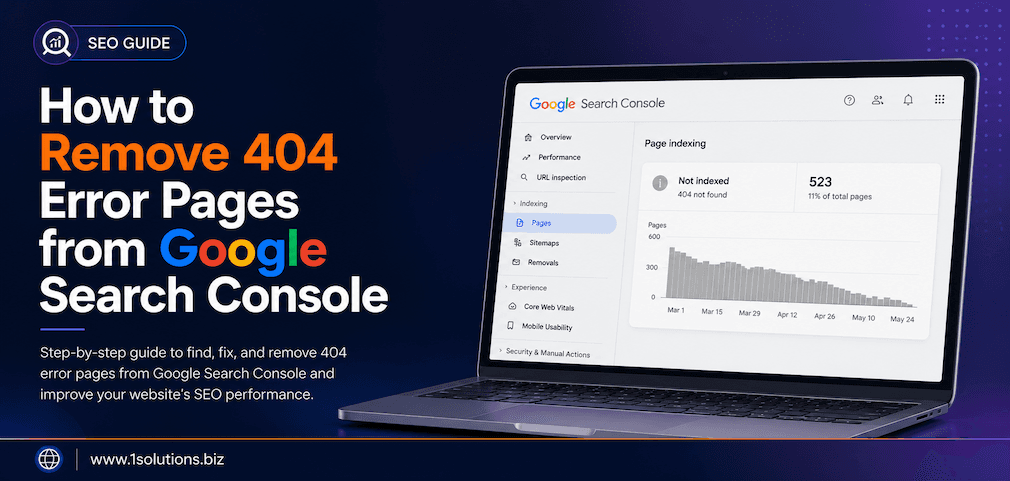
If you have spent any time inside Google Search Console, you have probably noticed a list of URLs flagged as “Not Found” or 404 errors. These broken pages can quietly drain your site’s crawl budget, confuse users, and signal poor site health to search engines. Knowing exactly how to remove 404 error pages from Google Search Console is one of the most practical technical SEO skills you can develop, and this guide walks you through every step.
404 errors in Google Search Console mean Google found pages on your site that no longer exist. You fix them by redirecting old URLs, removing internal links pointing to dead pages, or using GSC’s URL Removal tool for urgent cases. Simply leaving 404s alone is often fine if the pages never existed or never had backlinks, but ignored errors on previously important pages can hurt your SEO over time.
⚡ Key Takeaways
- Not all 404 errors need to be “fixed.” Prioritize pages that had traffic, backlinks, or internal links pointing to them.
- The correct fix for a deleted page with value is a 301 redirect, not just URL removal in GSC.
- Google’s URL Removal tool is temporary (90 days) and should only be used in specific situations.
- Crawl budget waste from excessive 404s is a real concern for large sites with thousands of broken URLs.
- Use the Coverage report in GSC alongside third-party tools to find the root cause of each 404 before taking action.
- Fixing 404s is part of a broader technical SEO routine, not a one-time task.
- After implementing fixes, use GSC’s Validate Fix feature to confirm Google has accepted the correction.
What Are 404 Errors and Why Do They Matter for SEO?
A 404 error is the HTTP status code a server returns when a requested URL does not exist. From a user perspective, it is a dead end. From a search engine perspective, it is a signal that your site structure may be poorly maintained.
According to a study by Ahrefs (2023), roughly 66.5% of pages that had backlinks pointing to them within a five-year period were no longer accessible, meaning broken links and 404s are an industry-wide issue. More specifically, Semrush’s State of Search (2023) found that 404 errors were among the top five most common technical SEO issues detected across millions of audited domains.
The impact of 404 errors on SEO is not always dramatic, but it is cumulative. When Googlebot repeatedly crawls URLs that return 404, it wastes crawl budget that could be spent on your live, valuable pages. For large ecommerce stores or content-heavy sites, this becomes a serious concern. If you want a deeper look at why Google might be struggling to index your pages, our blog on why Google isn’t indexing your pages is worth reading alongside this guide.
How to Find 404 Errors in Google Search Console
Before you can remove or fix 404 errors, you need to locate them accurately. Google Search Console is your primary tool here.
- Log in to Google Search Console at search.google.com/search-console and select your property.
- Go to Indexing, then Pages (previously called Coverage). This report shows all URLs Google has tried to crawl, grouped by status.
- Click on “Not Found (404)” under the “Error” category. GSC will display a list of all URLs returning a 404 status.
- Export the list by clicking the export button in the top right. This gives you a CSV or Google Sheets file you can work with systematically.
- Click on individual URLs to see details including when the URL was last crawled, any referring pages, and the specific error type.
💡 Pro Tip: GSC does not always show every 404 on your site. It only reports URLs that Googlebot has actually tried to crawl. Use a dedicated crawler like Screaming Frog or Sitebulb alongside GSC to catch 404s that originate from internal links but may not yet appear in the console.
Understanding the Different Types of 404 Errors in GSC
Not all 404 errors are created equal. GSC groups them in ways that help you diagnose the source:
| Error Type | What It Means | Typical Cause | Priority Level |
|---|---|---|---|
| Not Found (404) | URL exists nowhere on your server | Page deleted, URL changed, typo in link | High if page had value |
| Soft 404 | Server returns 200 but page has no content | Empty category pages, thin content pages | Medium |
| Submitted URL not found | URL in your sitemap returns 404 | Sitemap not updated after deletions | High |
| 404 from external links | Another site links to a dead URL | URL structure changed without redirect | High if backlinks existed |
Step-by-Step: How to Fix 404 Errors Before Removing Them
The most sustainable approach is to fix the underlying problem rather than simply removing the URL from Google’s index. Here is how to handle each scenario:
Step 1: Audit Each 404 URL for Historical Value
Open your exported list of 404 URLs. For each URL, check: Did it ever rank? Does it have backlinks? Does your analytics show it ever received traffic? Tools like Ahrefs, Majestic, or even GSC’s own historical data can answer these questions quickly.
Pages with no historical value, no backlinks, and no internal links pointing to them can often be left alone. Google will eventually drop them from the index naturally, typically within six months to a year.
Step 2: Set Up 301 Redirects for Valuable Lost Pages
If a deleted page had rankings, traffic, or backlinks, a 301 permanent redirect is your best option. This tells Google and users that the content has moved to a new location, and it passes the majority of link equity to the destination URL.
Where you implement redirects depends on your platform:
- WordPress: Use a plugin like Redirection or Yoast SEO Premium, or edit your .htaccess file directly.
- Apache servers: Add redirect rules to your .htaccess file.
- Nginx servers: Add rewrite rules to your server configuration file.
- Shopify or ecommerce platforms: Use the built-in URL redirect tool in your admin panel.
Always redirect to the most relevant live page available. If no relevant page exists, redirect to the parent category or homepage as a last resort, though this should be used sparingly.
Step 3: Update Internal Links Pointing to 404 Pages
Even after setting up redirects, you should update any internal links on your site that point to the old dead URL. Relying solely on redirects for internal navigation wastes a small amount of crawl efficiency and link equity. Use Screaming Frog or your CMS’s search function to locate internal anchor tags pointing to 404 URLs, then update them to point directly to the live destination.
Step 4: Update Your XML Sitemap
If the 404 URL was included in your XML sitemap, remove it immediately. Submitting a sitemap full of broken URLs gives Google a poor signal about your site’s maintenance standards. After updating, resubmit your sitemap via GSC under Indexing, then Sitemaps.
💡 Pro Tip: If you are managing a WooCommerce store, 404 errors from deleted product or category pages are extremely common. Our WooCommerce store maintenance checklist covers this and many other issues you should be auditing regularly.
How to Use Google Search Console’s URL Removal Tool
The URL Removal tool in GSC is widely misunderstood. It does not permanently delete a URL from Google’s index. It temporarily suppresses a URL from search results for approximately 90 days. After that period, Google may re-index the page if it is still accessible or if crawling reveals it again.
Use this tool only in these specific situations:
- You need to remove a page from search results urgently, such as a page containing sensitive or outdated information, while you implement a proper permanent solution.
- A 404 page is still appearing prominently in search results and causing user complaints or brand damage.
- You want to accelerate the removal of a URL that you have already deleted from your server.
How to Submit a URL Removal Request
- In Google Search Console, go to Indexing, then Removals.
- Click “New Request”.
- Enter the exact URL you want to suppress, including the full path and any trailing slashes.
- Choose “Remove this URL only” for a single page or “Remove all URLs with this prefix” for a directory of pages.
- Click Submit. Google typically processes these requests within a few hours to a couple of days.
Remember: this is a temporary band-aid, not a permanent solution. You still need to ensure the URL returns a proper 404 or 410 status, or implement a redirect if the page had value.
The Difference Between 404 and 410 Status Codes
This is a detail many site owners overlook. A standard 404 tells Google “this page was not found.” A 410 status code tells Google “this page is permanently gone.” According to Google’s own documentation (2024), while Google treats both similarly for indexing purposes, a 410 can speed up the de-indexing process because the signal is more definitive.
If you have permanently removed content with no intention of restoring it, configuring your server to return a 410 instead of a 404 is a cleaner technical choice. Most server-side frameworks and CMS platforms allow you to configure custom error responses.
How to Validate Fixes in Google Search Console
Once you have implemented your redirects, updated internal links, and cleaned your sitemap, you need to tell Google to re-check the affected URLs. Here is how:
- Go back to the Pages report under Indexing in GSC.
- Click on “Not Found (404)” to open the error list.
- Select the specific URLs you have fixed, or click “Validate Fix” at the top of the error group to ask Google to recrawl all affected URLs in that category.
- Google will begin recrawling. The validation process can take anywhere from a few days to several weeks depending on your site’s crawl rate and the number of URLs involved.
- GSC will notify you by email when the validation is complete, letting you know if the fix was confirmed or if issues remain.
⚠ Warning: Do not click “Validate Fix” until you have actually implemented the fix. Triggering validation prematurely resets the clock and can delay Google’s recognition of your corrections. Be patient and thorough before submitting.
When Is It Okay to Leave 404 Errors Alone?
This is one of the most common questions in technical SEO, and the honest answer is: sometimes the best action is no action. Google’s John Mueller has confirmed multiple times that 404 errors are a natural part of the web and do not directly hurt your rankings if the pages in question never had value.
Leave 404 errors alone when:
- The URL never existed on your site intentionally (for example, bots probing for common paths like /wp-admin on a non-WordPress site).
- The page had zero traffic, zero backlinks, and zero internal links in its history.
- The 404 originated from an external site that linked to a misspelled or incorrect version of your URL that you never published.
Spending hours chasing down 404s from bot traffic or external typos is a poor use of your time. Focus your energy on 404s tied to real content that users and other sites actually cared about.
Advanced Tips for Large Sites With Hundreds of 404 Errors
If you are running a large ecommerce site, news publication, or content platform, you may be dealing with hundreds or thousands of 404 URLs. Manual fixes are not realistic at that scale. Here is how to approach it systematically:
Use Pattern-Based Redirects
Instead of creating individual redirects for each broken URL, identify URL patterns. For example, if your site changed from /category/product-name to /shop/product-name for all products, you can write a single pattern-based redirect rule that handles the entire category at once. This is far more efficient and less prone to error.
Automate Sitemap Maintenance
Dynamic XML sitemaps generated by your CMS or a plugin like Yoast or RankMath automatically exclude 404 pages. If you are managing sitemaps manually, set a calendar reminder to audit and clean them monthly.
Monitor With Third-Party Tools
GSC has a data lag and does not catch every broken URL. Tools like Screaming Frog, Sitebulb, or Ahrefs’ Site Audit run regular crawls and flag new 404s as they appear. Pairing these with GSC gives you the most complete picture. If you want to understand how page-level analysis feeds into broader SEO decisions, our article on boosting SEO with page content analysis is a useful companion resource.
Leverage Internal Link Audits
A 404 that has no internal links pointing to it is unlikely to get crawled frequently. Conversely, a 404 with dozens of internal links pointing to it will waste significant crawl budget. Prioritizing internal link cleanup on your most-crawled broken pages delivers the most immediate benefit. For more on leveraging internal links as part of your broader strategy, see our guide on using internal links to boost backlink impact.
Practical Action Plan: Removing 404 Errors from Google Search Console
Use this tiered action plan to prioritize your efforts based on impact and effort required:
- Do This Now: Export your 404 error list from GSC’s Pages report. Cross-reference each URL against your analytics and backlink data. For any 404 URL with backlinks or past traffic, implement a 301 redirect to the most relevant live page immediately. Submit updated sitemaps to GSC. These actions directly protect your link equity and crawl budget.
- Worth Doing: Audit internal links across your entire site using Screaming Frog or a similar crawler. Update any internal links pointing to now-redirected or dead URLs so they point directly to the live destination. Use GSC’s Validate Fix feature to confirm Google has accepted your corrections. Set up ongoing monitoring through a site audit tool to catch new 404s before they accumulate.
- Low Priority: Use the URL Removal tool in GSC for 404 pages that are still appearing in search results and causing active user complaints. Consider switching your server configuration to return 410 instead of 404 for permanently deleted pages. Review and clean up 404s caused by external bot traffic or typos from third-party sites, since these rarely affect your rankings but can clutter your GSC data.
If your site has accumulated a backlog of technical issues that go beyond 404 errors, working with an experienced team can accelerate your recovery. Our professional SEO services include full technical audits, redirect implementation, and ongoing Search Console monitoring tailored to your site’s specific needs.
For businesses running ecommerce operations where product pages are constantly being added, removed, and updated, 404 management is a permanent operational concern. Our ecommerce SEO packages are specifically designed to handle the scale and complexity of product catalog management, including systematic 404 resolution.
Understanding how Google processes and interprets your site’s technical signals is becoming more important as search evolves. For context on where search is heading, our article on how Google’s new WebMCP protocol impacts SEO explores the broader technical landscape you should be aware of.
How to Remove 404 Error Pages from Google Search Console: A Summary
To successfully remove 404 error pages from Google Search Console, the process is not just about clicking a button. It requires diagnosing why each 404 exists, determining whether it needs a fix or can be left alone, implementing the right solution (redirect, deletion, or content restoration), and then validating the fix through GSC. According to Moz (2023), sites that proactively manage crawl errors and 404 pages tend to see measurable improvements in crawl efficiency, which over time contributes to better indexing of their priority pages.
The key is to treat 404 management as an ongoing maintenance habit, not a one-time cleanup project. Schedule quarterly audits, keep your sitemaps current, and monitor GSC regularly. Combined with strong content and a healthy link profile, clean technical SEO gives your site the best possible foundation for long-term search performance. If you are also working to understand how algorithmic changes might be affecting your visibility, our breakdown of the Google March 2026 spam update is worth reviewing.
Frequently Asked Questions
Does having 404 errors in Google Search Console hurt my SEO rankings?
Not necessarily. Google’s John Mueller has confirmed that 404 errors on pages that never had value will not directly harm your rankings. However, 404 errors on pages with backlinks, historical traffic, or strong internal linking can indirectly hurt performance by wasting crawl budget and losing link equity. Prioritize fixing those specific errors first.
How long does it take for Google to remove a 404 page from the index after I fix it?
After you implement a fix and request validation in GSC, Google typically begins recrawling within a few days. However, the full de-indexing or re-indexing of the affected URL can take anywhere from one week to several months depending on your site’s crawl frequency and the priority Google assigns to that URL.
Should I use the URL Removal tool in GSC to fix all my 404 errors?
No. The URL Removal tool only suppresses a URL from search results for 90 days. It does not fix the underlying problem. After 90 days, the URL may reappear in the index if Google crawls it again. Use the removal tool only for urgent situations while you implement permanent solutions like 301 redirects or confirmed server-side deletions.
What is the difference between a 404 error and a soft 404 in Google Search Console?
A standard 404 means the server returned a “not found” status code for that URL. A soft 404 means the server returned a 200 (success) status code, but Google determined the page had little or no meaningful content, essentially making it function like a dead page without technically being one. Soft 404s often occur on empty search results pages, out-of-stock product pages with no content, or pages with very thin text.
How do I stop new 404 errors from appearing on my site in the future?
Prevention is a combination of good practices: always set up redirects before deleting or renaming pages, keep your XML sitemap updated after any structural changes, use a site crawler regularly to catch broken internal links early, and monitor GSC’s Pages report on a monthly basis. For content management systems like WordPress, plugins that automatically handle redirects when you change slugs (such as Yoast SEO Premium or the Redirection plugin) can prevent many 404s from occurring in the first place.