Render-blocking resources are a key part of making your website’s architecture as good as it can be.nnBy getting rid of them, your page will load more even faster and your Core Web Vitals will improve a lot.nnSome of these render-blocking resources are external fonts that consume too much time to load and don’t need to be used, media files that aren’t needed, code that won’t go away, and extra plug-ins that aren’t needed.nnThere are a lot of these kinds of resources that you can compress and put together to make only one files that download faster on your devices and speed up the page load time.nnBy optimizing your page structure in this way, you can make it easier for Google to crawl your site, which will make the experience better for your users.nnBelow are some of the benefits of optimizing your page structure:n
- n
- Page speed is faster.
- Google needs less information to load your page.
- Less problems caused by too much code.
- Your DOM file will be smaller as a whole (document object model).
- There will be less JavaScript and CSS to download.
- Better and faster deployment on a wide range of platforms and devices.
- Mobile user interaction has been improved.
- Overall performance is improved.
n
n
n
n
n
n
n
n
nWhy should you find resources that block rendering?nnFinding and removing the resources that slow down your page’s rendering is a key optimization step that can make or break your page speed.nnIt can be so important that it can improve your site’s page experience metrics, which can make your users happier.nnIn 2021, it took an average of 22 seconds for a mobile page to fully load. It was 15 seconds in 2018.nnIt’s clear that this is a lot longer than the two to three seconds that Google suggests. Also, it’s a lot higher now than it used to be.nnWhat could be wrong with these resources that block rendering?nnWhy is the speed of rendering pages getting faster overall?nnOne interesting thing to notice is that third-party fonts are being used more and more instead of system fonts. Using fonts from sources other than your own tends to slow down the way a page is processed and displayed.nnWith system fonts, the browser doesn’t need to load anything else, so it doesn’t have to go through that extra step of processing.nnAlso, Google’s own services, like Google Analytics or using a third-party Facebook pixel for tracking, tend to have a big effect on the time it takes to render a page.nn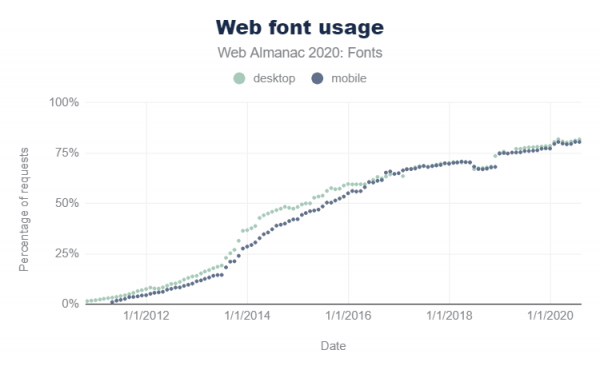 n
n
Screenshot from Web Almanac, November 2022
nFrom a marketing point of view, it’s not always a bad thing that people want to rely on these technologies.nnBut from the point of view of render-blocking resources, it can make your page load much slower and change how Google (and users) see your page.nnThe best solution is to make sure that your page loads as quickly as possible so that users can interact with it.nnIt’s also possible that web developers today are using bad methods for making websites.nnNo matter what, this is something that should be part of your Core Web Vitals audits for every website project.nnPage experience isn’t just about how quickly the whole page loads, though.nnInstead, it’s more about how the page works as a whole, as measured by Google’s page experience framework or Core Web Vitals.nnThis is why you should work on improving and optimizing your page speed for the critical rendering path throughout the DOM, or document object model.nnAlso Read:- 9 Google Manual Penalties You Should AvoidnnWhat’s the Critical Rendering Path?nnThe critical rendering path is all of the steps it takes to render a whole page, from the time the browser starts getting data until the time it compiles the page at the end of the rendering process.nnIf you optimize this process well, it can only take a few milliseconds.nnWhen you optimize for the critical rendering path, you make sure that the performance of rendering on many different devices is optimized.nn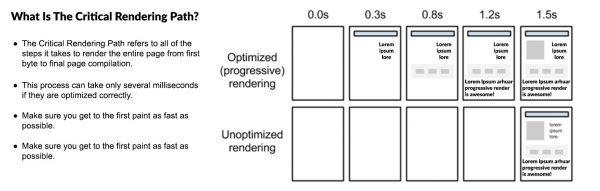 n
n
Screenshot from web.dev, November 2022
nThis is done by optimizing the critical rendering path so that you can start painting as soon as possible.nnBasically, you’re making it so that people don’t have to look at a blank white screen for as long as possible (see 0.0s below).nnWhat does The Critical Rendering Path do?nnThe critical rendering path is the series of steps a browser takes to turn the HTML, CSS, and JavaScript on a page into actual pixels on the screen.nnBefore it can start to show visual content, the browser needs to request, receive, and parse all HTML and CSS files, plus do some extra work.nn n
n
Screenshot from Medium, November 2022
nThis happens in a very short amount of time (in most cases). Before these steps are done, users will see a blank white page.nnHere’s an example of how users might see a page load at different stages of the process:nnImproving the critical rendering path can improve the overall page experience, which can help improve performance on Core Web Vitals metrics.nn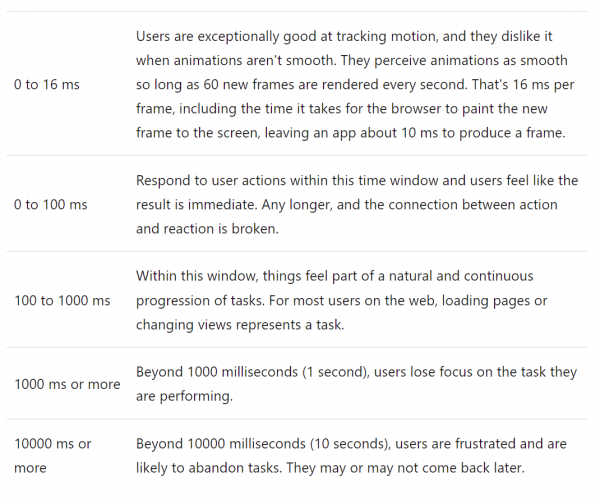 n
n
Screenshot from web.dev, November 2022
nHow to optimize Critical Rendering Path?nnTo improve the critical rendering path, you need to look at the resources that slow down rendering.nnAny resources that block rendering could stop the page from being rendered at first, which would hurt your Core Web Vitals score.nnThis involves a process of optimizing:nnGetting rid of resources that aren’t necessary for rendering. You can do this by using a deferred method for any resources that might slow down the rendering process.nnPutting content above the fold at the top of the list and downloading important media assets as soon as possible.nnCompress the file size of any important resources that are still left.nnBy doing this, you can improve both Core Web Vitals and the way your page looks when a user looks at it.nnBefore we talk about how to optimize the critical rendering path, we need to talk about how a browser loads for the first time and why the critical rendering path is so important.nnAnd the steps in this process are:n
- n
- Getting page parts ready to load.
- Putting critical styles in bold.
- Putting off when JavaScript files are loaded.
- Earlier signs.
- Page Elements Loaded Ahead
- First, when the browser gets the page from the server, it will scan the page to find all the parts that need to be downloaded. By default, this happens when the browser downloads all of the parts at the same time.
n
n
n
n
n
n
nBut what happens when there are a lot of page elements to download, as is often the case on a WordPress site? Well, this can slow down the server, which makes it take even longer for the page to load.nnAlso Read:- Keyword Cannibalization: What Is It And How To Solve It?nnPreloading elementsnnPreloading elements is a method that helps get rid of render-blocking style sheets because it loads important files needed for the first paint step before loading all the other files.nnThis speeds up the way the page works. But this is not the best way to do things.nnThe best way to do this is to optimize the site so that it only uses two to three plugins and maybe two to three other files, and keep everything else to a minimum for the full-page rendering.nnSadly, this is not something that can be done.nnBecause WordPress sites usually have a lot of plugins and resources that developers don’t want to (or aren’t willing to) deal with, the easiest way to be successful is to use plugins to make sure that these resources are working as well as they can.nnPutting Together Critical StylesnnCritical CSS is a method for getting the CSS for content above the fold so that the user can see the content as quickly as possible.nnAt the very least, this usually means:n
- n
- Any font declarations.
- Any CSS that is only for layout.
- All CSS style rules for the DOM elements that appear above the fold.
n
n
n
nUsing our earlier example of the page loading all resources at once, inlining critical styles means using code within the HTML head> tag itself.n
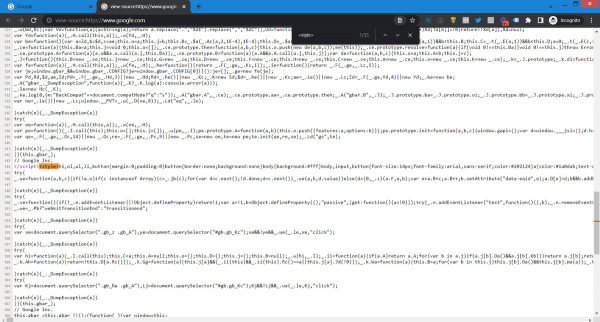 Screenshot from Google.com source code, November 2022
nIf you look at the source code for google.com, for example, you’ll see that it put important CSS into the head> section of the HTML.nnThere are a number of tools that can help you get CSS.nnCriticalcss.com.nHTML Critical Webpack Plugin is very important.nnDefer JavaScriptnnWith this method, you can wait to load JavaScript files until after other important parts of the DOM tree have been loaded. But there are a few things to keep in mind.nnOne way to delay a JavaScript file:nnThe first problem is that delaying the loading of JavaScript files can hurt the look of the site because some of these files are needed for the page to load completely.nnSecond, if you delay the loading of JavaScript files without being careful, you could cause problems with the page’s interactivity (interaction to next paint Core Web Vitals metric).nnThird, you can also cause problems with the way the site works as a whole.nnThe idea is that you need to be careful when working on these kinds of optimizations so that you don’t accidentally cause problems in other parts of the process.nnBy doing this, you can make a big difference in how quickly your page loads and how Google sees your site.nnBut there’s also a problem when you use plugins like Nitro to delay important files like CSS and JavaScript.nnThis can speed up the page, but the biggest problem is that the plugin waits to load all CRITICAL files until after the HTML part of the document has been loaded.nnWhat’s the meaning? This means that Google can’t see the whole document the way it was meant to be seen. This is like blocking your CSS and JavaScript files with robots.txt, which Google does need to see if your site is mobile-friendly.nnHow to Find Resources That Block RenderingnnTo find the most important rendering path and look at the most important resources:n
- n
- Use webpagetest.org to run a test and click on the “waterfall” picture.
- Pay attention to all of the requested and downloaded resources before the green line that says “Start Render.”
- Analyze your waterfall view and look for CSS or JavaScript files that are requested before the green “start rendering” line but aren’t necessary for loading content above the fold.
n
n
n
nExample of starting to draw.nnOnce a (possibly) render-blocking resource has been found, try removing it to see if content above the fold is affected.nn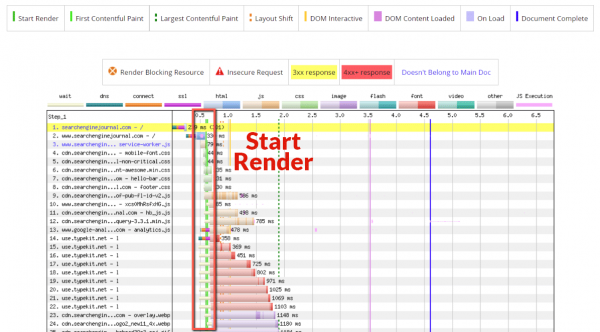 n
n
Screenshot from WebPageTest, November 2022
nIn my example, I noticed some important JavaScript requests.nnEven though these scripts are important, it’s sometimes a good idea to try removing them to see how the experience changes when different parts of the site are changed.nnA render-blocking resource is shown in the test results of a page.nn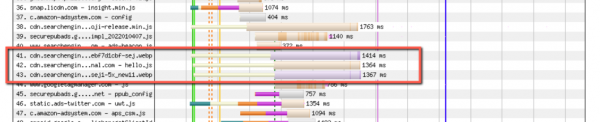 nnThere are also other ways to make these kinds of things better.nnFor JavaScript files that aren’t important, you might want to think about combining them and putting them at the bottom of your page.nnYou can also reduce the number of CSS files you have by putting them all into one file and compressing it. This works for CSS files that aren’t important.nnImproving the way you code can also make a file easier to download and have less of an effect on how quickly your page loads.nnHow to get rid of page elements that slow down renderingnnOnce you know that a render-blocking resource isn’t needed to show content above the fold, you should look into the many ways you can improve the way your page is shown and put off rendering non-essential resources.nnThere are many ways to solve this problem, such as delaying JavaScript and CSS files or making CSS less powerful.nnOne solution could be to not use the @import rule to add CSS.nnMake sure you don’t use the @Import rule to add CSSnnEven though @import seems to make your HTML file cleaner, it can actually slow it down.nnIn fact, the @import declaration will make the browser take longer to process a CSS file. Why? Because it is also getting all the files that were imported.nnRendering will not be possible at all until the process is done.nnIn fact, the best way to add a CSS stylesheet is to use the standard way, which is to use the link rel=”stylesheet”> declaration in the HTML.nnYour CSS and JavaScript files should be shrunknnUsing a plugin to minify your CSS and JavaScript files can make a huge difference if you are using WordPress.nnThe minification process gets rid of all the extra spaces in a file and makes it even smaller, which can give it a nice boost in speed.nnAlso, even if you aren’t using WordPress, you can hire a qualified developer to do the process by hand.nnThis will take longer, but it may be worth it.nnMost minified files are much smaller than their original versions, which means that the first rendering will be done much faster.nnAfter the minification process, you can also expect the download process to go faster because it will take less time to download resources that don’t slow down the rendering.nnInstead of using third-party fonts, use system fontsnnEven though it may seem like third-party fonts make a site “pretty,” this is not really the case.nnEven though it looks great at first glance, these third-party font files often take longer to load and can add to your problem with render-blocking resources.nnBecause of the external files, the browser has to send out requests to download these files in order to show your page. This could make the download time much longer.nnIf you work on a team that doesn’t follow the best development practises, you might have a lot of third-party font files that your site doesn’t need to display.nnIn this case, getting rid of all these unnecessary files can make a big difference in your render-blocking resources and help you do better overall in Core Web Vitals.nnWhen you use system fonts, on the other hand, the processing stays inside the browser and no outside requests are made.nnAlso, there are probably system fonts that look a lot like the fonts you use from outside the system.nnBut if you have to use third-party fonts, there are two things you should do to make sure that problems with certain parts of third-party fonts don’t happen.nnFirst of all, if they are used with preload and font-swap, there are no problems with third-party fonts.nnWhen you use third-party fonts, you can’t see the fonts until the fonts themselves load. This hurts Core Web Vitals and the user experience. You can stop this from happening with font-swap CSS.nnHow it works is as follows: The font change CSS tells the browser that text that uses a certain font should be shown right away using a system font. The system font will be replaced by the custom font once it is ready. This is the best way to avoid fonts that don’t show up when the page loads.nnThe new kid on the block: Variable fonts that can be changednnAll of your font styles are stored in a single file with variable fonts. But before variable fonts were common, you had to use a number of different font files.nnThere are also a number of good things about using variable fonts, such as:nnSmaller file size: Variable fonts have smaller file sizes because all the different width, weight, and other attributes are stored in a single font file.nnA more flexible range of design: With other types of fonts, you need anywhere from three to five different font files for each part of a site’s design language or voice. This is true for all possible combinations of headings, body copy, etc. But with variable fonts, you can use a single font file to use all of the different ways that a font’s design could be used.nnLess files and only one: Because this saves file size, it helps to reduce the size of your page and slows it down. And the fact that there is only one file gives the webmaster another way to speed up the page.nnThe following information explains what variable fonts are and how to use them. If you have to use third-party fonts, variable fonts are a good alternative because they have their own benefits.nnLearn better ways to code and combine filesnnIf you write your own code, you may (or may not)… no one is judging here) find that their methods aren’t the best.nnOne example: You use inline CSS everywhere, which makes the browser have trouble processing and displaying the page.nnThe easiest way to fix this is to make sure that all of the inline CSS is properly coded in the CSS stylesheet file.nnIf a code from another developer isn’t up to par, it can cause big problems with how a page is shown.nnFor example, let’s say you have a page that was coded using old methods instead of newer, more efficient ones.nnOlder ways of doing things could have a lot of extra code, which would make the page take longer to load.nnTo get rid of this, you can improve your coding skills by writing code that is leaner and less bloated. This will make pages load much faster.nnPutting files together can also make things betternnFor instance, if you have eight or ten JavaScript files that all do the same thing, you can hire a developer to put them all together for you.nnAnd if they are less important JavaScript files, they can also be deferred by adding them to the end of the HTML code on the page. This will further reduce problems with how the page is shown.nnBy combining files and improving your coding skills, you can make a big difference in how well pages render.nnKey TakeawaysnnYou now have the tools to make your own way to find and get rid of resources that slow down rendering. This is how the process works:nnStep 1: Use Screaming Frog or another tool to crawl your site.nStep 2: Find pages that take a long time to load.nStep 2a: You can also do this with the help of Google Search Console or Google Analytics.nStep 3: Make a list of the pages with the worst performance and put them in order of how important they are.nStep 4: Go through the items on the list above (you can also put one item per page on a spreadsheet if you prefer) and find, reduce, or fix any render-blocking resources as needed.nStep 5: Do this for each page on your website.nnThe idea is to make a process that is easy to scale, easy to use, and can put you on the path to success with a much smaller page speed as a result.nnWith this method, you can also take advantage of the advantage that you will have, and Google’s Core Web Vitals could also help.nnFinding and fixing resources that slow down rendering is such an important part of speed optimization that most audits include this step. The reason for this is that they help make sure that your ranking pages load as quickly as possible.nnGoogle is always making changes to make pages load faster. But one thing has always been the same: the faster a page loads, the better.nnBy using a process that can be scaled up and done quickly, even the biggest and most complicated page speed optimization projects can be done with little trouble.nnThis also means that users will have a better time.nnYou can also improve how your users experience your site by finding and fixing render-blocking resources. This will keep your website visitors happy.nnAfter all, all of this optimization work is done to make sure that your site is ready for prime time.