The Ultimate WordPress Migration Checklist for Beginners
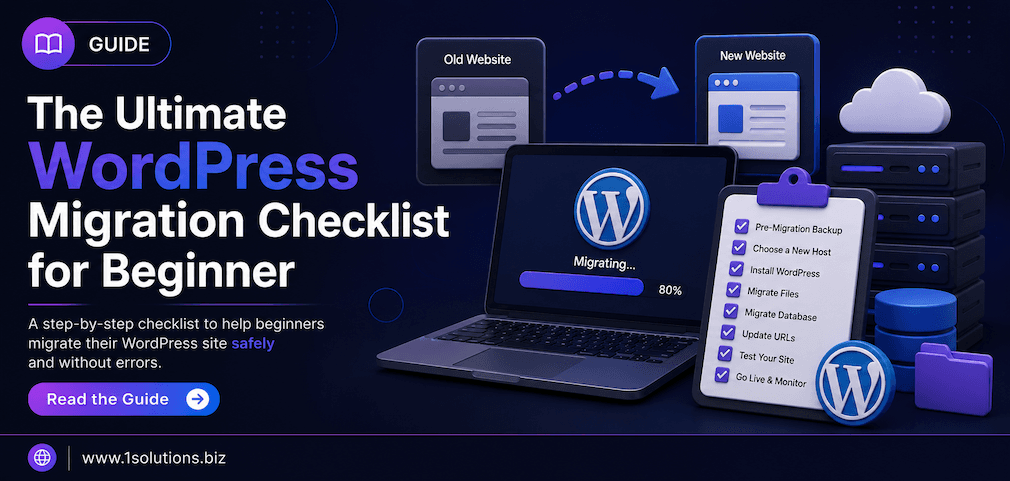
Moving a WordPress site sounds simple until something goes wrong. A missed redirect, a broken database connection, or a lost media file can derail weeks of work and quietly tank your search rankings. This WordPress Migration Checklist for Beginners breaks the entire process into 10 clear, actionable steps so you can move your site with confidence, whether you are switching hosts, changing domains, or both at the same time.
Migrating a WordPress site involves far more than copying files. You need to back up everything, preserve your SEO signals, test thoroughly before going live, and monitor performance after launch. Follow all 10 steps in this checklist to avoid the most common beginner mistakes.
⚡ Key Takeaways
- Always create a full backup before touching anything on your live site.
- 301 redirects are non-negotiable if you are changing your domain or URL structure.
- Test every critical function on a staging environment before going live.
- Crawl errors and broken links after migration can cause lasting SEO damage.
- Update your Google Search Console property immediately after a domain migration.
- WordPress database tables, especially the
siteurlandhomeoptions, must be updated to the new URL. - Performance monitoring for at least 30 days post-migration is essential, not optional.
Why a Structured Migration Plan Matters
According to W3Techs (2024), WordPress powers 43.5% of all websites on the internet. With that level of adoption, migrations happen constantly, yet they remain one of the leading causes of unexpected downtime and SEO ranking drops. A structured checklist removes guesswork and gives you a repeatable process you can trust. The 10 steps below are ordered sequentially, so work through them in the exact order they appear.
The 10-Step WordPress Migration Checklist for Beginners
1. Audit Your Current Site Before You Move Anything
Before you copy a single file, spend time understanding exactly what your current site contains. Open a spreadsheet and document your hosting environment, PHP version, active plugins, theme name and version, WordPress core version, and the total size of your wp-content folder. Use a free plugin like WP Health Check or the built-in Site Health tool under Tools > Site Health to flag any compatibility issues in advance.
Also crawl your existing site using a tool such as Screaming Frog or Sitebulb. Export a full list of all URLs, their HTTP status codes, meta titles, meta descriptions, and any existing canonical tags. This crawl report becomes your baseline. After migration, you will run the same crawl on the new environment and compare the two exports side by side to catch anything that broke.
Do not skip the audit step just because your site feels small. Even a 20-page brochure site can hide broken links, deprecated plugins, or missing alt text that will complicate the migration. Document everything now and save yourself hours of debugging later. If you are unsure how to interpret your content audit results, our guide on how to boost your SEO efforts with page content analysis walks through exactly what to look for.
2. Choose the Right Migration Method for Your Skill Level
There are three primary ways to migrate a WordPress site: using a dedicated migration plugin, using cPanel or FTP manually, or using a managed migration service provided by your new host. Each method has genuine trade-offs worth understanding before you commit.
| Method | Best For | Skill Level | Cost | Risk Level |
|---|---|---|---|---|
| Migration Plugin (e.g., Duplicator, All-in-One WP Migration) | Most beginners | Low | Free or low-cost | Low to Medium |
| Manual via FTP and phpMyAdmin | Developers or complex setups | High | Free | Medium to High |
| Host-managed migration | Non-technical users | Very Low | Often free with new hosting plan | Low |
If you are migrating an ecommerce store built on WooCommerce, the stakes are higher because order data, customer records, and payment configurations must transfer cleanly. Our comparison of WooCommerce vs Shopify can also help you decide whether migration to a different platform altogether might serve your business better at this stage.
3. Create a Complete Backup of Files and Database
This step is not optional, and it cannot be done halfway. A complete WordPress backup has two components: the file system (which includes your themes, plugins, uploads, and core files) and the database (which stores every post, page, comment, setting, and user record). Missing either component means your backup is incomplete.
Use a plugin like UpdraftPlus, BackWPup, or Jetpack Backup to create a full backup and download it to your local machine. Do not rely solely on storing the backup on the same server you are migrating away from. According to Backblaze (2023), nearly 30% of users who lose data had a backup that was either incomplete or stored only in one location. Store your backup in at least two places: local storage and a cloud service like Google Drive or Dropbox.
Note the exact date and time of your backup. If your site is actively receiving orders or form submissions, consider putting it into maintenance mode briefly before running the final backup so no new data is created between your last backup and the migration cutover.
💡 Pro Tip: Run a test restore of your backup on a local server or staging environment before starting the migration. A backup you have never tested is a backup you cannot trust.
4. Set Up Your New Hosting Environment Properly
Your new hosting environment must be configured to match or exceed the technical requirements of your current site. Check that the new host runs a compatible PHP version (WordPress officially recommends PHP 8.0 or higher as of 2024), supports your required MySQL or MariaDB version, and provides adequate storage for your site’s file size plus room to grow.
Create a new database on the destination server before transferring anything. Note the database name, username, password, and host address, because you will need these details when updating your wp-config.php file. If your new host uses cPanel, use the MySQL Database Wizard to set this up in a few clicks.
Also confirm that your new host supports any server-level requirements your site depends on, such as mod_rewrite for clean permalinks, specific PHP extensions for WooCommerce, or object caching if you use a Redis or Memcached setup. Getting the environment right before you transfer files prevents a category of errors that are difficult to diagnose after the fact. Working with a professional WordPress development company can save significant time here if your setup is complex.
5. Transfer Your WordPress Files to the New Server
With your backup in hand and the new environment configured, it is time to move the files. If you are using a migration plugin, this step happens semi-automatically through the plugin’s installer script. If you are doing it manually, connect to your old server via FTP or SFTP, download your entire WordPress root directory, and then upload it to the new server’s public root folder (usually named public_html or www).
Large sites can take a long time to transfer via FTP, sometimes several hours. A faster alternative is to compress your WordPress folder into a ZIP file on the old server using SSH or the file manager in cPanel, download the single ZIP file, upload it to the new server, and then extract it there. This dramatically reduces transfer time for sites with thousands of media files.
After the transfer, do a quick file count comparison between old and new servers to confirm nothing was skipped. Pay special attention to the wp-content/uploads directory, which is where all your images and media live. Missing media files are one of the most common post-migration complaints from beginners, and they are easy to overlook during an otherwise smooth transfer.
6. Import and Update Your WordPress Database
The database is the brain of your WordPress site. It contains every piece of content, every setting, every user account, and every plugin configuration. Exporting it from the old server and importing it into the new one is straightforward using phpMyAdmin, but the step that trips up most beginners comes right after the import: updating the stored URLs.
WordPress stores your site URL in multiple places inside the database, including the siteurl and home rows in the wp_options table, and potentially serialized throughout post content and plugin settings. If you are migrating to a new domain, every instance of the old URL needs to be replaced with the new one. Use a tool like Better Search Replace or WP-CLI’s search-replace command to handle this correctly, because a simple find-and-replace on a SQL file can corrupt serialized data.
After the search-replace, open your wp-config.php file on the new server and update the database credentials (DB_NAME, DB_USER, DB_PASSWORD, DB_HOST) to match your new database. Then load your site to confirm it resolves correctly before moving on.
💡 Pro Tip: Never run search-replace directly on your live production database without first testing on a copy. One malformed serialized string can break your entire admin dashboard.
7. Implement 301 Redirects for Any Changed URLs
If your migration involves a domain change or a URL structure change, 301 redirects are the single most important SEO step in the entire process. A 301 redirect tells search engines that a page has permanently moved to a new location, and it passes the majority of the original page’s link equity to the new URL.
According to Ahrefs (2023), pages that fail to implement proper 301 redirects after a domain migration lose an average of 15 to 25 percent of their organic traffic within the first 30 days. That traffic does not always come back quickly. Set up redirects using your .htaccess file (for Apache servers) or your nginx.conf file (for Nginx servers). Alternatively, use a plugin like Redirection or Rank Math’s built-in redirect manager.
Map every old URL to its new equivalent using the crawl report you created in Step 1. Prioritize your highest-traffic pages first, then work down the list. Do not use a blanket root redirect as a substitute for page-level redirects. Search engines can tell the difference, and your users deserve to land on the correct page, not always the homepage. If your site has accumulated penalty-related issues in the past, our Google penalty recovery services can help you assess and address any pre-existing ranking problems before they compound post-migration.
8. Test Everything on a Staging Environment Before Going Live
Never migrate directly from old host to live new host without a staging test in between. A staging environment is a private, password-protected copy of your site where you can verify that everything works correctly before real visitors arrive. Most modern managed WordPress hosts offer one-click staging environments. If yours does not, you can set one up manually using a subdomain.
On staging, test every element you can think of: homepage load, internal navigation, contact forms, image display, video embeds, login and registration flows, checkout processes if you run an ecommerce store, and all major plugins. Also test on mobile because a layout that looks fine on desktop may break on smaller screens after a theme re-activation or plugin conflict on the new server.
Check your robots.txt file to make sure it is not blocking search engines (a common staging mistake that goes live by accident). Confirm that your XML sitemap is accessible at /sitemap.xml or wherever your SEO plugin generates it. If you are running a WooCommerce store, the WooCommerce store maintenance checklist is a helpful companion resource for verifying store-specific functions during this phase.
9. Update DNS Settings and Monitor Propagation
DNS propagation is the process by which your domain’s new server address spreads across the global network of DNS servers. When you update your nameservers or A records to point to the new host, it can take anywhere from a few minutes to 48 hours for all visitors worldwide to reach the new server. During this window, some users will see the old site and some will see the new one.
To minimize confusion and risk, lower your DNS TTL (Time to Live) to 300 seconds (5 minutes) at least 24 to 48 hours before you make the switch. This means DNS caches refresh more frequently and propagation happens faster once you flip the switch. After you update your DNS records, use a tool like WhatsMyDNS or DNSChecker to monitor propagation progress across different regions.
Keep your old hosting account active for at least 72 hours after the DNS change. This ensures that any visitors still resolving to the old server still see a working site rather than an error page. Only cancel the old hosting plan once propagation is fully complete and you have confirmed the new site is functioning correctly for all users. This overlap period costs a small amount but protects against a very frustrating edge case.
💡 Warning: Do not delete your old hosting account or database the moment the migration looks complete. Wait a full week before canceling anything. Data recovery from a prematurely deleted server is expensive and sometimes impossible.
10. Post-Migration SEO and Performance Checks
The migration is live, but your work is not done. The post-migration phase is where many beginners relax too early, only to discover weeks later that their organic traffic has quietly dropped. Run a fresh site crawl immediately after go-live and compare it against the baseline crawl from Step 1. Look for new 404 errors, redirect chains, missing meta data, or pages that have accidentally been noindexed.
Log into Google Search Console and, if you performed a domain migration, use the Change of Address tool under Settings to notify Google officially. Submit your updated XML sitemap. Monitor the Coverage report over the following weeks to track indexing progress. According to Google’s own documentation (2024), domain migrations can take 6 to 12 weeks for full ranking stabilization, so set realistic expectations.
Run a page speed test using Google PageSpeed Insights or GTmetrix on your new server. Hosting environments differ in performance, and your new host may require caching configuration, image optimization, or CDN setup to match the speed you had before. Page speed is a confirmed Google ranking factor, so any regression here will affect your search performance. For ongoing visibility management, our professional SEO services team can monitor your post-migration rankings and resolve any drops before they become long-term losses. Also review our guide on why Google might not be indexing your pages if you notice crawl or indexing issues in the weeks following your migration.
Practical Action Plan: What to Prioritize
- Do This Now: Create a complete site backup and download it locally. Run your pre-migration crawl and save the export. Lower your DNS TTL before the cutover date. These three actions prevent the most common and most painful migration disasters.
- Worth Doing: Set up a staging environment and test your full migration there before touching live DNS. Map and implement 301 redirects for all changed URLs. Submit your updated sitemap to Google Search Console on go-live day. Configure caching and a CDN on the new host before launch.
- Low Priority: Redesigning pages or updating content during the migration window. Installing new plugins on the new host before the migration is fully stable. Changing your permalink structure at the same time as changing your host. Each of these adds variables that make troubleshooting harder if something goes wrong.
Frequently Asked Questions
How long does a WordPress migration take for a beginner?
A simple site migration using a plugin typically takes 2 to 4 hours for a beginner, not including DNS propagation time. Larger or more complex sites with custom code, many plugins, or ecommerce functionality can take a full day or more. Buffer extra time for testing on staging.
Will my Google rankings drop after migration?
Some temporary fluctuation is normal, especially for domain migrations. With proper 301 redirects, correct Search Console configuration, and a maintained sitemap, most sites recover to pre-migration ranking levels within 6 to 12 weeks. Sites that skip redirects or break their crawl structure can see lasting damage.
Do I need a developer to migrate WordPress?
Not always. Migration plugins handle most of the technical complexity for straightforward host-to-host migrations without a domain change. However, if you are changing domains, restructuring URLs, or migrating a large ecommerce store, professional help is worth the investment. A WordPress development company can complete migrations with lower risk and faster turnaround.
What is the biggest mistake beginners make during WordPress migration?
Not updating the serialized URLs in the database is the most technically damaging mistake. But the most common overall mistake is skipping the staging test and migrating directly to the live environment. The second most common is canceling the old hosting account before confirming the migration is fully stable.
How do I know if my migration was successful?
Run a fresh crawl and compare it to your pre-migration baseline. Confirm that Google Search Console shows no spike in 404 errors or coverage issues. Check that your page speed scores are comparable to before. Monitor your organic traffic in Google Analytics for at least 30 days. If traffic, rankings, and crawl health are stable, the migration was a success.