Running a WooCommerce store is not a set-it-and-forget-it operation. Plugins break, databases bloat, security vulnerabilities surface, and search rankings slip the moment you stop paying attention. Whether your store processes ten orders a week or ten thousand, a structured maintenance routine is what separates stores that grow from stores that quietly die.
This guide walks you through every critical maintenance task, organized by frequency and priority, so you always know what to do next and why it matters.
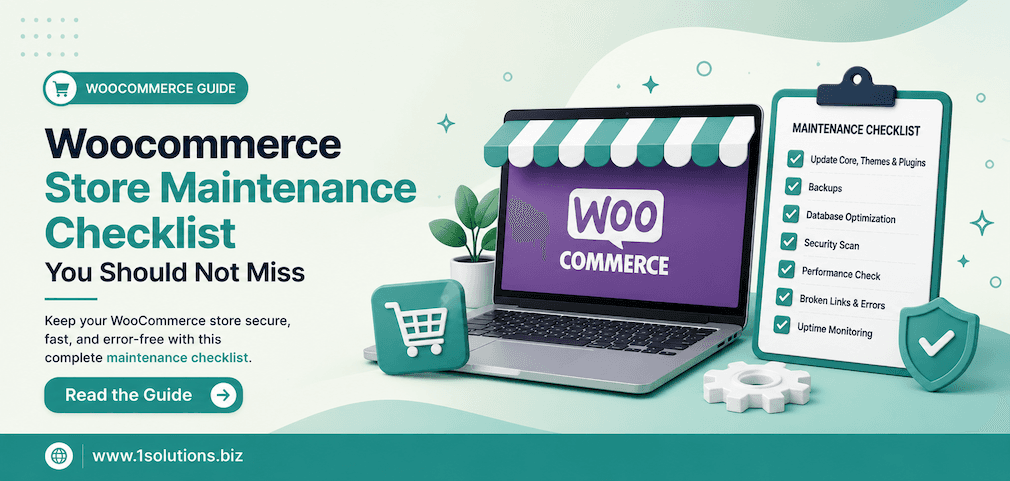
A well-maintained WooCommerce store requires regular attention to security, performance, database health, SEO, and inventory accuracy. This checklist breaks every task into daily, weekly, monthly, and quarterly actions so nothing falls through the cracks. Skipping maintenance is one of the fastest ways to lose revenue, rankings, and customer trust.
⚡ Key Takeaways
- Always back up your WooCommerce store before any update, not after a problem occurs.
- Database optimization alone can improve page load speed by 20-30% on older stores.
- Security scans should run at minimum once per week, not just when something feels wrong.
- Broken links and 404 errors directly hurt your store’s SEO rankings and conversion rate.
- Product pages need periodic content audits to stay competitive in search results.
- Payment gateway testing is often skipped and is one of the most costly oversights.
- Structured maintenance documentation helps teams stay consistent and reduces human error.
Why WooCommerce Store Maintenance Cannot Be Optional
Many store owners treat maintenance as something to do when a problem is already visible. That approach is expensive. According to Sucuri’s 2023 Website Threat Research Report, over 95% of infected websites were running outdated software at the time of compromise. For a WooCommerce store that handles payment information and customer data, a single breach can mean legal liability, lost revenue, and permanent reputation damage.
Performance is equally unforgiving. Google’s Core Web Vitals research (2023) shows that a one-second delay in page load time can reduce conversions by up to 7%. On an e-commerce site, that number compounds quickly across thousands of sessions.
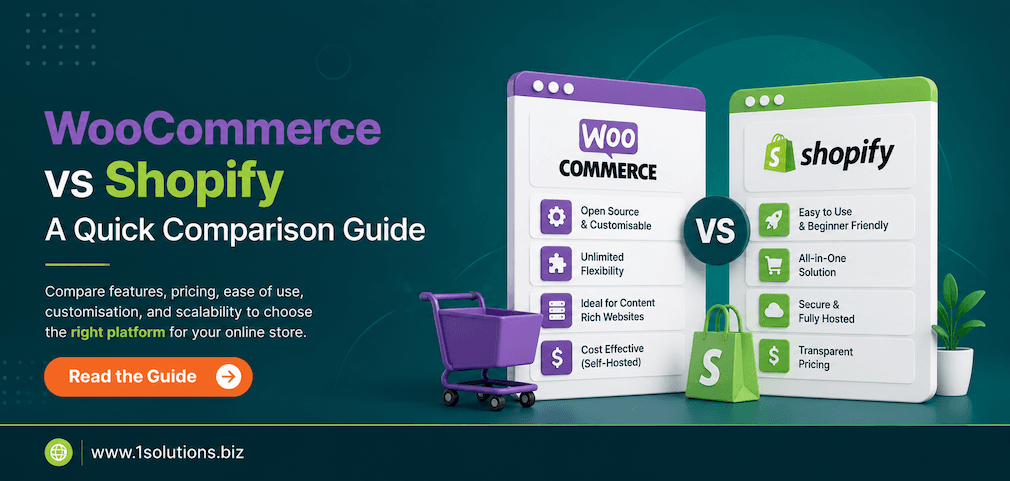
If you are still comparing platforms, our WooCommerce vs Shopify comparison guide outlines the key differences that affect your long-term maintenance commitment.
Step 1: Daily Checks That Take Less Than 15 Minutes
Daily tasks do not need to be exhaustive. They need to be consistent. Build these into a quick morning routine.
Order and Inventory Review
Check for failed, pending, or stuck orders every morning. WooCommerce’s order management panel makes this straightforward. Flag any orders in a “pending payment” state for longer than your gateway’s standard processing window. Simultaneously, scan for products that have dropped to zero stock and set accurate back-in-stock timelines or temporarily hide the listing.
Uptime and Error Monitoring
Use a free or paid uptime monitor such as UptimeRobot or Better Uptime. If your store went down overnight, you need to know before customers report it. Also review your hosting error logs or connect a tool like Sentry to catch PHP fatal errors that may not crash the frontend but break specific checkout flows.
Spam and Fake Account Review
WooCommerce stores attract bot registrations. Check new user accounts flagged by your anti-spam plugin and delete obvious fake accounts before they attempt fraudulent orders.
💡 Pro Tip: Set up email alerts for order status changes, new user registrations, and plugin update availability. Reducing the time you spend actively checking dashboards frees you to focus on growth tasks.
Step 2: Weekly WooCommerce Store Maintenance Tasks
Update Plugins, Themes, and WordPress Core
This is the single most impactful weekly task. Outdated plugins are the leading attack vector for WordPress sites. Before updating, always create a full backup. Use a staging environment if your hosting plan includes one. Update plugins one at a time rather than all at once, so if something breaks you can isolate the cause.
Security Scan
Run a malware scan using Wordfence, Sucuri, or MalCare. Review the firewall log for unusual login attempts or blocked IPs. If you see hundreds of failed logins from a single IP range, add those to your block list and consider enabling CAPTCHA on the login and checkout pages.
Broken Link Audit
Broken internal links damage both user experience and SEO. Use a plugin like Broken Link Checker or a crawl tool like Screaming Frog to identify 404 errors within your product catalog, blog posts, and navigation menus. Fix or redirect them immediately. For broader SEO insights, our guide on why Google may not be indexing your pages covers related technical issues worth addressing together.
Backup Verification
Having a backup is not the same as having a working backup. Weekly, confirm that your automated backup actually completed and that the file is stored in a remote location separate from your server. Restore a small test file if possible. Many store owners discover their backups were silently failing only after a disaster.
Step 3: Monthly Maintenance for Your WooCommerce Store
Database Optimization
WooCommerce stores accumulate database bloat rapidly. Post revisions, expired transients, orphaned order metadata, and log tables grow without limit unless you clean them. Use WP-Optimize or Advanced Database Cleaner to remove this waste. A lean database directly translates to faster query response times and lower server load.
Performance and Speed Audit
Run your store through Google PageSpeed Insights, GTmetrix, or WebPageTest. Note your Core Web Vitals scores for Largest Contentful Paint, Cumulative Layout Shift, and Interaction to Next Paint. Compare month over month. If scores are declining, identify which new plugin or image was added that month as the likely cause.
Payment Gateway Testing
This one is consistently overlooked. Place a test order using your payment gateway’s sandbox or test mode at least once a month. Confirm that the full checkout flow works: add to cart, apply coupon, enter shipping, pay, receive confirmation email. Payment gateway APIs update silently and can break your checkout without any visible error on the frontend.
Product Page Content Review
Review at least 10-15 product pages each month for accuracy, image quality, and SEO optimization. Check that meta titles and descriptions are populated, that alt text exists on all images, and that product descriptions are unique rather than copied from supplier feeds. Our resource on boosting SEO through page content analysis provides a structured framework for this review.
💡 Pro Tip: Use Google Search Console’s Performance report to identify product pages losing impressions month over month. These are your highest-priority content fix targets.
Review and Respond to Customer Feedback
Check product reviews, support tickets, and any third-party review platforms monthly. Unanswered negative reviews compound over time and affect conversion rates on the product pages where they appear. According to BrightLocal’s 2024 Consumer Review Survey, 88% of consumers say they would use a business that responds to all reviews, compared to 47% who would use a business that does not respond to reviews at all.
Step 4: Quarterly Deep Maintenance Tasks
Full Security Audit
Go beyond weekly scans. Quarterly, audit user roles and permissions. Remove accounts for employees who no longer work with you. Review which plugins have admin-level access and whether that access is still necessary. Change security keys and salts in your wp-config.php file. Verify your SSL certificate expiry date and auto-renewal status.
SEO Health Check
Conduct a crawl of your entire WooCommerce store using Screaming Frog or Sitebulb. Look for duplicate content across product variations, missing canonical tags, thin pages below 300 words, and orphaned pages with no internal links. Cross-reference with Google Search Console for manual actions or coverage errors.
If your store’s organic traffic has been declining, professional ecommerce SEO packages can provide an outside audit with actionable remediation steps. Sometimes a fresh set of expert eyes catches what internal reviews miss.
Hosting and Infrastructure Review
Review your server resource usage over the past quarter. If CPU or memory usage is consistently above 80% of your plan’s limit, it is time to upgrade before performance degrades under normal traffic. Also review your CDN configuration, caching layer, and PHP version. WooCommerce recommends running PHP 8.1 or higher for optimal performance and security.
Analytics and Conversion Rate Audit
Look at your Google Analytics or GA4 data for the past quarter. Which product categories have the highest abandonment rate? Where do users exit the checkout funnel? Use heatmap tools like Hotjar or Microsoft Clarity to observe real session recordings and identify friction points that data alone does not explain.
WooCommerce Maintenance Task Frequency Summary
| Task | Frequency | Priority | Estimated Time |
|---|---|---|---|
| Order and inventory review | Daily | High | 5-10 minutes |
| Uptime and error monitoring | Daily (automated) | High | 2-3 minutes review |
| Plugin and core updates | Weekly | High | 20-30 minutes |
| Security malware scan | Weekly | High | 10 minutes |
| Broken link audit | Weekly | Medium | 15 minutes |
| Backup verification | Weekly | High | 10 minutes |
| Database optimization | Monthly | Medium | 20 minutes |
| Performance audit | Monthly | Medium | 30 minutes |
| Payment gateway testing | Monthly | High | 15 minutes |
| Full security audit | Quarterly | High | 60-90 minutes |
| Full SEO crawl and audit | Quarterly | Medium | 2-3 hours |
| Conversion rate analysis | Quarterly | Medium | 1-2 hours |
WooCommerce Store SEO Maintenance: What Most Owners Ignore
Technical SEO maintenance for a WooCommerce store goes beyond meta tags. Several structural issues commonly appear during audits that have a direct impact on organic visibility.
Canonical Tags on Product Variations
WooCommerce creates separate URLs for product variations (color, size, etc.) by default. Without canonical tags pointing variation URLs back to the parent product, Google may interpret these as duplicate content and split ranking signals across multiple pages instead of concentrating them on one.
Schema Markup Validation
Product schema including price, availability, and review count helps your listings appear as rich results in Google Search. Validate your schema using Google’s Rich Results Test at least quarterly. WooCommerce plugins like Rank Math or Yoast SEO generate this schema automatically, but they can break after major plugin or theme updates.
Internal Linking Between Products and Content
Many WooCommerce stores treat their blog and their product catalog as separate silos. Internal links from informational content to relevant product pages pass authority and help Google understand your site structure. Our resource on using internal links to boost backlink impact covers this strategy in detail.
If your store also uses Google Shopping, integrating that channel with a strong organic SEO foundation multiplies your visibility. Our guide on increasing sales with Google Shopping ads is a practical companion resource.
💡 Pro Tip: When your WooCommerce store’s SEO maintenance needs outgrow what you can manage in-house, working with an experienced WordPress development company ensures your technical foundation stays solid while you focus on running your business.
Managing WooCommerce Store Security Without Overwhelm
Security hardening does not require a dedicated IT team. Most of the highest-impact steps are configuration changes, not custom code.
- Change the default login URL: Moving /wp-admin to a custom path eliminates the majority of automated brute-force attempts.
- Enable two-factor authentication: Apply this to all admin and editor accounts, not just your own.
- Limit login attempts: Use a plugin to lock out IPs after a configurable number of failed login tries.
- Disable XML-RPC if unused: This endpoint is a common attack vector and is rarely needed for modern WooCommerce stores.
- Use application passwords for API integrations: Never use your primary admin account credentials in API connections.
- Restrict file editing: Add DISALLOW_FILE_EDIT to wp-config.php to prevent attackers from editing theme and plugin files through the dashboard even if they gain access.
Practical Action Section: Where to Start Today
Do This Now
- Verify your backups are working: Log into your backup plugin and confirm the last successful backup timestamp and remote storage location. If backups are failing, fix this before anything else.
- Run a security scan: Install Wordfence or MalCare if you do not have one active, and run an immediate scan. A clean bill of health now prevents emergencies later.
- Test your checkout: Place a test order right now. Confirm the full payment and confirmation email flow works correctly.
Worth Doing This Week
- Update all plugins and WordPress core: Back up first, then update on a staging site if available, then push to production.
- Set up uptime monitoring: UptimeRobot’s free tier monitors one URL every 5 minutes and sends email alerts. Takes 5 minutes to configure.
- Audit user accounts: Remove accounts for anyone who no longer needs access. Apply two-factor authentication to remaining admin accounts.
Low Priority (But Schedule It)
- Full SEO crawl: This takes time and the right tools. Schedule a two-hour block in the next 30 days to run a full crawl and document issues.
- Conversion rate analysis: Pull your GA4 checkout funnel data and identify your top drop-off point. Even a 1% improvement in checkout completion can meaningfully increase monthly revenue.
- Quarterly infrastructure review: Check your PHP version, hosting resource usage, and CDN configuration. Schedule this as a recurring calendar event.
If you want expert support to handle WooCommerce maintenance alongside your growth strategy, our ecommerce marketing services combine technical maintenance oversight with performance-driven marketing to maximize the return on every improvement you make.
Frequently Asked Questions About WooCommerce Store Maintenance
How often should I back up my WooCommerce store?
For most stores, daily automated backups stored in a remote location are the minimum acceptable standard. High-volume stores processing hundreds of orders daily should consider real-time or hourly backups. The key is verifying weekly that the backups are actually completing and are restorable.
Do I need a staging environment for my WooCommerce store?
Technically no, but practically yes for any store generating meaningful revenue. Testing plugin updates and site changes on a staging site before applying them to production eliminates the risk of breaking your live store during business hours. Most managed WordPress hosts include staging environments at no extra cost.
How do I know if my WooCommerce store has been hacked?
Common signs include sudden drops in Google rankings, Google Search Console warnings about malware or hacking, unfamiliar admin accounts, strange redirects on specific pages, and customer reports of being redirected to suspicious sites. Run an immediate malware scan if any of these appear and contact your host’s security team.
Can maintenance tasks hurt my WooCommerce store’s performance temporarily?
Yes. Database optimization and cache clearing can cause a temporary slowdown as the cache rebuilds. Plugin updates occasionally introduce conflicts that affect site speed or functionality. This is why scheduling maintenance during low-traffic hours and testing on staging first is important. The long-term performance gains far outweigh short-term disruptions when done correctly.
How much does professional WooCommerce maintenance cost?
Costs vary widely depending on store complexity and the scope of services included. Basic managed maintenance plans covering updates, backups, and security scans typically range from a few hundred dollars per month. Comprehensive plans that include SEO monitoring, performance optimization, and on-call support cost more. The real calculation is comparing that cost against the revenue risk of an unplanned outage or security breach, both of which typically cost far more than preventive maintenance.
Conclusion
Maintaining a WooCommerce store is an ongoing process, not a one-time project. The stores that consistently outperform their competitors are rarely the ones with the most features. They are the ones that load fast, stay secure, rank well in search, and process orders without friction. Every task in this checklist contributes directly to one of those outcomes.
Start with the “Do This Now” items from the practical action section. Build the weekly and monthly tasks into your team’s workflow. And if you find that maintenance is consuming time better spent on growth, consider partnering with specialists who can carry that load. The goal of maintenance is not just survival. It is creating the stable foundation your store needs to grow.