Why Image Compression Tools to Reduce File Size Actually Matter for Your Website
If your website loads slowly, visitors leave fast. Images are almost always the biggest culprit behind bloated page sizes, and most site owners never address them. Using the right image compression tools to reduce file size can shave seconds off your load time, improve Core Web Vitals scores, and directly help your search rankings. According to Google (2023), pages that load within two seconds have a significantly lower bounce rate compared to those taking five or more seconds. The good news is that you do not need to spend a single dollar to fix this problem today.
This guide covers ten of the best free tools available, what makes each one worth using, and where each one falls short. Whether you run a personal blog, an ecommerce store, or a corporate site, at least three of these will fit your workflow perfectly.
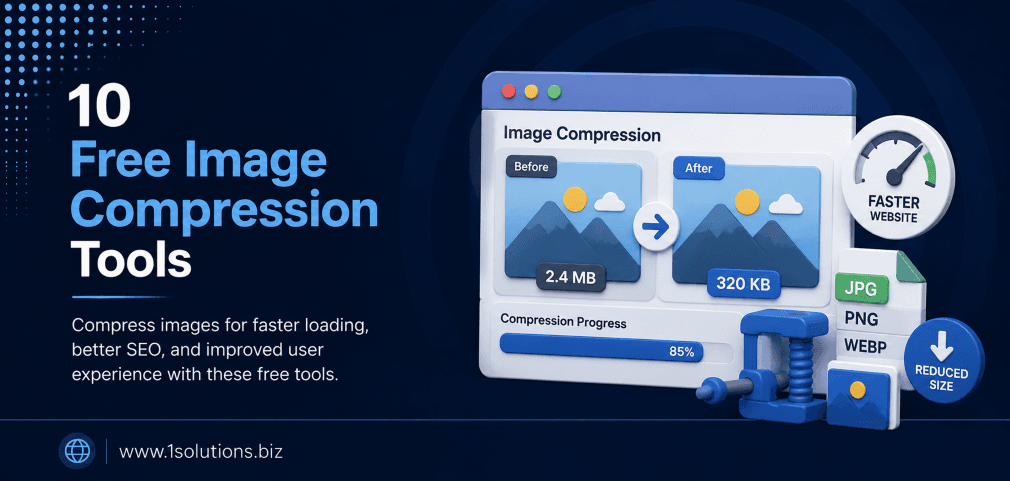
Slow-loading images hurt both user experience and SEO rankings. These 10 free image compression tools let you reduce file sizes dramatically without visibly degrading quality. Each tool has unique strengths, so the best choice depends on your format needs, workflow, and technical comfort level.
⚡ Key Takeaways
- Unoptimized images are among the top causes of slow page load times, directly hurting SEO.
- Lossy compression reduces file size more aggressively; lossless compression preserves every pixel but saves less space.
- TinyPNG and Squoosh are the most beginner-friendly free tools available right now.
- WebP format typically delivers 25-34% smaller files than JPEG at equivalent quality (Google, 2023).
- Bulk compression tools save significant time for ecommerce sites with large image libraries.
- Always keep original files backed up before compressing, since some processes are irreversible.
- Pairing image optimization with solid on-page SEO practices delivers the strongest ranking results.
How Image Size Affects SEO and Page Performance
Before jumping into the tools, it helps to understand why this matters beyond aesthetics. HTTP Archive (2024) reports that images account for approximately 45% of the average web page’s total weight. That is nearly half your page size sitting in a format that most visitors never consciously notice unless something looks broken or loads painfully slowly.
Google’s Core Web Vitals framework specifically measures Largest Contentful Paint (LCP), which is heavily influenced by how fast your hero images load. A poor LCP score pushes your rankings down, regardless of how good your content is. If you are working to boost your SEO efforts with better page content analysis, image optimization should be part of that audit every time.
For ecommerce sites in particular, the stakes are higher. A one-second delay in page load time can reduce conversions by up to 7% (Akamai, 2022). That figure adds up fast when multiplied across thousands of product pages, each carrying multiple images.
The 10 Best Free Image Compression Tools to Reduce File Size
1. TinyPNG and TinyJPG
TinyPNG is arguably the most well-known free image compression tool available, and for good reason. It uses smart lossy compression techniques to reduce the file size of PNG and JPEG images by selectively decreasing the number of colors in the image. The visual difference is almost always imperceptible to the human eye, yet the file size savings are substantial, often between 60% and 80% for PNGs.
The free version allows you to compress up to 20 images per month, with each file capped at 5MB. This is enough for most bloggers and small site owners handling updates in batches. The drag-and-drop interface is clean and takes no learning curve at all. You upload, it compresses, you download.
One trade-off worth knowing: TinyPNG does not support WebP output natively in the free tier. If WebP conversion is important to your workflow, you will need a different tool or a paid upgrade. That said, for anyone starting their image optimization journey, TinyPNG remains the easiest entry point available.
💡 Pro Tip: Run your compressed TinyPNG files through Google PageSpeed Insights immediately after uploading them to your site. This confirms that the compression actually moved the needle on your LCP score before you scale the process across your full image library.
2. Squoosh by Google
Squoosh is a free, browser-based compression tool built by the Google Chrome team. It stands out because it gives you genuine control over the compression process, letting you choose between multiple codecs including MozJPEG, WebP, AVIF, and OxiPNG. You can drag a slider to compare the original and compressed versions side by side in real time before downloading anything.
This level of transparency is rare in free tools. You can see exactly how much quality you are trading for file size savings before committing. AVIF compression through Squoosh can reduce image sizes by up to 50% compared to standard JPEG at the same visual quality, making it one of the most powerful options for modern browsers.
The downside is that Squoosh processes one image at a time in its web interface. If you need to handle dozens or hundreds of images, this becomes slow and frustrating. A command-line version exists for developers who want batch processing, but that requires technical comfort that many users do not have. For single images or testing compression settings, Squoosh is genuinely excellent.
3. Compressor.io
Compressor.io supports JPEG, PNG, GIF, SVG, and WebP formats, which gives it broader format coverage than many free alternatives. It offers both lossy and lossless compression modes, so you can choose based on whether your priority is maximum savings or preserving every detail. The free version handles files up to 10MB, which covers most use cases outside of RAW photography.
The interface is minimal and fast. You drag your file in, select your compression mode, and get a download link almost instantly. The tool shows you a clear before-and-after file size comparison so you always know what you are getting. SVG support is particularly useful for logos and icon sets that many other free tools ignore entirely.
One limitation: Compressor.io does not offer bulk uploads in the free tier. Processing images one at a time is workable for occasional use but becomes tedious for larger projects. If you manage an ecommerce store and want to know more about scaling your visual content strategy, reviewing a solid WooCommerce store maintenance checklist will help you see where image optimization fits into the bigger picture.
4. ImageOptim (Mac)
ImageOptim is a free desktop application for macOS that runs multiple compression algorithms on your images simultaneously. Under the hood, it combines tools like MozJPEG, PNGCrush, Gifsicle, and SVGO to find the best possible compression for each file format. The result is often better compression than you would get from any single online tool.
Because it is a native desktop app, ImageOptim works offline and can process large batches of images quickly. You simply drag a folder of images onto the app window and let it run. It overwrites the originals by default, which is why keeping backups before running it is critical. This is not a tool to run carelessly on your only copy of important files.
The trade-off is platform exclusivity. ImageOptim only runs on macOS. Windows users are completely left out, which is a significant limitation given that Windows remains the dominant desktop operating system. If you are on a Mac and handle images regularly, though, this is one of the most powerful free options available without any file upload limits or subscriptions.
5. FileOptimizer (Windows)
FileOptimizer fills the gap that ImageOptim leaves for Windows users. It is a free, open-source desktop tool that optimizes not just images but also PDFs, Office documents, and various other file types. For images specifically, it supports JPEG, PNG, GIF, BMP, TIFF, and SVG formats and uses lossless compression by default.
The batch processing capability is strong. You can drag an entire folder of images into FileOptimizer and it will queue them all for processing. It shows progress for each file, including the original size, compressed size, and percentage saved. For developers and site administrators managing large asset libraries on Windows, this is a practical workaround for not having access to ImageOptim.
The interface looks dated, and the tool has not seen major updates as frequently as cloud-based alternatives. Some users also report that the lossless compression ratios are more conservative than tools like TinyPNG. If you want maximum size reduction and can accept minor quality trade-offs, you may want to pair FileOptimizer with another tool in your workflow.
💡 Pro Tip: For WordPress sites, combine FileOptimizer or ImageOptim with a caching plugin and a CDN. Compression reduces file size at the source, but a CDN ensures those lighter files are served from a location close to each visitor. Both steps together deliver a noticeably faster experience than either one alone.
6. Optimizilla
Optimizilla is a web-based tool that lets you compress up to 20 JPEG and PNG images simultaneously for free. What separates it from simpler tools is the quality slider it provides for each individual image after upload. You can preview the compressed result at different quality levels and fine-tune the balance between file size and visual fidelity before downloading.
This per-image control is useful when you have a mix of content: a product photo where sharpness is critical next to a background texture where minor softness is acceptable. You can apply aggressive compression to the texture and lighter compression to the product photo all in the same batch.
The free tier covers most casual use cases without requiring an account. However, file size is capped at 20MB per image, and the tool only handles JPEG and PNG. If your workflow involves WebP or AVIF files, you will need something else. For straightforward bulk compression of standard image formats, Optimizilla strikes a practical balance between ease of use and meaningful control.
7. Photopea
Photopea is a free, browser-based image editor that functions like a lightweight version of Photoshop. While it is primarily an editing tool rather than a dedicated compression utility, its export options give you precise control over output quality and file format. You can open any image, make edits if needed, and then export it as JPEG, PNG, WebP, or several other formats with a specific quality percentage.
This makes Photopea especially useful when compression is part of a broader editing workflow. If you need to resize, crop, or adjust an image before compressing it, doing everything in Photopea avoids the friction of jumping between multiple tools. The WebP export option is particularly valuable since not all free tools support it.
The limitation is that Photopea is not designed for batch processing. Each image must be opened, adjusted, and exported individually, which makes it inefficient for large volumes. Think of it as the right tool for careful, deliberate work on important individual images rather than a bulk compression solution. If you want your images to rank better in search, pairing this with strong photography SEO strategies can significantly improve your visibility.
8. RIOT (Radical Image Optimization Tool)
RIOT is a free Windows desktop application designed specifically for web image optimization. It provides a dual-panel view showing the original image alongside a live preview of the compressed version as you adjust settings. You can switch between JPEG, PNG, and GIF output formats and control parameters like quality level, color depth, and metadata stripping.
Stripping metadata is an often-overlooked part of image optimization. Camera EXIF data, GPS coordinates, and color profile information can add kilobytes to every image without benefiting anyone viewing the page. RIOT removes this metadata by default, which contributes meaningfully to file size reductions on top of the compression itself.
RIOT also integrates with IrfanView, a popular free image viewer, which extends its batch processing capabilities. Without that integration, batch processing in RIOT itself requires navigating a somewhat clunky interface that reflects its age as a project. It is not the most modern-looking tool on this list, but its technical capabilities remain solid and its focus on web output makes it genuinely useful for front-end developers and web designers.
9. ShortPixel Free Online Converter
ShortPixel is better known as a paid WordPress plugin, but its free online image compressor handles up to 10 images per batch and offers both lossy and lossless compression alongside WebP and AVIF conversion. This combination of format options in a free tool is genuinely rare and makes ShortPixel’s online tool worth knowing about even if you never buy the plugin.
The AVIF output option is particularly forward-looking. AVIF is currently the most efficient image format available for web use, offering better compression than WebP in most cases. Browser support for AVIF has grown steadily and now covers the majority of modern browsers. Getting ahead of this shift now means your site will be faster as more visitors use AVIF-capable browsers.
The free tier limit of 10 images per batch is on the lower end compared to tools like Optimizilla. If you regularly handle larger batches, the friction of multiple uploads adds up. Still, for the format flexibility it provides, ShortPixel’s free tool earns a place in any serious optimization workflow. It is also worth noting that if you are choosing between ecommerce platforms and thinking about asset management, comparing WooCommerce vs Shopify for your specific needs is a useful exercise before committing to a platform-specific image optimization strategy.
10. iLoveIMG
iLoveIMG is a free, browser-based toolkit that goes beyond simple compression. It compresses JPEG, PNG, GIF, and WebP files and also offers resizing, cropping, format conversion, watermarking, and bulk editing in one interface. For site owners who want to handle multiple image-related tasks without switching tools, it is a practical all-in-one option.
The free tier allows batch uploads and processes files up to 100MB each, which is the most generous file size limit on this list. There is no account required for basic use. The compression results are solid but not always as aggressive as dedicated compression tools like TinyPNG for PNG files specifically. The value here comes from breadth rather than depth.
One thing to be aware of: iLoveIMG uploads your files to its servers for processing, which is true of most web-based tools. If you are compressing images that contain sensitive or proprietary content, a local desktop tool like ImageOptim or RIOT is a safer choice. For general web images with no confidentiality concerns, iLoveIMG is a convenient and capable free option that reduces unnecessary tool-switching.
Comparison: Which Tool Fits Your Workflow?
| Tool | Platform | Bulk Processing | WebP/AVIF Support | Best For |
|---|---|---|---|---|
| TinyPNG | Web | Up to 20 files | No (free tier) | Beginners, PNG/JPEG |
| Squoosh | Web | Single file | Yes (WebP, AVIF) | Format testing, quality control |
| Compressor.io | Web | Single file | Yes (WebP) | SVG compression |
| ImageOptim | Mac desktop | Yes (unlimited) | No | Mac users, large batches |
| FileOptimizer | Windows desktop | Yes (unlimited) | No | Windows users, multi-format |
| Optimizilla | Web | Up to 20 files | No | Per-image quality control |
| Photopea | Web | Single file | Yes (WebP) | Edit and compress together |
| RIOT | Windows desktop | Via IrfanView | No | Metadata stripping, developers |
| ShortPixel Online | Web | Up to 10 files | Yes (WebP, AVIF) | Modern format conversion |
| iLoveIMG | Web | Yes (batch) | Yes (WebP) | All-in-one image tasks |
How Image Compression Fits Into a Broader SEO Strategy
Compressing images is a technical SEO task, but it connects directly to content performance and conversion rates. Faster pages rank better, hold attention longer, and convert more visitors into customers. If you are building an SEO strategy and want to see the full picture of how technical factors interact with content and links, reading about AI SEO tools that help you outrank competitors is a useful next step.
For small businesses especially, every performance gain matters. You are competing against larger brands with bigger budgets, and a fast, well-optimized site levels that playing field. If you are building your visibility through local search, our guide on local AEO best practices for small businesses explains how technical performance factors into local search results specifically.
Image file names and alt text also carry SEO weight. Compression reduces file size, but descriptive alt text and keyword-relevant file names improve discoverability in image search. These are small tasks that compound over time across hundreds of pages. If you want professional help building a complete technical and content SEO system, our SEO services for small businesses are designed exactly for this kind of foundational work.
💡 Pro Tip: Do not stop at compression. Serve images in next-gen formats like WebP or AVIF, set explicit width and height attributes in your HTML to prevent layout shifts, and use lazy loading for images below the fold. These three steps together address most of the image-related issues that Google flags in PageSpeed Insights reports.
Special Considerations for WordPress and Ecommerce Sites
If your site runs on WordPress, you have additional options beyond the tools listed above. Plugins like Smush, Imagify, and ShortPixel can automate compression on upload, which eliminates the manual step entirely. The free tiers of these plugins are limited but functional for smaller sites. For larger operations, automation is worth the investment.
Ecommerce sites face a unique challenge: product images need to look great to drive purchases, but they also need to load fast to avoid abandonment. These two goals are in tension, and getting the balance right requires testing. Tools like Squoosh, where you can see the quality trade-off in real time, are particularly valuable during this testing phase. If you are building or optimizing an ecommerce presence, exploring dedicated ecommerce SEO packages can help you address image optimization alongside all the other ranking factors that matter for product pages.
One often-missed consideration is image dimensions. Compressing a 4000px wide image is wasteful if it only ever displays at 800px on screen. Resize images to their display dimensions before compressing them. This single step can reduce file size more dramatically than any compression algorithm alone. Most of the tools on this list either include resizing functionality or integrate easily with tools that do.
Practical Action Plan for Image Optimization
- Do This Now: Run your homepage and top five landing pages through Google PageSpeed Insights. Identify which images are flagged as oversized or unoptimized. Use TinyPNG or Squoosh to compress those specific files and re-upload them. This is the fastest way to see an immediate improvement in your Core Web Vitals score.
- Worth Doing: Audit your full image library, particularly on product pages or blog posts with multiple images. Install ImageOptim (Mac) or FileOptimizer (Windows) and batch-process existing images. Add WebP conversion to your workflow using ShortPixel or Squoosh for any new images going forward.
- Low Priority: Explore AVIF format conversion for your most-visited pages once you have handled the basics. Set up automated compression via a WordPress plugin if you update your image library frequently. Review your image naming conventions and alt text to capture additional SEO value from your optimized images.
Frequently Asked Questions
What is the difference between lossy and lossless image compression?
Lossy compression permanently removes some image data to achieve smaller file sizes, often resulting in files that are 50-80% smaller. The quality loss is usually imperceptible to viewers but exists in the file data. Lossless compression reorganizes the image data more efficiently without discarding any of it, which means the file can be restored to its exact original state. Lossless compression typically achieves smaller savings, usually 10-30%, but is preferable when image quality cannot be compromised, such as medical imaging or print production.
Will compressing images hurt my image quality noticeably?
For web use, good compression tools achieve significant file size reductions with no visible quality difference to a normal viewer. The key is using a quality slider or preview function, which tools like Squoosh and Optimizilla provide, to verify the result before committing. Aggressive compression beyond roughly 60-70% quality in JPEG format begins to introduce visible artifacts, particularly in areas with fine detail or gradients. Most tools default to settings that avoid this threshold automatically.
Which image format is best for web use in 2024?
WebP is the current practical standard for web images, offering better compression than JPEG and PNG with broad browser support. AVIF is technically superior to WebP in compression efficiency and is gaining browser support rapidly, making it a strong choice for forward-looking workflows. JPEG remains appropriate for photographs on sites that need maximum compatibility with older browsers. PNG is best reserved for images with transparency, such as logos and icons, where quality cannot be compromised.
Do these free tools have any privacy risks?
Web-based tools like TinyPNG, Squoosh, Compressor.io, and iLoveIMG upload your images to external servers for processing. For general web images, this presents minimal risk. However, if you are compressing images containing sensitive information, confidential documents converted to images, or proprietary content, use a local desktop tool like ImageOptim or RIOT instead. These process everything on your own machine and never send your files anywhere.
How often should I audit my site’s images for compression?
A full image audit is worth doing at least twice a year as part of your broader technical SEO review. Additionally, build compression into your upload workflow so that every new image is optimized before it ever reaches your server. This prevents the problem from accumulating. Sites that update content frequently, such as news publications, blogs with heavy visual content, or ecommerce stores with rotating product catalogs, benefit most from automating this step through a plugin or build process. For a wider view of technical issues that accumulate over time, reading about why Google might not be indexing your pages gives useful context on how technical debt affects visibility.