Why WordPress SEO Matters More Than You Think
WordPress powers over 43% of all websites on the internet (W3Techs, 2024). That is an enormous share, which also means enormous competition. If you have just launched a WordPress site and are wondering why your pages are not showing up on Google, the answer almost always comes down to foundational SEO work that was never done properly. Understanding the best WordPress SEO practices for beginners is not optional anymore. It is the starting point for any site that wants organic traffic, lead generation, or real business growth.
The good news is that WordPress is genuinely one of the most SEO-friendly platforms available. The challenge is that its flexibility means a poorly configured site can just as easily tank your rankings. This guide walks you through exactly seven practices that will give your site a solid, search-engine-ready foundation from the ground up.
WordPress is powerful, but only if you configure it correctly for SEO. This article covers the 7 most important SEO practices every beginner should implement, from choosing the right plugin to building internal links and improving page speed. Follow these steps in order and you will have a site that Google can find, crawl, and rank.
⚡ Key Takeaways
- Install a dedicated SEO plugin like Yoast or Rank Math before publishing any content.
- Use clean, keyword-rich permalink structures to help both users and search engines understand your URLs.
- Page speed is a confirmed Google ranking factor. Compress images and use caching from day one.
- Proper heading hierarchy (H1, H2, H3) helps Google understand your content structure and improves accessibility.
- Internal linking connects your pages and distributes SEO authority throughout your site.
- Mobile optimization is not optional. Over 60% of searches happen on mobile devices (Statista, 2024).
- Submitting an XML sitemap to Google Search Console accelerates indexing and reduces crawl errors.
The 7 Best WordPress SEO Practices for Beginners
1. Install and Configure an SEO Plugin
The single most impactful thing a WordPress beginner can do before publishing a single post is to install a dedicated SEO plugin. WordPress does not come with built-in title tag editors, meta description fields, or XML sitemap generators. Without a plugin, you are essentially flying blind in search results.
The two most popular choices are Yoast SEO and Rank Math. Both are free at their core and handle the essentials extremely well. Rank Math has gained significant traction because it offers more features in its free tier, including schema markup, keyword rank tracking, and Google Search Console integration. Yoast, on the other hand, has a longer track record and a very beginner-friendly traffic light system that grades your content as you write.
Once you install your chosen plugin, walk through its setup wizard completely. Configure your site’s title separator, connect it to Google Search Console, enable the XML sitemap, and set your homepage meta title and description manually. Do not rely on auto-generated meta descriptions. Write them yourself to include your target keyword and a clear reason for users to click.
A common mistake beginners make is installing both Yoast and Rank Math simultaneously. This creates conflicts. Pick one and commit to it. Also, avoid the temptation to install multiple SEO plugins from different developers, as they often overwrite each other’s output in your page source code.
If you are serious about growing your site’s visibility and want professional support, working with an agency that offers expert SEO services can help you skip costly beginner mistakes and build authority faster. That said, starting with a well-configured SEO plugin gives you a genuinely strong foundation to build on yourself.
💡 Pro Tip: After installing your SEO plugin, go to Settings, then Reading in your WordPress dashboard, and make sure the “Discourage search engines from indexing this site” checkbox is unchecked. This box is often accidentally left checked after development, which prevents Google from crawling your site entirely.
2. Set Up SEO-Friendly Permalink Structures
Permalinks are the permanent URLs assigned to every page and post on your WordPress site. By default, WordPress sometimes generates URLs that look like yoursite.com/?p=123. These URLs are meaningless to both users and search engines. Changing your permalink structure to something descriptive is one of the easiest and highest-impact SEO improvements you can make early on.
Navigate to Settings, then Permalinks in your WordPress dashboard. Select the “Post name” option. This creates clean URLs like yoursite.com/best-wordpress-seo-tips, which are readable, shareable, and keyword-rich. Research consistently shows that shorter, descriptive URLs perform better in click-through rates from search results.
There is one important trade-off to acknowledge here. If your site is already live and has indexed content, changing your permalink structure will break your existing URLs. Any backlinks pointing to old URLs will lead to 404 errors unless you set up 301 redirects. For a brand new site, this is not a concern. For an established site, plan your redirect strategy carefully before making any structural URL changes.
When writing individual post slugs, keep them short and focused on the primary keyword. Remove stop words like “a,” “the,” and “for” where they do not add meaning. For example, a slug like /the-best-tips-for-wordpress-seo-beginners can be trimmed to /wordpress-seo-tips-beginners without losing any keyword relevance. This small adjustment can improve both readability and ranking potential over time.
Understanding how Google crawls and indexes your URLs is equally important. If you are experiencing crawl issues, our detailed guide on increasing your Google crawl rate covers practical steps to ensure your pages get discovered faster.
3. Conduct Keyword Research Before Writing Any Content
Many WordPress beginners publish content without ever asking the fundamental question: what is my audience actually searching for? This leads to well-written articles that no one finds because they target phrases nobody types into Google. Keyword research is the process of identifying the exact terms your audience uses, then aligning your content with those terms.
For beginners, free tools like Google Keyword Planner, Ubersuggest, and Google Search Console provide enough data to get started. Look for keywords that have a reasonable monthly search volume and relatively low competition. Long-tail keywords, which are phrases of three words or more, are particularly valuable for new sites because they face less competition and often have higher purchase or conversion intent.
According to Ahrefs (2023), over 90% of all web pages receive zero organic traffic from Google. The primary reason is that those pages target keywords that are either too competitive, too obscure, or simply not aligned with how real users search. Keyword research directly addresses this problem before you invest time in writing.
Each piece of content on your site should target one primary keyword and a small cluster of related secondary keywords. Place your primary keyword in the page title, the first paragraph, at least one H2 heading, the meta description, and naturally throughout the body text. Avoid keyword stuffing, which means forcing the keyword unnaturally into every sentence. Google’s algorithm is sophisticated enough to understand context and synonyms, so write for human readers first.
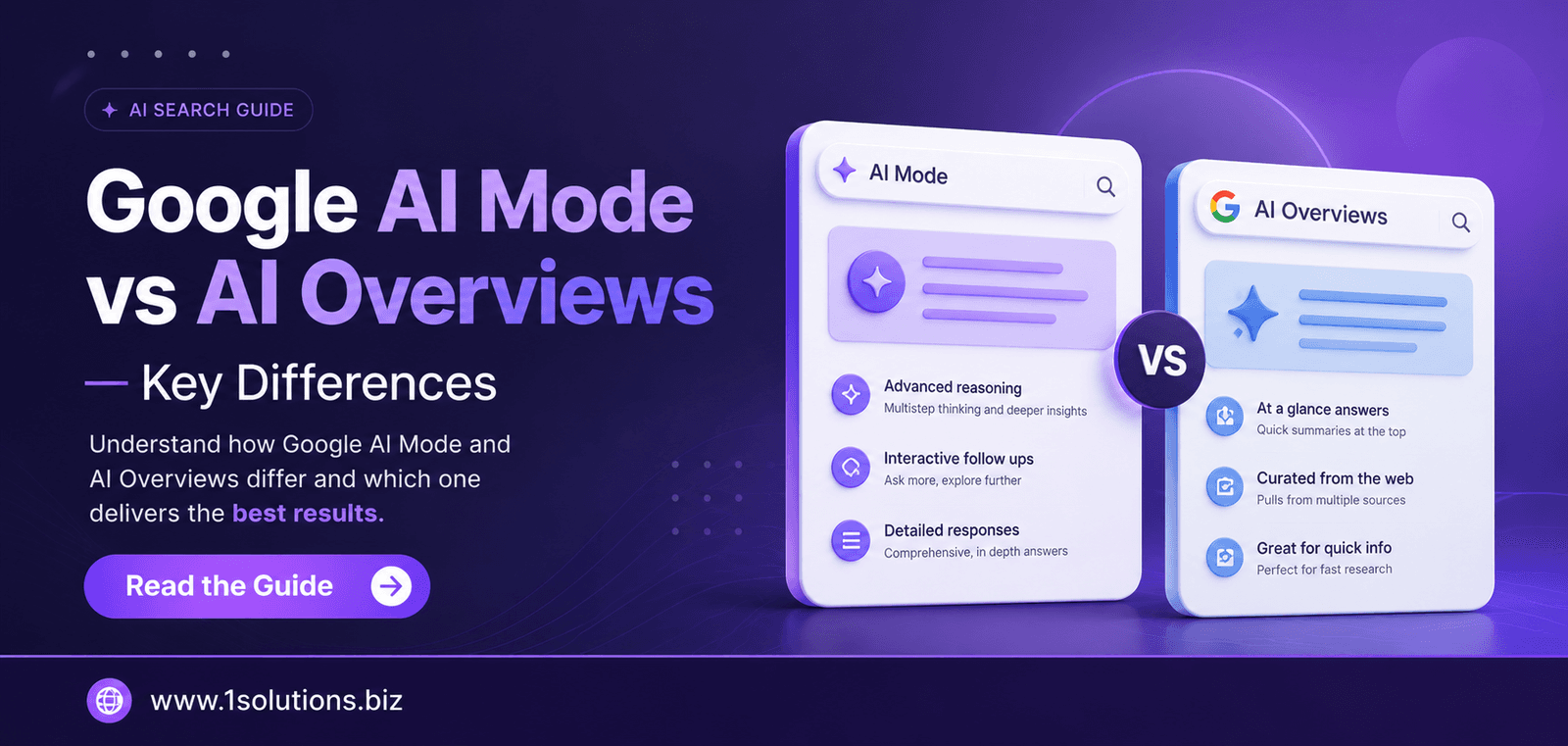
If you want to understand how AI-powered search is changing the way keywords and content rank, our breakdown of Google AI Mode vs AI Overviews provides useful context for how search results are evolving beyond the traditional ten blue links.
💡 Pro Tip: When targeting local searches for a service-based WordPress site, structure your content around “near me” and location-specific queries. Our guide on ranking for near me searches explains how to optimize these pages without paid ads.
4. Optimize Your Content Structure with Proper Headings
Heading tags, from H1 through H6, are not just visual formatting tools. They communicate the hierarchical structure of your content to search engines and screen readers alike. A properly structured page tells Google exactly what the main topic is and how the supporting points relate to it.
Every page on your WordPress site should have exactly one H1 tag. This is typically your page title and should contain your primary keyword. Below that, use H2 tags for major sections and H3 tags for subsections within those sections. Avoid jumping from H1 directly to H4 or skipping heading levels, as this creates a confusing document outline that can hurt both accessibility and SEO.
Content structure also extends beyond headings. Breaking your text into short paragraphs, using bulleted lists for multi-item points, and including a clear introduction and conclusion all contribute to what Google calls content quality signals. According to a Semrush study (2023), long-form content with clear structure generates 77% more backlinks than short, unstructured posts. That is a significant finding because backlinks remain one of Google’s strongest ranking signals.
For WordPress specifically, your SEO plugin will flag if your page is missing an H1 or if your focus keyword does not appear in any heading. Use these warnings as a checklist, but do not follow them mechanically at the expense of natural writing. A heading that reads awkwardly just to include a keyword will hurt the user experience and likely increase your bounce rate.
If you are working on a one-page WordPress site, the heading structure challenge is slightly different. Our guide on how to perform SEO for a one-page website covers how to handle content structure when all your content lives on a single scroll.
5. Improve Page Speed and Core Web Vitals
Page speed has been an official Google ranking factor since 2010, but its importance grew dramatically when Google introduced Core Web Vitals as ranking signals in 2021. These metrics measure loading performance, interactivity, and visual stability. A slow WordPress site is not just a user experience problem. It is an SEO problem.
According to Google’s own data (2023), 53% of mobile users abandon a site if it takes longer than three seconds to load. For a new WordPress site, speed problems typically come from unoptimized images, too many plugins, unminified CSS and JavaScript files, and the absence of a caching layer.
Here is a practical comparison of the most common speed optimization actions and their relative impact:
| Optimization Action | Difficulty Level | SEO Impact | Recommended Tool |
|---|---|---|---|
| Compress and resize images | Easy | High | Smush, ShortPixel |
| Enable browser caching | Easy | High | W3 Total Cache, WP Rocket |
| Minify CSS and JS files | Moderate | Medium | Autoptimize |
| Use a Content Delivery Network (CDN) | Moderate | High | Cloudflare |
| Switch to a faster hosting plan | Moderate | Very High | SiteGround, Kinsta |
| Lazy load images and videos | Easy | Medium | Native WordPress feature |
Start with image compression and caching. These two actions alone can cut load times dramatically without requiring any technical expertise. Use Google PageSpeed Insights or GTmetrix to measure your site before and after changes so you can see the actual improvement.
If your site is built on WordPress and you want to make sure it is architected for both speed and scalability, working with a qualified WordPress development company ensures your theme, plugins, and hosting environment are optimized together rather than in isolation.
6. Build a Strategic Internal Linking Structure
Internal links are hyperlinks that point from one page on your site to another page on the same site. They serve three important functions in SEO: they help search engines discover and crawl all your content, they distribute PageRank (link authority) across your site, and they keep users engaged by guiding them to related content. Yet internal linking is one of the most consistently overlooked practices among WordPress beginners.
When you publish a new post, look back through your existing content and add links from older relevant posts to the new one. Also link from the new post outward to your most important cornerstone pages. This creates a web of connections that signals to Google which pages are most authoritative on your site. Cornerstone pages, your most important and comprehensive pieces of content, should receive the most internal links pointing to them.
Use descriptive anchor text for your internal links. Anchor text is the clickable, visible text of a hyperlink. Instead of linking with generic phrases like “click here” or “read more,” use text that describes what the linked page is about, such as “our guide to on-page SEO techniques.” This context helps Google understand the relationship between your pages and can improve the ranking of the linked page for the anchor text’s topic.
For a deeper understanding of how to make internal linking work as part of a broader authority-building strategy, read our guide on using internal links to boost backlink impact. It explains how the placement and structure of internal links can amplify the value of external backlinks you earn over time.
One practical trade-off worth noting: over-linking can be just as harmful as under-linking. If every sentence contains a hyperlink, users find it hard to read and Google may interpret it as manipulative. Aim for two to five relevant internal links per post, chosen with purpose rather than quantity in mind.
7. Submit Your XML Sitemap and Set Up Google Search Console
All the SEO work you do on your WordPress site means very little if Google cannot find, crawl, and index your pages. Google Search Console is a free tool from Google that gives you direct insight into how Googlebot sees your site. Setting it up should happen on the same day you launch your site, not weeks later when you are wondering why nothing is ranking.
Your SEO plugin (from Step 1) will automatically generate an XML sitemap, usually accessible at yoursite.com/sitemap.xml or yoursite.com/sitemap_index.xml. An XML sitemap is a file that lists all the important URLs on your site along with metadata like when they were last updated. Submitting this sitemap to Google Search Console tells Google exactly which pages you want indexed and helps it prioritize its crawl efficiently.
Beyond sitemap submission, Google Search Console provides critical data: which keywords your pages rank for, which pages have indexing errors, which sites link to you, and how your Core Web Vitals scores compare to the benchmark. For a beginner, the “Coverage” report is especially valuable. It shows you which pages are indexed, which are excluded, and why any pages might be failing to appear in search results.
A common issue beginners encounter is discovering that important pages are marked “Discovered but not indexed,” meaning Google found them but has not crawled them yet. Our detailed breakdown of why Google is not indexing your pages walks through the ten most common causes and how to fix each one.
If you are managing a small business site and want to combine Search Console insights with a broader search strategy, our resource on SEO for small businesses covers how to prioritize your efforts when time and budget are limited. Getting your technical foundation right from the start saves you from chasing indexing problems months down the road.
💡 Pro Tip: After submitting your sitemap, use the “URL Inspection” tool in Google Search Console to request indexing for your most important new pages individually. This can speed up their appearance in search results by several days compared to waiting for Googlebot to crawl them organically.
Practical Action Plan: Where to Start
Not everything can be done at once, especially when you are new to SEO. Here is a prioritized breakdown of what to tackle first, what to work on next, and what can wait until your foundation is solid.
- Do This Now: Install your SEO plugin, set your permalink structure to “Post name,” verify your site in Google Search Console, and submit your XML sitemap. These four actions take less than an hour and have the most immediate impact on whether Google can find and understand your site at all.
- Worth Doing: Conduct keyword research for your top five most important pages, rewrite your meta titles and descriptions with clear keywords and compelling calls to action, compress all existing images, and enable a caching plugin. These steps directly improve both your rankings and your user experience within the first few weeks.
- Low Priority (but do not ignore): Build a structured internal linking strategy as you add new content, explore schema markup for rich results, and begin an outreach strategy for earning external backlinks. These efforts compound over time and become more important as your site matures. For building links responsibly, our guide on building links without triggering penalties is a practical starting point when you are ready.
Conclusion
The best WordPress SEO practices for beginners are not complicated, but they do require consistency and attention to detail. From installing the right SEO plugin to configuring your sitemap and building a logical internal link structure, each of these seven steps builds on the one before it. There is no shortcut to sustainable organic traffic, but there is a clear, logical path forward.
Start with the technical foundation, create content around researched keywords, and make your site fast and easy for both users and search engines to navigate. If you want professional support to accelerate this process, explore how our comprehensive digital marketing services can work alongside your WordPress SEO efforts to drive measurable results.
Frequently Asked Questions
How long does it take to see SEO results on a new WordPress site?
Most new WordPress sites begin to see meaningful organic traffic improvements between three and six months after implementing foundational SEO practices. This timeline depends on your niche’s competitiveness, how frequently you publish content, and the quality of any backlinks you earn. Technical fixes like sitemap submission and page speed improvements can show results faster, sometimes within weeks, but ranking for competitive keywords takes longer.
Do I need to pay for an SEO plugin on WordPress?
No. Both Yoast SEO and Rank Math offer robust free versions that cover everything a beginner needs, including meta tag editing, XML sitemaps, and basic schema markup. The premium versions add features like keyword tracking and redirect management, which are useful but not essential when you are starting out.
What is the most common WordPress SEO mistake beginners make?
The most common mistake is leaving the “Discourage search engines from indexing this site” checkbox enabled after development. The second most common is publishing content without any keyword research, which results in pages that rank for nothing. Fixing these two issues before launch will save you months of confusion.
Is WordPress good for SEO compared to other platforms?
WordPress is widely considered one of the most SEO-friendly content management systems available, primarily because of its plugin ecosystem, clean URL structures, and developer flexibility. If you are comparing it to a hosted ecommerce platform, our WooCommerce vs Shopify comparison breaks down the SEO trade-offs between the two in a practical context.
How many keywords should I target per WordPress page?
Each page should focus on one primary keyword and a small supporting cluster of two to five related terms. Trying to rank a single page for too many unrelated keywords dilutes its relevance signal. Create separate pages for each distinct topic or search intent, and use internal links to connect related content across your site.