What is AWS Compute Optimizer? A Step-by-Step Guide to Smarter Cloud Spending
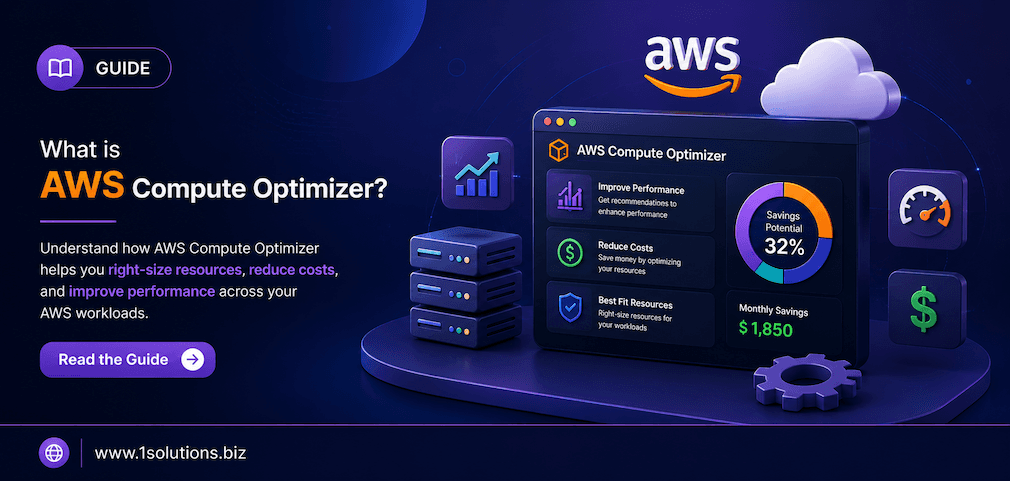
If you have ever stared at an AWS bill and wondered whether you are paying for more compute power than you actually need, you are not alone. What is AWS Compute Optimizer? It is Amazon Web Services’ machine learning-powered recommendation engine that analyzes your workload patterns and tells you, with data, whether your EC2 instances, Lambda functions, EBS volumes, ECS tasks, and Auto Scaling groups are sized correctly. It launched in 2019 and has become one of the most practical tools in the AWS cost management toolkit. This guide walks you through exactly how it works, how to enable it, how to read its recommendations, and where it falls short.
AWS Compute Optimizer uses machine learning to analyze your historical resource usage and recommend right-sized configurations across EC2, Lambda, EBS, ECS on Fargate, and Auto Scaling. It is free to enable at the basic tier, integrates directly into the AWS console, and can meaningfully reduce cloud costs when paired with consistent review habits. However, it requires at least 14 days of usage data before producing reliable recommendations.
⚡ Key Takeaways
- AWS Compute Optimizer is a free machine learning tool that recommends right-sized AWS resources based on actual usage data.
- It supports EC2 instances, Auto Scaling groups, EBS volumes, Lambda functions, and ECS on Fargate tasks.
- You need a minimum of 14 days of CloudWatch metric data before recommendations appear.
- The Enhanced Infrastructure Metrics paid tier extends the analysis window to 93 days for more accurate results.
- Recommendations come with projected savings estimates, risk ratings, and performance improvement percentages.
- Compute Optimizer does not automatically apply changes. A human or automation layer must act on its suggestions.
- Combining Compute Optimizer with AWS Cost Explorer gives a more complete picture of cloud spend efficiency.
Why Cloud Resource Sizing Is Harder Than It Looks
Most cloud teams provision resources based on anticipated peak load, then never revisit those choices. According to Flexera’s 2023 State of the Cloud Report, organizations waste an average of 28% of their cloud spend on idle or over-provisioned resources. That is not carelessness. It is a structural problem: traffic patterns change, application architectures evolve, and the manual process of reviewing every instance type across a large AWS account is genuinely time-consuming.
This is the exact problem AWS Compute Optimizer was designed to solve. Rather than relying on engineers to periodically audit resource configurations, it continuously ingests CloudWatch metrics and applies machine learning models trained on millions of workload profiles to surface specific, actionable recommendations.
💡 Pro Tip: Before enabling Compute Optimizer, make sure CloudWatch detailed monitoring is turned on for your EC2 instances. Basic monitoring samples every 5 minutes, while detailed monitoring samples every 1 minute, which gives the ML model substantially richer data to work with.
What Resources Does AWS Compute Optimizer Analyze?
Compute Optimizer does not cover every AWS service. It focuses on compute-related resources where right-sizing decisions have the highest cost and performance impact. Here is what it currently supports:
- EC2 Instances: The original and most mature recommendation type. Compute Optimizer evaluates CPU, memory, network, and disk throughput utilization.
- EC2 Auto Scaling Groups: Recommendations apply to the launch configuration or launch template used by the group, not individual instances.
- Amazon EBS Volumes: Analyzes IOPS and throughput utilization to recommend volume type changes, for example from gp2 to gp3, or size adjustments.
- AWS Lambda Functions: Evaluates memory configuration versus actual memory consumed during invocations, which directly affects cost and duration.
- Amazon ECS on Fargate: Recommends CPU and memory settings for task definitions based on actual container resource consumption.
Notably absent are RDS instances and ElastiCache clusters, which have their own separate sizing tools within AWS. If your cost problem lives primarily in database infrastructure, Compute Optimizer alone will not give you a complete answer.
How AWS Compute Optimizer Works: The Technical Process
Understanding the mechanics helps you interpret recommendations correctly rather than applying them blindly.
Step 1: Data Collection via Amazon CloudWatch
Compute Optimizer pulls utilization metrics from CloudWatch. For EC2, this includes CPU utilization, network in/out, disk read/write operations, and, if the CloudWatch agent is installed, memory utilization. Without the CloudWatch agent, memory data is unavailable to the model, which can limit recommendation quality for memory-intensive workloads.
Step 2: Machine Learning Model Analysis
AWS trains its recommendation models on data from millions of AWS workloads. The model does not simply calculate average utilization. It identifies usage patterns, including seasonality and burst behavior, and tries to recommend a configuration that handles peak loads without excessive headroom. According to AWS documentation (2024), the model uses a combination of percentile-based analysis and workload classification to group similar usage patterns before generating recommendations.
Step 3: Recommendation Generation with Risk Tiers
Each recommendation includes a finding label: Under-provisioned, Over-provisioned, or Optimized. Recommendations also carry a performance risk rating from Low to Very High, which indicates how confident the model is that downsizing will not cause performance degradation. A High or Very High risk rating means the model found significant burst or spike patterns that could cause problems if you move to the suggested instance type.
Step 4: Projected Metrics
For each recommendation, Compute Optimizer shows projected CPU, memory, network, and storage utilization on the recommended resource type. This allows engineers to make informed trade-off decisions rather than blindly trusting the output.
Step-by-Step: How to Enable AWS Compute Optimizer
Getting started takes less than five minutes if you have the right IAM permissions.
- Sign in to the AWS Management Console and navigate to the Compute Optimizer service. You can find it under the Management and Governance category or by searching directly.
- Choose your enrollment scope. You can opt in a single AWS account or, if you use AWS Organizations, opt in all member accounts from the management account. Organization-level enrollment is strongly recommended for teams managing multiple accounts.
- Grant the required IAM permissions. Compute Optimizer needs the
compute-optimizer:*permission set and read access to CloudWatch, EC2, Lambda, ECS, and EBS APIs. AWS provides a managed policy calledComputeOptimizerReadOnlyAccessfor viewing recommendations andComputeOptimizerFullAccessfor full functionality. - Wait for the data window. You will not see recommendations immediately. Compute Optimizer requires at least 14 days of CloudWatch data. For new accounts or newly enrolled resources, plan for a two-week wait before the tool becomes useful.
- Optionally enable Enhanced Infrastructure Metrics. This paid tier costs approximately $0.0003360 per resource per hour (AWS pricing, 2024) and extends the analysis window from 14 days to 93 days. For workloads with monthly seasonality, such as e-commerce platforms with end-of-month traffic spikes, the extended window can dramatically improve recommendation quality.
💡 Pro Tip: If you manage a large AWS Organizations structure, use AWS Systems Manager or a CloudFormation StackSet to automate CloudWatch agent deployment across all EC2 instances before enabling Compute Optimizer. This ensures memory metrics are available from day one of the 14-day data window.
Reading and Interpreting Compute Optimizer Recommendations
The dashboard is straightforward, but knowing what to prioritize saves time.
EC2 Recommendations Panel
Navigate to EC2 instances in the Compute Optimizer console. You will see a summary of how many instances are over-provisioned, under-provisioned, and optimized. Click any instance to see its current type, the recommended type, projected utilization metrics, and estimated monthly savings or cost increase.
Pay close attention to the performance risk column. It is tempting to action every over-provisioned recommendation immediately, but a High risk rating on a production database-adjacent instance warrants manual review before any change is made.
Lambda Recommendations Panel
Lambda recommendations focus almost entirely on memory settings because that is the primary cost lever for Lambda functions. A function allocated 1024 MB of memory but consistently using only 180 MB is a straightforward candidate for downsizing. However, note that Lambda also allocates CPU proportionally to memory, so reducing memory on CPU-bound functions can increase execution duration and offset savings.
EBS Volume Recommendations
The most common EBS recommendation is migrating from gp2 to gp3. According to AWS documentation (2023), gp3 volumes deliver baseline performance of 3,000 IOPS and 125 MB/s throughput at a 20% lower cost than gp2 for the same size. This is often a low-risk, high-value change that can be actioned broadly.
AWS Compute Optimizer vs AWS Cost Explorer: Key Differences
| Feature | AWS Compute Optimizer | AWS Cost Explorer |
|---|---|---|
| Primary purpose | Right-sizing recommendations based on utilization | Cost visualization and forecasting |
| Data source | CloudWatch utilization metrics | AWS billing and usage data |
| Recommendation type | Specific instance/resource type changes | Reserved Instance and Savings Plan purchases |
| ML-powered | Yes | Partially (for RI recommendations) |
| Base cost | Free (Enhanced tier is paid) | Free (API calls cost extra) |
| Best used for | Reducing waste from over-provisioning | Commitment-based discount planning |
Using both tools together is the right approach. Compute Optimizer tells you what size your resources should be; Cost Explorer tells you whether you should commit to that size via Reserved Instances or Savings Plans. Just as businesses use multiple tools to optimize their digital presence, including working with an agency that offers integrated digital marketing services rather than relying on a single channel, cloud cost management requires a multi-tool strategy.
Common Trade-offs and Limitations to Understand
Compute Optimizer is genuinely useful, but it comes with real limitations that you should factor into your workflow.
The 14-Day Minimum Creates Blind Spots
New resources do not get recommendations. If your team regularly spins up and tears down environments for testing, those resources will never accumulate enough history for Compute Optimizer to analyze. You need separate governance policies to right-size ephemeral infrastructure.
No Memory Data Without the CloudWatch Agent
EC2 memory utilization is not captured by default CloudWatch monitoring. If you have not deployed the CloudWatch agent, Compute Optimizer is working with incomplete information for any memory-bound workload. This can lead to recommendations that appear correct on CPU metrics but would cause memory pressure in practice.
It Does Not Apply Changes Automatically
This is both a feature and a limitation. Compute Optimizer will never make a change to your infrastructure without human approval or an explicit automation layer. Teams that want to automate the remediation process need to build that workflow themselves, typically using AWS Lambda, Step Functions, or a third-party FinOps platform. The tool surfaces opportunities but does not act on them.
Application-Level Context Is Missing
Compute Optimizer sees infrastructure metrics but cannot understand application behavior. A web server that looks lightly loaded in CloudWatch metrics might be handling complex, latency-sensitive database queries where additional CPU headroom meaningfully improves user experience. Always validate recommendations against application-level performance data, not just infrastructure metrics.
💡 Pro Tip: Export your Compute Optimizer recommendations to Amazon S3 using the built-in export feature, then load them into Amazon QuickSight or a BI tool of your choice. This makes it much easier to prioritize recommendations by projected savings amount and risk tier across large accounts.
Practical Action Plan for Using AWS Compute Optimizer Effectively
Not every recommendation deserves immediate attention. Use this prioritization framework to get the most value with the least operational risk.
- Do This Now: Enable Compute Optimizer at the organization level, deploy the CloudWatch agent on all EC2 instances, and set a calendar reminder to review recommendations after the 14-day data window closes. Also immediately action any EBS gp2-to-gp3 migrations flagged as Low risk. These are typically safe, well-understood changes with immediate cost savings and no performance trade-off.
- Worth Doing: Review all EC2 over-provisioning recommendations with Low or Medium performance risk. Cross-reference against application performance dashboards before actioning. For Lambda, audit memory settings on functions running in production with at least 30 days of invocation history. Enable Enhanced Infrastructure Metrics for any workload with known monthly traffic patterns.
- Low Priority: Investigate Under-provisioned findings carefully rather than immediately upsizing. Sometimes under-provisioned recommendations reflect healthy burst behavior rather than a genuine capacity problem. Also deprioritize any recommendations on resources that are scheduled for replacement or migration in the next quarter.
The discipline of structured review also applies well beyond cloud infrastructure. Teams using systematic frameworks for digital growth, whether through professional search engine optimization or cloud cost management, consistently outperform those who rely on ad-hoc decision-making.
Integrating Compute Optimizer into a FinOps Practice
A standalone tool review once a quarter is not a FinOps practice. It is a one-time audit. Sustainable cloud cost management requires embedding Compute Optimizer into regular workflows.
Consider the following integration points:
- Weekly engineering standups: Assign ownership of Compute Optimizer findings to individual service teams rather than a central cloud ops team. Engineers who built the service understand its load patterns best.
- CI/CD pipeline checks: Use the Compute Optimizer API to flag resources that have accumulated Low or Medium risk over-provisioning recommendations as part of your deployment review process.
- Budget alerts integration: Combine AWS Budgets alerts with Compute Optimizer exports so that when a service’s compute spend exceeds threshold, the team automatically receives a link to its current optimization recommendations.
According to Gartner’s 2023 Cloud Cost Optimization report, organizations that implement a formal FinOps practice with tooling and clear ownership reduce cloud waste by an average of 30% within 12 months, compared to 12% for teams using tools without structured processes.
The principle here mirrors what effective content strategies do for websites. Just as businesses that systematically boost SEO efforts with page content analysis outperform those relying on intuition, teams that systematically analyze cloud resource usage outperform those who guess at the right instance size.
Similarly, understanding how intelligent tools shape decisions, whether it is Google AI Mode versus AI Overviews in search or machine learning models in cloud optimization, helps practitioners use these tools more critically rather than treating their outputs as ground truth.
What is AWS Compute Optimizer? A Final Summary
AWS Compute Optimizer is a machine learning recommendation engine that analyzes CloudWatch utilization data and surfaces specific right-sizing suggestions for EC2, Lambda, EBS, ECS on Fargate, and Auto Scaling groups. It is free to enable at the basic tier, requires 14 days of usage data to begin producing recommendations, and does not automatically apply any changes. When used consistently and paired with application-level performance data, it is one of the most cost-effective tools available for reducing AWS compute waste.
The key discipline is treating it as a continuous workflow input rather than a one-time audit. Assign ownership, review findings regularly, and always validate infrastructure-level recommendations against what the application actually experiences. For teams managing significant AWS spend, even modest improvement rates from systematic right-sizing can translate into substantial annual savings.
Understanding tools like Compute Optimizer also reflects a broader truth about modern technical operations: intelligent tooling, whether it is agentic browsers changing how automation works or ML models analyzing cloud usage, requires human judgment to interpret and act on. The tool surfaces opportunities. Your team decides which ones to take.
For businesses looking to optimize not just their infrastructure costs but also their broader digital performance, working with specialists who understand systematic optimization across technical domains, from cloud architecture to search engine optimization for small businesses, can accelerate results significantly.
Frequently Asked Questions
Is AWS Compute Optimizer free to use?
The basic tier of AWS Compute Optimizer is free. It analyzes up to 14 days of CloudWatch metric history and covers EC2, Lambda, EBS, ECS on Fargate, and Auto Scaling groups at no charge. The Enhanced Infrastructure Metrics tier, which extends the analysis window to 93 days, is a paid add-on priced per resource per hour. For most teams, starting with the free tier is the right first step.
How long does it take for AWS Compute Optimizer to show recommendations?
You must wait a minimum of 14 days after enrolling a resource before recommendations appear. This is because the ML model needs sufficient historical data to identify usage patterns accurately. Newly created instances or recently enrolled accounts will show a status of “Insufficient Data” until the minimum data window is met.
Does AWS Compute Optimizer automatically resize my instances?
No. AWS Compute Optimizer only provides recommendations. It never makes changes to your infrastructure without explicit action. You must manually resize resources or build an automation layer using services like AWS Lambda or AWS Systems Manager to act on recommendations programmatically.
What is the difference between Compute Optimizer and AWS Trusted Advisor?
AWS Trusted Advisor covers a broad range of best practices including security, fault tolerance, service limits, and cost optimization. Its cost optimization checks are relatively simple, often flagging instances with low average CPU utilization. Compute Optimizer is more sophisticated: it uses machine learning to analyze multiple metrics simultaneously and recommends specific alternative resource configurations, not just general flags. For right-sizing decisions, Compute Optimizer provides significantly more actionable output.
Can I use AWS Compute Optimizer across multiple AWS accounts?
Yes. If you use AWS Organizations, you can enable Compute Optimizer from the management account and opt in all member accounts simultaneously. Recommendations can then be viewed and filtered at the organization level, making it practical to manage right-sizing across large multi-account environments from a single dashboard.