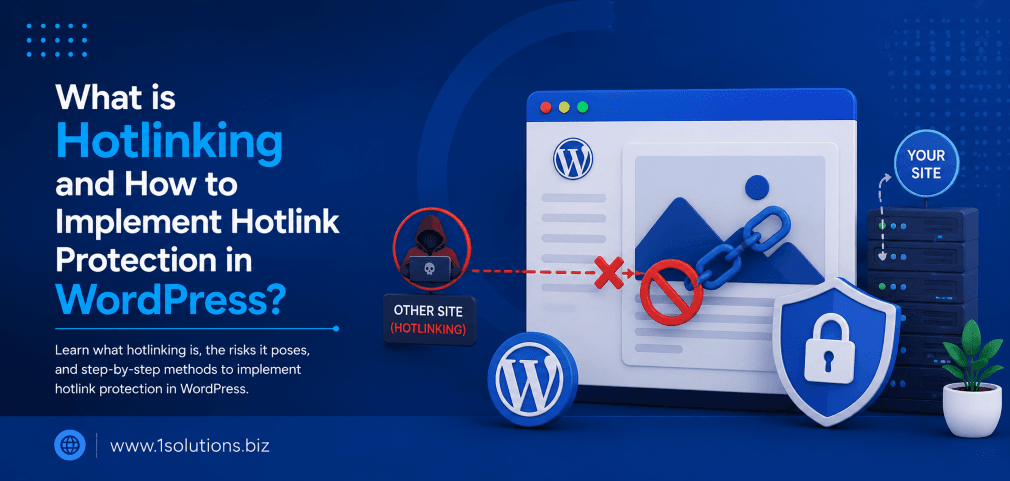
If you have ever noticed a sudden spike in bandwidth usage without a matching rise in traffic, hotlinking could be the culprit. Understanding what is hotlinking and how to implement hotlink protection in WordPress is one of those technical fundamentals that every site owner should know. It is not just a nerdy server topic. It directly affects your hosting costs, page load speed, and even your search rankings. This guide walks you through everything from the basics to the step-by-step implementation methods, so you can protect your resources starting today.
Hotlinking happens when other websites embed your images or files directly using your server’s URL, consuming your bandwidth without your permission. This slows down your site, increases hosting costs, and can harm your SEO. You can block hotlinking in WordPress through your .htaccess file, your hosting control panel, a CDN, or a plugin.
⚡ Key Takeaways
- Hotlinking means a third-party site loads files directly from your server, stealing your bandwidth.
- It can increase your hosting bills significantly and slow down your WordPress site for real visitors.
- The most reliable fix is adding rewrite rules to your .htaccess file or using your hosting panel’s built-in protection.
- CDN solutions like Cloudflare offer hotlink protection with minimal technical setup.
- WordPress plugins such as All In One WP Security provide a GUI-based option for non-technical users.
- Always whitelist your own domain and any trusted embeds before enabling hotlink protection.
- Hotlink protection indirectly supports SEO by improving page speed and reducing wasted server resources.
What is Hotlinking? A Plain-Language Explanation
Hotlinking, sometimes called inline linking or bandwidth theft, occurs when a website owner embeds a file (usually an image, video, or PDF) from your server directly into their own webpage. Instead of downloading your file and hosting it themselves, they simply point to your file’s URL. Every time a visitor loads their page, your server delivers the file and you absorb the bandwidth cost.
Here is a concrete example. Suppose you run a photography website and you upload a high-resolution image to yoursite.com/wp-content/uploads/photo.jpg. Another blogger finds that image, copies its direct URL, and pastes it into their own article using an <img> tag. Their readers see the image, but your server is doing all the heavy lifting and paying all the bandwidth fees.
According to a 2023 report by Cloudflare, image files alone account for roughly 45 percent of total page weight across the web, making them the most commonly hotlinked file type. When hundreds or thousands of external pages hotlink your files, the cumulative drain can be enormous.
💡 Pro Tip: Check your server access logs regularly using a tool like AWStats or Webalizer. If you see large volumes of requests originating from external referrers pointing directly to image URLs, you almost certainly have a hotlinking problem.
Why Hotlinking is a Serious Problem for WordPress Sites
The consequences of unchecked hotlinking go beyond simple annoyance. Here is why it matters in practical terms.
Bandwidth Costs Spiral Quickly
Most shared and managed hosting plans come with bandwidth caps. A single viral post that hotlinks your hero image could push you into an overage charge within hours. According to a 2022 analysis by WP Engine, WordPress sites experiencing active hotlinking incidents consumed an average of 30 to 60 percent more bandwidth than their baseline levels during the same period.
Page Speed Takes a Hit
When your server is busy fulfilling file requests from dozens of external websites, your own pages load more slowly. Core Web Vitals metrics, particularly Largest Contentful Paint (LCP), are directly impacted when server response times creep up. Since Google uses page speed as a ranking signal, this creates a real SEO risk. If your site is already working to improve technical performance, hotlinking can silently undo that work. Our team at 1Solutions has seen this exact scenario while auditing sites for professional SEO services, where inexplicable speed drops traced back to rampant hotlinking.
Content Theft and Misattribution
If your images are being displayed on other websites without your permission, you lose control of how your brand and content are presented. Someone could place your images in a context that is entirely contrary to your values or business message. For WordPress site owners who have invested heavily in original photography or custom graphics, this is a significant concern.
SEO Dilution Risk
While Google does not directly penalize you for being hotlinked, the secondary effects (slower server response, degraded Core Web Vitals, and potential duplicate content signals if your images appear on low-quality sites) can drag down your search visibility over time. A study by Semrush in 2023 found that sites with poor Core Web Vitals scores were 1.7 times more likely to rank outside the top 10 results for competitive keywords.
How to Detect Hotlinking on Your WordPress Site
Before you block anything, it helps to confirm hotlinking is actually happening and understand the scale of it.
- Review your hosting bandwidth reports: Log into your cPanel or hosting dashboard and check bandwidth usage graphs. Unexplained spikes are a red flag.
- Analyze server access logs: Look for HTTP GET requests to image URLs where the HTTP referer header shows an external domain. Most cPanel accounts give you access to raw logs under the Logs section.
- Use Google Search Console: Check the Coverage and Performance reports for unusual referral patterns, though this is indirect evidence.
- Run a reverse image search: Upload your key images to Google Images or TinEye and see which external pages are using them. If they are loading from your domain’s URL rather than re-hosting the image, that is active hotlinking.
Method 1: Block Hotlinking via .htaccess (Most Reliable)
For WordPress sites running on Apache servers (the most common setup), editing the .htaccess file is the most direct and reliable method. This approach does not require any plugin and works at the server level, so it stops bandwidth consumption before your PHP or WordPress code even runs.
Step-by-Step .htaccess Instructions
- Connect to your server using an FTP client like FileZilla or through your host’s File Manager.
- Navigate to your WordPress root directory (where you will find wp-config.php).
- Download a backup copy of your .htaccess file before making any changes.
- Open the .htaccess file in a text editor and add the following code block:
RewriteEngine on
RewriteCond %{HTTP_REFERER} !^$
RewriteCond %{HTTP_REFERER} !^http(s)?://(www\.)?yourdomain\.com [NC]
RewriteRule \.(jpg|jpeg|png|gif|webp|svg|pdf|mp4)$ - [NC,F,L]
Replace yourdomain.com with your actual domain. The rules work as follows: if a request comes in for a file with those extensions and the HTTP referer is not empty and not your own domain, the server returns a 403 Forbidden response. The file is never sent.
Whitelisting Additional Domains
If you want to allow specific trusted sites (for example, a partner site or your own CDN subdomain) to embed your images, add an extra RewriteCond line:
RewriteCond %{HTTP_REFERER} !^http(s)?://(www\.)?trustedpartner\.com [NC]
Add one line per whitelisted domain, placed before the RewriteRule line.
💡 Pro Tip: If you use social media previews or share your content on platforms like Pinterest or Twitter, consider whitelisting those platforms’ crawlers or replace blocked files with a branded placeholder image instead of a blank 403 error. This preserves the user experience on social shares while still protecting your bandwidth.
Method 2: Use Your Hosting Control Panel
Many shared hosting providers (cPanel-based hosts in particular) include a built-in hotlink protection tool under the Security section. This is ideal for site owners who are not comfortable editing server files manually.
- Log into your cPanel account.
- Navigate to Security and click on Hotlink Protection.
- Click Enable to turn on the feature.
- Add the file extensions you want to protect (jpg, jpeg, png, gif, webp, pdf, etc.) in the Extensions to Protect field.
- Enter your own domain in the Allow Direct Requests field so your own pages are not blocked.
- Optionally, enter a redirect URL. When hotlinked files are blocked, you can redirect requests to a custom image that says something like “Image theft is not cool” or simply your logo.
- Click Submit to save.
This method writes similar .htaccess rules under the hood, so the result is technically equivalent to doing it manually. It is simply a friendlier interface.
Method 3: Hotlink Protection with Cloudflare
If you use Cloudflare as your DNS proxy or CDN (which is highly recommended for WordPress performance anyway), you can enable hotlink protection directly from your Cloudflare dashboard.
- Log into your Cloudflare account and select your domain.
- Go to Scrape Shield in the left navigation menu.
- Toggle Hotlink Protection to On.
That is genuinely all there is to it for the basic version. Cloudflare inspects the referer headers of image requests and blocks those that originate from outside your domain. Because Cloudflare operates at the network edge (before traffic even hits your server), this approach is the most efficient for bandwidth savings. According to Cloudflare’s own 2024 product documentation, their hotlink protection processes decisions in under 1 millisecond at the edge, adding no perceptible latency to legitimate requests.
If you are curious how emerging tools like CDNs and edge networks are changing the web landscape, our article on agentic browsers and how they work gives interesting context on where web infrastructure is heading.
Method 4: WordPress Plugins for Hotlink Protection
For site owners who prefer to manage everything from the WordPress dashboard, several plugins handle hotlink protection without requiring server access.
All In One WP Security and Firewall
This free plugin is one of the most comprehensive security solutions for WordPress. To enable hotlink protection:
- Install and activate All In One WP Security and Firewall from the plugin repository.
- Navigate to WP Security in your dashboard and click on Filesystem Security.
- Find the Prevent Hotlinks tab.
- Check the box labeled Prevent image hotlinking.
- Click Save Settings.
The plugin adds .htaccess rules automatically. The trade-off is that it adds another plugin to your stack, which may have minor performance overhead if you are already running a lean site.
Wordfence Security
Wordfence is primarily a firewall and malware scanner, but its firewall rules can be configured to block suspicious referrer patterns. It is less purpose-built for hotlink protection than All In One WP Security, but if you are already running Wordfence for other security purposes, it is worth exploring its extended options under the firewall rules section.
Comparing Hotlink Protection Methods
| Method | Technical Skill Required | Cost | Effectiveness | Best For |
|---|---|---|---|---|
| .htaccess Edit | Moderate | Free | Very High | Apache server owners comfortable with FTP |
| cPanel Hotlink Protection | Low | Free (with cPanel hosting) | Very High | Non-technical users on shared hosting |
| Cloudflare Scrape Shield | Low | Free (basic plan) | Highest (edge-level) | Sites already using Cloudflare CDN |
| WordPress Plugin | Very Low | Free | High | Non-technical users who manage via WP dashboard |
| Nginx Config | High | Free | Very High | VPS/dedicated server owners using Nginx |
Hotlink Protection for Nginx Servers
If your WordPress installation runs on Nginx rather than Apache, .htaccess rules do not apply. You need to add a location block to your Nginx server configuration file instead.
location ~* \.(jpg|jpeg|png|gif|webp|svg|pdf)$ {
    valid_referers none blocked yourdomain.com www.yourdomain.com;
    if ($invalid_referer) {
        return 403;
    }
}
Add this block inside your server block in the Nginx configuration file (typically found at /etc/nginx/sites-available/your-site). After saving, reload Nginx with sudo systemctl reload nginx. As with the Apache method, replace yourdomain.com with your actual domain and add any trusted domains to the valid_referers line.
The SEO Connection: Why Hotlink Protection Supports Your Rankings
Hotlink protection is not just a server housekeeping task. It has genuine SEO implications. Faster server response times improve your Time to First Byte (TTFB) and LCP scores, both of which are Core Web Vitals factors that Google weighs in its ranking algorithm. When you stop other sites from eating your bandwidth, your server can respond faster to your real visitors.
Additionally, if your original images are being served on low-quality or spammy external sites, this can create brand association risks and in some edge cases, duplicate content confusion for image indexing. Protecting your files keeps your visual content cleanly attributed to your domain.
If you want to dig deeper into the technical side of SEO and how page-level factors affect rankings, our guide on boosting SEO with page content analysis covers many of these overlapping factors in detail. And if you are concerned about indexing issues beyond hotlinking, this breakdown of why Google may not be indexing your pages is a useful companion read.
For ecommerce sites in particular, the stakes are even higher. Product images hotlinked across affiliate or comparison sites can generate thousands of bandwidth-draining requests per day. If you are running a WooCommerce store, check out the WooCommerce store maintenance checklist for a broader look at performance and security tasks you should be running regularly. The choice of platform also matters: our WooCommerce vs Shopify comparison addresses how each platform handles media and server resources differently.
💡 Warning: Do not block requests where the HTTP referer is empty (also called direct requests). Empty referers are common when users access files directly from bookmarks, email clients, or RSS readers. Blocking them can break legitimate user access to your content and create 403 errors for innocent visitors.
Common Mistakes to Avoid When Setting Up Hotlink Protection
- Forgetting to whitelist your own domain: If you do not add your own domain to the allowed list, your own pages may fail to load their images, breaking your entire site layout.
- Blocking search engine bots: Google’s image crawlers do not always send a referer header. Blocking empty referers will prevent Google from indexing your images.
- Not testing after implementation: Always test from a different browser (logged out, or in an incognito window) and from an external page to verify that your own site still loads correctly while hotlinked requests are blocked.
- Protecting too many file types: If you add .css or .js to your protected extensions, you could accidentally break your own theme and scripts. Stick to media files.
- Not backing up .htaccess: A syntax error in .htaccess can take your entire site offline. Always keep a backup before editing.
Practical Action Plan: Where to Start
- Do This Now: Check your hosting bandwidth dashboard and pull your server access logs. If you see external referers requesting image files in volume, you have active hotlinking. Enable cPanel hotlink protection or add the .htaccess rules immediately. This is the single highest-ROI action you can take in the next 30 minutes.
- Worth Doing: Set up Cloudflare on your domain if you have not already. The free plan includes hotlink protection, a global CDN, and DDoS mitigation. The setup takes about an hour and the performance and security benefits extend far beyond hotlink protection. While you are at it, explore the broader digital marketing services that can help you amplify the performance wins you unlock.
- Low Priority: Run a reverse image search on your top 10 most-used images quarterly to catch any new hotlinkers and monitor whether your .htaccess or server rules remain intact after WordPress core or plugin updates (some security plugins occasionally rewrite .htaccess). Also consider adding a watermark or metadata to your original images as a secondary deterrent, though this does not replace server-level protection.
Frequently Asked Questions
Does hotlink protection affect how Google indexes my images?
It can, if configured incorrectly. Google’s image crawler often sends requests with an empty or Google-specific referer header. If you block empty referers entirely, Googlebot may not be able to crawl your images, removing them from Google Image Search. The .htaccess and cPanel methods described in this guide allow empty referers by default for exactly this reason. Always verify your configuration with Google’s URL Inspection tool in Search Console after implementing protection.
Will hotlink protection break social media sharing previews?
It might, depending on how strictly you configure it. Social platforms like Facebook, Twitter, and LinkedIn use their own crawlers to generate link previews, and these crawlers may send unexpected referer headers. The safest approach is to whitelist the major social platforms or, better yet, use a CDN like Cloudflare whose hotlink protection is built to handle social crawler edge cases intelligently.
Can hotlinking hurt my search engine rankings directly?
Not directly. Google does not penalize you for other sites hotlinking your files. However, the indirect effects such as slower server response, degraded Core Web Vitals scores, and increased TTFB can negatively influence your rankings over time. Faster sites rank better, and hotlinking is a quiet speed killer. This is part of why our guides on SEO strategies for better ranking emphasize server performance as a foundational factor.
What is the difference between hotlinking and embedding?
Hotlinking specifically refers to linking directly to a file hosted on someone else’s server without permission, consuming their bandwidth. Embedding, as a broader term, can be legitimate. For example, YouTube provides embed codes that serve video from YouTube’s own servers, which is authorized embedding. The key distinction is whether the file owner has granted permission and whether the bandwidth cost is borne by the content owner or the embedder.
Is hotlinking illegal?
Hotlinking occupies a legal grey area in most jurisdictions. It is not universally illegal, but it can constitute copyright infringement if the hotlinked file is copyrighted content used without permission. It may also breach the terms of service of your hosting provider. Some site owners have successfully pursued takedown notices under copyright law when their hotlinked images were used commercially. Regardless of legality, the technical and financial harm to your site is real, which is reason enough to block it.
Conclusion
Understanding what is hotlinking and how to implement hotlink protection in WordPress is not a luxury for advanced developers. It is a practical necessity for any site owner who wants to control their hosting costs, protect their content, and maintain the page speed their SEO requires. Whether you choose the .htaccess route, your cPanel’s built-in tools, Cloudflare’s edge-level protection, or a WordPress plugin, the core goal is the same: ensure your server only delivers files to pages you have authorized.
The methods covered here range from genuinely simple (Cloudflare toggle, cPanel GUI) to moderately technical (.htaccess edits), so there is no excuse for leaving your files unprotected. Start with the bandwidth audit, pick the method that matches your comfort level, test it thoroughly, and schedule a quarterly check to make sure everything is still working as expected. Your server will thank you, and so will your Google rankings.