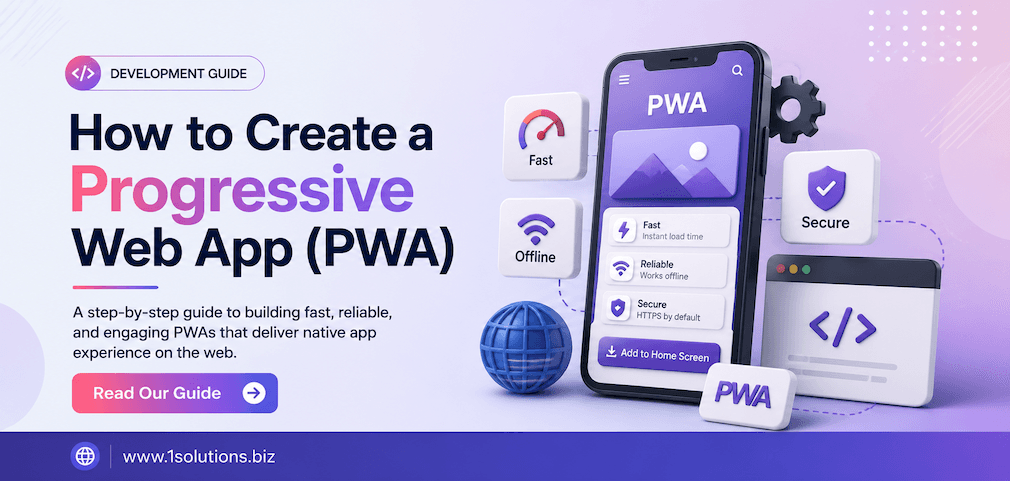
How to Create a Progressive Web App (PWA): 10 Steps That Actually Work
If you want to create a Progressive Web App that loads fast, works offline, and feels like a native mobile app, you are in the right place. PWAs sit at the intersection of web and mobile development, offering a powerful user experience without the friction of app store downloads. They are increasingly becoming the preferred approach for businesses that want speed, reach, and engagement all in one package.
According to Google Developers (2023), PWAs can increase user engagement by up to 137% compared to standard mobile websites. That is not a trivial number. It means your visitors stay longer, interact more, and convert at higher rates. Whether you are building an ecommerce storefront, a content platform, or a service-based web app, the PWA approach deserves serious consideration.
Creating a Progressive Web App involves setting up HTTPS, writing a Web App Manifest, building a Service Worker for offline support, and optimizing for performance and discoverability. This guide walks through exactly 10 steps to help you build a production-ready PWA from scratch, covering both technical setup and strategic decisions along the way.
⚡ Key Takeaways
- A PWA requires HTTPS, a Web App Manifest, and a Service Worker at minimum to qualify as installable.
- Service Workers control caching strategies and offline behavior, making them the most critical PWA component to get right.
- PWA performance is a direct ranking signal, so building one also benefits your search engine optimization efforts.
- Testing with Lighthouse before launch is non-negotiable if you want to catch gaps in your PWA implementation.
- Push notifications in PWAs require explicit user permission and must be used responsibly to avoid opt-out spikes.
- PWAs can be deployed on any hosting platform that supports HTTPS, no native app store required.
- Ongoing maintenance, including cache invalidation and manifest updates, is as important as the initial build.
1. Understand What a PWA Actually Is (and Is Not)
Before you write a single line of code, you need a clear picture of what a Progressive Web App actually means in practice. A PWA is a web application that uses modern browser APIs to deliver app-like experiences directly from a URL. It is not a native app, and it is not a simple mobile-optimized website. It lives somewhere deliberately in between, and that distinction matters when planning your project scope.
The three non-negotiable technical requirements for a PWA are: serving over HTTPS, including a valid Web App Manifest, and registering a Service Worker. Meet all three, and browsers like Chrome will trigger the install prompt, allowing users to add your app to their home screen. Skip any one of them, and your PWA simply will not qualify as installable.
It is also worth acknowledging the trade-offs upfront. PWAs do not have full access to all device hardware the way native apps do. Features like Bluetooth communication, NFC, and advanced camera controls are limited depending on the operating system and browser. iOS support, while improving, still lags behind Android in areas like background sync and push notifications. Knowing these limits before you start prevents expensive scope creep mid-project.
PWAs are especially well-suited for content-heavy platforms, ecommerce sites, news apps, and productivity tools. If you are running an online store, understanding how PWA fits alongside platforms is worth exploring. Our comparison of WooCommerce vs Shopify covers how both platforms approach performance and extensibility, which directly affects your PWA implementation choices.
2. Set Up a Secure HTTPS Connection
HTTPS is not optional for a PWA. Service Workers, the engine behind offline functionality and push notifications, will simply not register on an insecure HTTP connection. Browsers enforce this strictly, and there is no workaround in a production environment. The only exception is localhost, which is treated as a secure origin for development purposes.
Getting HTTPS set up is straightforward in most cases. If you are using a modern hosting provider, free SSL certificates via Let’s Encrypt are widely available and auto-renewing. Platforms like Netlify, Vercel, and most managed WordPress hosts include HTTPS by default. If you are managing your own server, certbot makes the Let’s Encrypt installation process fairly painless.
Once HTTPS is in place, verify it is enforced everywhere. Mixed content issues, where a page loads over HTTPS but references resources like images or scripts over HTTP, will trigger browser warnings and can break your Service Worker registration. Run your URL through a mixed content checker before moving forward.
From an SEO standpoint, HTTPS has been a confirmed Google ranking signal since 2014. So getting this right is not just a PWA prerequisite. It is a foundational requirement for small business SEO as well. If your site is still on HTTP for any reason, fixing that should be the very first item on your list.
3. Create Your Web App Manifest File
The Web App Manifest is a JSON file that tells the browser how your PWA should behave when installed on a user’s device. It controls the app name, icons, display mode, theme color, background color, and the start URL. Without it, your app cannot be added to the home screen with the proper branding and launch behavior.
Create a file called manifest.json and place it in the root of your project. A minimal but functional manifest looks like this: set the name and short_name fields, define a start_url, choose a display value of “standalone” or “fullscreen,” and include icon entries in at least 192×192 and 512×512 pixel sizes. Browsers use the 512px icon for splash screens and the 192px icon for home screen placement.
Link the manifest in your HTML head: <link rel="manifest" href="/manifest.json">. This single line is what connects your HTML document to the manifest file. Double-check that the path is correct, especially if your app is hosted in a subdirectory.
One common mistake is using icons that are not square or that have transparent backgrounds on Android. Android requires icons with a solid background for the splash screen to render correctly. Use a tool like Real Favicon Generator to export PWA-compliant icons in all required sizes and formats, including maskable icons, which adapt to different home screen shapes across devices.
💡 Pro Tip: Set your manifest’s display to “standalone” rather than “fullscreen” unless you have a specific reason for fullscreen. Standalone hides the browser address bar but keeps the operating system status bar, which feels more natural to users and avoids disorientation.
4. Write and Register a Service Worker
The Service Worker is a JavaScript file that runs in the background, separate from your main browser thread. It acts as a network proxy, intercepting requests and deciding whether to serve them from cache, the network, or a combination of both. This is what makes offline functionality and fast repeat visits possible.
Create a file called service-worker.js in your root directory. Register it from your main JavaScript file using navigator.serviceWorker.register('/service-worker.js'), wrapped in a feature detection check. Inside the Service Worker itself, you handle three core lifecycle events: install (pre-cache critical assets), activate (clean up old caches), and fetch (intercept network requests).
The fetch event is where your caching strategy lives. A cache-first strategy serves assets from cache and falls back to the network, ideal for static assets like CSS and images. A network-first strategy tries the network first and falls back to cache, better for dynamic content like API responses. A stale-while-revalidate strategy serves from cache immediately while fetching a fresh version in the background, offering the best of both worlds for frequently updated content.
If writing a Service Worker from scratch feels daunting, Google’s Workbox library significantly reduces complexity. Workbox provides pre-built caching strategies, routing utilities, and background sync support. It is well-maintained, well-documented, and used in production by major companies. Using it is a pragmatic choice, not a shortcut.
5. Implement an App Shell Architecture
The App Shell model is an architectural approach where you separate your app’s core UI infrastructure (the “shell”) from the content that changes dynamically. The shell includes your header, navigation, footer, and any layout components that remain constant across pages. You cache this shell aggressively so it loads instantly on repeat visits, even offline.
The benefit is that users see a meaningful interface almost immediately, rather than staring at a blank screen while resources load. This pattern dramatically improves perceived performance, which matters as much as actual performance for user satisfaction. According to Web.dev (2022), pages that load within one second convert three times better than pages that take five seconds.
To implement the App Shell model, identify which HTML, CSS, and JavaScript files constitute your shell and pre-cache them during the Service Worker’s install event. Then use dynamic fetching to load content within that shell as users navigate. Single-page application frameworks like React, Vue, and Angular are naturally suited to this pattern because they already manage a persistent shell and dynamic content injection.
For server-rendered or multi-page applications, the App Shell approach requires more deliberate implementation. You may need to structure your HTML so the shell is consistent across pages and can be cached as a single entry point. This is more complex but entirely achievable with the right Service Worker routing logic.
6. Optimize Performance for Core Web Vitals
A PWA that loads slowly defeats its own purpose. Performance is a foundational PWA requirement, not an afterthought. Google’s Core Web Vitals, specifically Largest Contentful Paint (LCP), Interaction to Next Paint (INP), and Cumulative Layout Shift (CLS), are the benchmarks you need to hit for both user experience and search visibility.
According to HTTP Archive (2023), the median mobile LCP score for the top one million websites is 3.9 seconds, well above Google’s recommended threshold of 2.5 seconds. Closing that gap requires deliberate optimization: compress and properly size images, eliminate render-blocking scripts, use font-display swap for web fonts, and defer non-critical JavaScript.
Lazy loading images and components that are below the fold is one of the highest-impact changes you can make. The loading="lazy" attribute on image tags is supported in all modern browsers and requires zero JavaScript. For JavaScript-heavy applications, code splitting, where you break your bundle into smaller chunks that load only when needed, can cut initial load time dramatically.
Performance improvements to your PWA also feed directly into your broader digital presence. If you are running paid or organic campaigns, faster load speeds reduce bounce rates and improve quality scores across channels. For businesses that want expert help aligning technical performance with marketing outcomes, working with a team offering comprehensive digital marketing services can bring both sides together effectively.
💡 Pro Tip: Run your PWA through Google Lighthouse in Chrome DevTools before and after every significant change. The PWA audit section gives you a checklist of exactly what is passing and what is failing, removing guesswork from your optimization process entirely.
7. Add Offline Support with Strategic Caching
Offline support is one of the most compelling differentiators of a PWA over a standard website. When a user loses connectivity on a regular site, they see the browser’s generic error page. On a well-built PWA, they continue to access cached content seamlessly. That difference in experience translates directly into engagement and trust.
Strategic caching means being thoughtful about what you cache and for how long. Caching everything indefinitely is as problematic as caching nothing. Stale data, bloated cache storage, and failed updates are all consequences of poor cache management. A good caching strategy distinguishes between: static assets (cache long-term with versioned filenames), dynamic API responses (cache short-term or use stale-while-revalidate), and user-specific data (avoid caching or handle with care).
Background sync is an advanced feature that queues actions taken offline, like form submissions or shopping cart updates, and replays them when connectivity is restored. This is particularly valuable for ecommerce PWAs where a lost connection during checkout should not mean a lost sale. The Background Sync API is available in Chrome-based browsers, with broader support expanding gradually.
Make sure you also build a meaningful offline fallback page. When a user navigates to a URL that is not in your cache while offline, serve a custom offline page rather than a generic browser error. This page should acknowledge the connectivity issue, show cached content if possible, and give the user something useful to do while they wait for a connection.
8. Enable Push Notifications Responsibly
Push notifications are one of the features that make PWAs genuinely competitive with native apps. They allow you to re-engage users with timely, relevant updates even when they are not actively using your app. The Web Push API, combined with your Service Worker, makes this possible without any app store infrastructure.
The implementation involves three steps: requesting notification permission from the user, subscribing them to a push service using the Push API, and sending messages from your server to the push service, which relays them to the user’s device. You will need a VAPID key pair for authentication between your server and the push service.
Here is where the trade-off conversation matters most. Push notifications have a documented abuse problem. Sites that immediately request permission on first load see opt-in rates as low as 5% according to OneSignal (2023). Sites that delay the request until after the user has demonstrated intent, like after completing a key action, see rates as high as 25% to 30%. The timing and framing of your permission request is not a minor UX detail. It is a strategic decision.
Once users opt in, treat their attention as a limited resource. Notification fatigue is real, and users who feel spammed will revoke permission immediately. Stick to genuinely useful notifications: order status updates, relevant alerts, or time-sensitive offers. Batch low-priority updates rather than sending multiple notifications in quick succession.
9. Make Your PWA Discoverable and Installable
A PWA that nobody finds or installs provides no value. Discoverability and installability are two distinct but related challenges that require deliberate effort. Discoverability is about getting users to your PWA’s URL in the first place. Installability is about converting those visitors into home screen installations.
On the discoverability side, PWAs are indexed and ranked by search engines just like regular websites. This means your standard SEO fundamentals still apply fully. Page titles, meta descriptions, structured data, internal linking, and content quality all matter. If you want to understand how content structure affects search visibility, our guide on boosting SEO with page content analysis covers practical techniques that apply directly to PWA pages.
On the installability side, browsers show an install prompt automatically once your PWA meets the technical criteria. However, relying on the default browser prompt is often not enough. Build a custom in-app install button that appears contextually, for example, after a user completes a task or visits a certain number of pages. Intercept the beforeinstallprompt event and defer it until your custom prompt fires.
Also consider how your PWA appears in search results. Structured data markup, particularly for apps and software, can enhance your search listings with rich results. Combined with good Core Web Vitals scores, a well-marked-up PWA can outperform native app listings in organic search traffic, especially for non-branded queries. For insights into how AI is changing search discovery, check out our article on improving visibility in AI search engines.
10. Test, Audit, and Maintain Your PWA Over Time
Shipping a PWA is not a one-time event. It requires ongoing testing, auditing, and maintenance to keep performing well as browsers evolve, your content changes, and user expectations rise. Neglecting this phase is where many PWA projects lose their advantage over time.
Start with Google Lighthouse. Run the full PWA audit immediately before launch and address every failing check. Lighthouse tests installability, Service Worker functionality, HTTPS, splash screen behavior, and viewport configuration. It also scores your performance, accessibility, and best practices, giving you a holistic picture of your app’s quality.
Beyond Lighthouse, test your PWA on real devices across both Android and iOS. Emulators catch many issues but not all of them. Pay particular attention to how your install prompt behaves on iOS, since Safari handles PWA installation differently from Chrome. On iOS, users must manually tap “Add to Home Screen” from the Share menu, so consider adding an in-app prompt that explains this process specifically for iOS users.
Cache invalidation deserves its own maintenance routine. When you deploy updates, old cached versions of your assets may persist for returning users. Use versioned cache names in your Service Worker and ensure your activate event clears outdated caches. Without this, users may see stale UI or broken functionality after a deployment.
Finally, monitor your PWA’s performance metrics over time using tools like Google Search Console, Chrome User Experience Report (CrUX), and your own analytics. Set up alerts for regressions in LCP, INP, or CLS. Treat your PWA like a living product, not a finished artifact. If you are interested in how emerging web protocols affect long-term site health, our breakdown of WebMCP and its SEO implications is worth reading alongside your PWA maintenance planning.
💡 Pro Tip: Set a quarterly PWA review calendar. Check your Lighthouse scores, verify that push notification opt-in rates are holding steady, review your cache strategy against any content changes, and test on the latest browser versions. Thirty minutes every quarter prevents months of accumulated technical debt.
PWA Core Components: A Quick Comparison
| Component | Purpose | Difficulty | Impact on User Experience |
|---|---|---|---|
| HTTPS | Secure origin required for Service Worker | Low | High (trust and security) |
| Web App Manifest | Controls install behavior and branding | Low | High (installability) |
| Service Worker | Offline support and caching | High | Very High (performance and reliability) |
| App Shell Architecture | Fast perceived load via cached UI shell | Medium | High (speed perception) |
| Push Notifications | Re-engagement via native-style alerts | Medium | Medium (depends on strategy) |
| Background Sync | Queues actions taken while offline | High | High for transactional apps |
| Core Web Vitals Optimization | Speed and stability for SEO and UX | Medium | Very High (ranking and retention) |
Practical Action Plan
Not everything on this list carries equal urgency. Here is how to prioritize based on impact and effort:
- Do This Now: Set up HTTPS, create your Web App Manifest, and register a basic Service Worker with a cache-first strategy for static assets. These three steps are the minimum viable PWA and unlock installability immediately.
- Worth Doing: Implement App Shell architecture, optimize your Core Web Vitals to pass Lighthouse audits, build a custom offline fallback page, and add a contextual in-app install prompt. These steps elevate your PWA from functional to polished.
- Low Priority: Add push notifications and background sync once your core experience is stable. These are powerful features but carry complexity and potential user friction that is best introduced after your PWA has a proven baseline. Also consider integrating with broader marketing channels once performance is solid. Our overview of local AEO best practices and the evolving landscape covered in agentic SEO can guide you on where PWA fits within a longer-term digital strategy.
Conclusion: Build the PWA, Then Build the Strategy Around It
Knowing how to create a Progressive Web App is a technical skill with significant business implications. A well-built PWA reduces friction for your users, improves your search rankings, and competes meaningfully with native apps without the overhead of app store distribution. The ten steps covered here give you a complete roadmap from initial setup to long-term maintenance.
The honest message worth repeating: a PWA is not a silver bullet. It requires real engineering effort, ongoing maintenance, and a clear understanding of its limitations on certain platforms. But for most web-based products and businesses, the performance and engagement gains make it a genuinely worthwhile investment.
If your PWA is part of a larger ecommerce or content strategy, aligning it with your SEO and marketing efforts multiplies the return. Teams that want to move fast and build right can explore how our WordPress development expertise supports performance-first builds that are PWA-compatible from the ground up.
Frequently Asked Questions
Do I need a framework like React or Angular to create a Progressive Web App?
No. PWAs can be built with plain HTML, CSS, and JavaScript. Frameworks like React, Vue, and Angular can make development easier, especially for complex single-page applications, but they are not a requirement. The core PWA features, HTTPS, Web App Manifest, and Service Worker, are browser-level APIs that work with any stack.
Can a PWA be listed in app stores like Google Play or the Apple App Store?
Yes, with some extra work. Google Play supports PWA submission via Trusted Web Activity (TWA), which wraps your PWA in a lightweight native container. Apple’s App Store does not support direct PWA submissions, but you can wrap your PWA using tools like Capacitor or PWABuilder to generate a compliant native wrapper. Each approach has trade-offs in maintenance complexity.
How does a PWA affect my website’s SEO?
Positively, in most cases. PWAs are indexed by search engines just like regular websites. The performance improvements that come with a good PWA implementation, faster load times, better Core Web Vitals scores, and HTTPS enforcement, are all confirmed ranking factors. If you want to go deeper on the relationship between site performance and rankings, our guide on why Google may not be indexing your pages covers related technical issues worth understanding.
What is the difference between a PWA and a native mobile app?
A native app is built specifically for an operating system (iOS or Android) using platform-specific tools and APIs. It is distributed through an app store and has deep access to device hardware. A PWA runs in the browser and is accessed via URL. It has more limited hardware access but requires no app store submission, works across platforms, and is easier to update. For many use cases, the PWA’s advantages in reach and simplicity outweigh the native app’s hardware access benefits.
How long does it take to add PWA features to an existing website?
For a simple website, adding a manifest and a basic Service Worker can be done in a few hours. A production-quality PWA with App Shell architecture, strategic caching, push notifications, and full Lighthouse compliance typically takes one to four weeks depending on your site’s complexity. Converting a large ecommerce site or web application may take longer, particularly if significant refactoring is needed to support offline functionality and performance targets.