If you run an online store, Google Shopping is one of the most powerful paid channels available to you. But simply running ads is not enough. To get real results, you need to optimize your Google Shopping campaigns with intention, data, and a clear process. Without optimization, you are essentially paying for clicks that may never convert.
According to Google, Shopping ads account for more than 65% of all Google paid search clicks for retail advertisers. That is a massive opportunity, but also fierce competition. This guide walks you through every major step to sharpen your campaigns, reduce wasted spend, and improve your return on ad spend (ROAS).
Optimizing Google Shopping campaigns requires clean product data, smart bidding strategies, negative keyword management, and continuous performance monitoring. This guide covers each step in practical detail, from feed optimization to audience layering, so you can stop guessing and start scaling what works.
⚡ Key Takeaways
- Your product feed is the foundation of every Shopping campaign. Bad data equals bad results.
- Bidding strategies should match your campaign goals, whether that is ROAS, CPA, or visibility.
- Negative keywords are just as important in Shopping as in Search campaigns.
- Product segmentation lets you allocate budget to your best-performing SKUs.
- Custom labels help you group products by margin, seasonality, or performance tiers.
- Audience layering and remarketing can significantly lift conversion rates without raising bids across the board.
- Regular feed audits and A/B testing of product titles are not optional. They are ongoing necessities.
Step 1: Start With a Clean, Optimized Product Feed
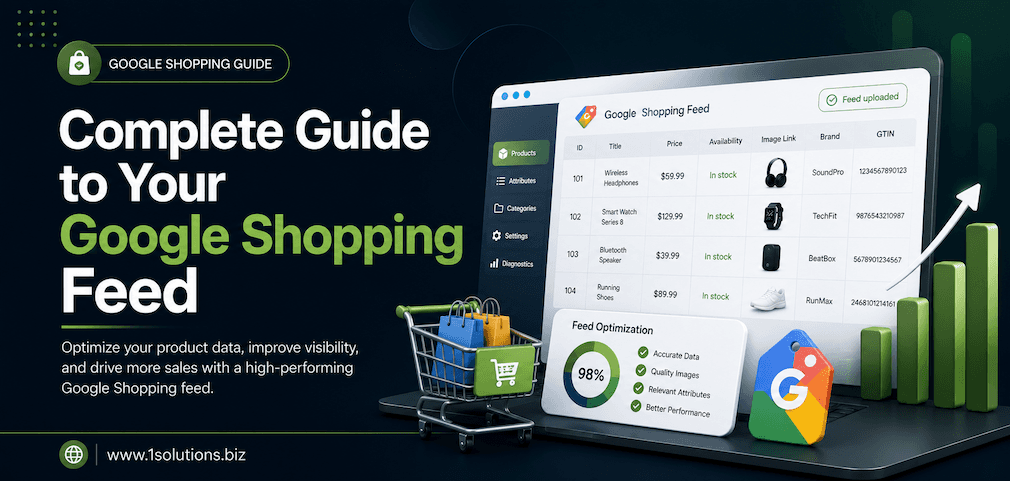
Everything in Google Shopping flows from your product feed. If your feed has errors, missing attributes, or weak titles, your ads will underperform regardless of your budget or bidding strategy. Google Merchant Center uses your feed data to match your products to relevant search queries, so accuracy and completeness are non-negotiable.
Here are the core feed attributes to prioritize:
- Product Title: Include the brand name, key descriptor, product type, and size or color variant. Front-load the most important keywords. A title like “Blue Slim-Fit Chino Trousers – Men – 32W” outperforms “Men’s Pants” every time.
- Product Description: Write for both the algorithm and the customer. Include material, use case, and key features. Keep it factual and specific.
- GTIN and MPN: These identifiers help Google match your products to relevant queries and can improve your auction eligibility.
- High-Quality Images: Use clean, white-background images at minimum. Lifestyle images can be used as additional images in some formats.
- Price and Availability: Keep these updated in real time. Mismatches between your feed and your website are a fast path to disapproved listings.
A study by DataFeedWatch (2023) found that optimizing product titles alone can increase click-through rates by up to 25%. That is significant improvement with zero increase in ad spend.
If you want broader guidance on how content quality affects your digital performance, this post on boosting SEO through page content analysis covers principles that apply directly to product copy and feed descriptions.
💡 Pro Tip: Run a weekly Merchant Center diagnostics check. Google flags feed errors by category, so you can catch disapprovals before they drain your impression share.
Step 2: Structure Your Campaigns for Control
Most advertisers make the mistake of putting all products into a single Shopping campaign with a single ad group. This limits your ability to control bids, budgets, and reporting at a meaningful level.
A better approach is to segment your campaigns based on criteria that matter to your business:
- By product category: Running electronics, clothing, and accessories in separate campaigns lets you set category-appropriate bids and budgets.
- By margin tier: High-margin products deserve more aggressive bids. Low-margin products need tighter caps.
- By performance history: New products with no data should not compete in the same campaign as proven bestsellers.
- By funnel stage: Separate campaigns for branded vs. non-branded queries give you granular control over intent targeting.
Within each campaign, use product groups to break down inventory further. You can subdivide by brand, item ID, product type, or custom label. The more granular you go, the more control you have over individual product bids.
Step 3: Use Custom Labels Strategically
Custom labels are one of the most underused features in Google Shopping. They allow you to tag products with your own categories that do not exist natively in the feed. You can use up to five custom labels (0 through 4), each with its own set of values.
Practical ways to use custom labels:
- Margin tier: Tag products as “high-margin,” “medium-margin,” or “low-margin” so your bidding reflects actual profitability.
- Seasonality: Mark products as “summer-hero” or “clearance” to shift budget during seasonal peaks.
- Performance status: Label products as “top-performer,” “new-arrival,” or “low-performer” based on historical data.
- Promotion eligibility: Flag products included in a current sale so you can boost bids during that period.
Custom labels must be added directly in your product feed. Once set, they appear in Google Ads as segmentation options within product groups, giving you bid control at a level that matches your actual business logic.
Step 4: Choose the Right Bidding Strategy
Bidding is where many advertisers either leave money on the table or burn through budget unnecessarily. Google Shopping supports several bidding strategies, and the right choice depends on your campaign maturity and goals.
| Bidding Strategy | Best For | Requires | Trade-Off |
|---|---|---|---|
| Manual CPC | New campaigns or testing phases | Active management time | Full control but time-intensive |
| Target ROAS | Campaigns with 30+ conversions/month | Conversion tracking, historical data | Can restrict volume if target is too high |
| Maximize Clicks | Building initial traffic data | Budget ceiling set | Volume without conversion focus |
| Target CPA | Lead-gen adjacent shopping goals | Strong conversion history | Less common in Shopping, limited flexibility |
| Maximize Conversion Value | Revenue-focused scaling | Adequate budget and data | May sacrifice margin for volume |
A common mistake is switching to Target ROAS too early. Google’s Smart Bidding needs a minimum of 30 to 50 conversions per month in the campaign to make reliable predictions. If you force it on a low-data campaign, you will likely see impression share drop or performance become erratic.
Start with Manual CPC or Maximize Clicks to build data, then graduate to Target ROAS once you have enough conversion history. Set your ROAS target conservatively at first, then tighten it as the algorithm learns.
Step 5: Build a Negative Keyword Strategy
Google Shopping does not use traditional keyword targeting. Instead, Google matches your products to queries based on feed data. This means irrelevant queries can and will trigger your ads if you are not actively filtering them out with negative keywords.
How to build your negative keyword list:
- Go to your campaign’s Search Terms report and sort by cost with zero conversions.
- Identify queries that are clearly irrelevant, too broad, or attracting the wrong intent (for example, “free,” “DIY,” “how to,” competitor brand names where you cannot compete on price).
- Add those terms as exact or phrase match negatives at the campaign or ad group level.
- Create a shared negative keyword list in the Google Ads library and apply it across all Shopping campaigns.
- Repeat this audit weekly for the first month, then monthly once the list is mature.
WordStream (2022) reported that advertisers who regularly manage negative keywords in Shopping campaigns see an average 15% reduction in wasted spend. Over a year, that is a substantial budget reallocation to better-performing placements.
💡 Pro Tip: Segment your negative keywords into themed lists. For example, create one list for “informational intent” queries and another for “competitor brands.” This makes management cleaner and lets you apply them selectively across campaigns.
Step 6: Optimize Your Bidding With Audience Layering
Audiences do not replace feed targeting in Shopping, but they can significantly sharpen it. By layering audiences on top of your product targeting, you can adjust bids up or down based on the likelihood of conversion from specific user segments.
Audience types to layer in Shopping campaigns:
- Remarketing lists: Users who visited your product pages but did not purchase deserve a higher bid. They already know your brand.
- Customer match lists: Upload your existing customer emails to find and bid differently on returning buyers.
- Similar audiences: Reach users who behave like your best converters. Use these with observation mode first to gather data.
- In-market audiences: Layer Google’s in-market segments for categories aligned with your products.
Use “Observation” mode to start. This lets you see how different audiences perform without restricting who sees your ads. Once you have data, apply bid adjustments (positive for high converters, negative for low-value segments).
If you want to understand how audience targeting works across other paid channels, the guide on how to advertise on Facebook provides useful context on segmentation principles that transfer to Shopping.
Step 7: Monitor and Improve Shopping Ad Performance Metrics
You cannot optimize what you do not measure. These are the metrics that matter most in Google Shopping and what to do when they signal a problem:
- Impression Share (IS): If IS is low due to budget, increase your daily budget or reduce bids on low performers. If IS is low due to rank, improve your feed quality and bid competitiveness.
- Click-Through Rate (CTR): A low CTR usually points to weak product titles or poor images. Test title variations.
- Conversion Rate (CVR): If CVR is low despite good traffic, the problem is likely on your landing page, not your ads. Check page load speed, product descriptions, and checkout friction.
- ROAS: Your north star metric. Track it by campaign, product group, and device to find where value is actually coming from.
- Cost Per Click (CPC): Watch for products with high CPC but low ROAS. These are your biggest optimization targets.
For e-commerce stores on WooCommerce, keeping your store technically sound directly affects ad landing page performance. The WooCommerce store maintenance checklist is a practical resource for avoiding technical issues that hurt conversion rates.
If you are comparing platforms for your store, the guide on WooCommerce vs Shopify can help you pick the right foundation for your Shopping campaigns.
Step 8: Test Product Titles and Descriptions Continuously
A/B testing in Google Shopping is not as straightforward as in Search, where you can test ad copy directly. However, you can still run structured tests by changing product titles and descriptions in your feed and monitoring performance over a consistent time window.
How to run feed-level tests:
- Identify 10 to 20 products with moderate traffic but below-average CTR or conversion rate.
- Create a revised title for each. For example, move the brand name to the front, or add a specific material descriptor.
- Update the feed and note the date of the change.
- Compare performance over 30 days before and after (controlling for seasonality).
- Roll out winning patterns across similar products.
This iterative approach compounds over time. Each improvement in CTR means more clicks from the same impression share, which effectively lowers your cost per acquisition without changing your bids.
💡 Pro Tip: Use Google’s supplemental feed feature to test title changes without modifying your primary feed. This keeps your main data clean while you experiment.
Step 9: Leverage Performance Max and Know Its Limits
Google has been pushing Performance Max (PMax) campaigns heavily since 2022. PMax replaces Smart Shopping and extends ad delivery across Search, Display, YouTube, Gmail, and Discover, using your product feed as the core asset.
PMax can work well when you have strong creative assets and enough conversion data. However, it comes with real trade-offs:
- You have less visibility into where your budget is actually going.
- Search term reporting is limited compared to standard Shopping campaigns.
- Google’s automation takes more control away from the advertiser.
A balanced approach is to run standard Shopping campaigns alongside PMax. Use standard Shopping for your top-performing, high-margin products where you want granular control. Let PMax handle broader discovery and new audience reach. Monitor performance carefully and do not assume PMax is always better just because Google promotes it.
Understanding how Google’s own systems are evolving is also worth keeping up with. For example, the post on Google AI Mode vs AI Overviews gives useful context on how AI is changing search behavior, which in turn affects Shopping visibility.
Step 10: Scale What Works and Cut What Doesn’t
Once your campaigns have 60 to 90 days of data, you have enough signal to make confident scaling decisions. Here is a simple framework:
- Scale: Products with ROAS above your target and room for impression share growth. Increase bids or budget incrementally (10 to 20% at a time to avoid disrupting the algorithm).
- Hold: Products meeting ROAS targets but with limited remaining impression share. Maintain current settings and monitor.
- Cut or restructure: Products consistently below target ROAS after 60 days. Pause them, reduce bids significantly, or move them to a low-priority campaign with a separate budget cap.
Scaling is not just about budget. Sometimes it means improving your feed for products that have high demand but low impression share due to poor data quality. Fixing the feed can unlock scale without touching bids at all.
For a broader view of how Shopping fits into your overall digital strategy, our ecommerce marketing services cover the full picture from paid search to organic growth.
You may also find value in reading about how to increase sales with Google Shopping ads and how your brand can stand out on Google Shopping for complementary tactics.
Practical Action Plan: Priority Tiers
Not everything on this list needs to happen at once. Here is how to prioritize your effort:
- Do This Now: Audit your product feed for errors, missing GTINs, and weak titles. Fix Merchant Center disapprovals. Set up conversion tracking if it is not already in place. These are blocking issues that prevent everything else from working.
- Worth Doing: Segment campaigns by product category or margin tier. Build a negative keyword list from your search terms report. Add remarketing audiences in observation mode. Set up custom labels for your top products. These steps improve control and efficiency without requiring a rebuild.
- Low Priority: Testing PMax campaigns, experimenting with supplemental feed title variants, and layering in-market audiences. These are valuable but require a foundation of clean data and conversion history to pay off reliably.
If you want expert support managing these moving parts, working with a team that understands both paid strategy and e-commerce architecture makes a real difference. Our digital marketing services are built for exactly this kind of multi-layered campaign work.
Conclusion
To truly optimize your Google Shopping campaigns, you need to treat it as an ongoing discipline, not a one-time setup. The advertisers who win consistently are the ones who keep their feeds clean, bid with intent, eliminate wasted spend, and test methodically. According to Merkle (2023), Shopping ads deliver an average ROAS of 8:1 for top-performing retail accounts. That kind of result does not happen by accident. It comes from applying exactly the kind of structured, data-driven approach outlined in this guide.
Start with your feed. Build structure into your campaigns. Layer in audiences and negatives. Then measure, test, and scale. Each step compounds on the last, and over time, the cumulative effect is a Shopping program that reliably drives profitable growth.
Frequently Asked Questions
How long does it take to see results from Google Shopping optimization?
Most changes take 7 to 14 days to reflect meaningfully in performance data, especially if you are using Smart Bidding strategies. Feed improvements can show impact faster. Plan for a 30-day window before drawing firm conclusions from any single change.
Do I need a Google Merchant Center account to run Shopping ads?
Yes. Google Merchant Center is where your product feed lives and where your products get approved or disapproved. It must be linked to your Google Ads account before any Shopping campaign can go live. Keeping it healthy is an ongoing task, not a one-time setup.
Is Performance Max better than standard Shopping campaigns?
It depends on your goals and data maturity. PMax offers broader reach and easier management but less transparency. Standard Shopping gives you more control and clearer reporting. Many experienced advertisers run both in parallel, using each for different product tiers or objectives.
How do I reduce wasted spend in Shopping campaigns?
The most effective levers are negative keywords (added from your search terms report), tighter product segmentation so low-margin items do not drain budget, and regular bid adjustments based on ROAS by product group. Consistent weekly review of the search terms report is the single highest-impact habit you can build.
What is a good ROAS target for Google Shopping?
There is no universal answer. Your target ROAS should be based on your product margins and business goals. If your average gross margin is 40%, a ROAS of 4:1 is roughly your break-even point. Many advertisers target 5:1 to 8:1, but setting the target too high too early can restrict your impression share and slow growth. Start conservative and tighten as the algorithm matures.