What Is Creator Studio and Why Should You Use It?
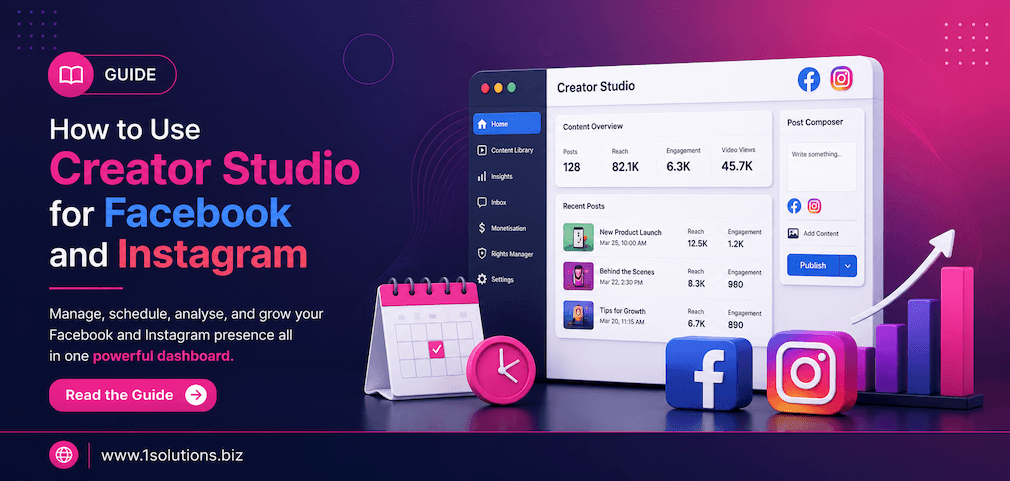
If you manage content across Facebook and Instagram, you already know how time-consuming it gets without the right tools. Creator Studio for Facebook and Instagram is Meta’s free, centralized platform designed to help creators, businesses, and marketers publish, schedule, monitor, and monetize their content, all from one dashboard. No third-party subscriptions required.
According to Statista, Meta platforms collectively reach over 3.27 billion daily active users across its family of apps. Managing content on even two of those platforms manually is inefficient. Creator Studio removes that friction. Whether you are running a brand page, a media outlet, or a personal creator account, this tool gives you a real operational advantage.
This guide breaks down exactly how to use Creator Studio for Facebook and Instagram through 10 practical, step-by-step points. Each section covers a specific feature or workflow so you can apply it immediately.
Creator Studio for Facebook and Instagram is Meta’s free content management dashboard. It lets you schedule posts, manage messages, track analytics, and even monetize content, all without a third-party tool. This guide walks you through 10 specific ways to get the most out of it.
⚡ Key Takeaways
- Creator Studio is free and works across both Facebook Pages and connected Instagram accounts.
- You can schedule posts up to six months in advance directly inside the platform.
- Inbox management consolidates Facebook and Instagram messages into one place.
- The Insights tab gives you audience data, reach, and engagement metrics in real time.
- Monetization tools like in-stream ads and fan subscriptions are accessible from the dashboard.
- Creator Studio does not support personal profiles, only Pages and professional Instagram accounts.
- Pairing Creator Studio with a strong content strategy amplifies results significantly faster.
10 Ways to Use Creator Studio for Facebook and Instagram Effectively
1. Access and Set Up Creator Studio Correctly
Before you can use Creator Studio for Facebook and Instagram, you need to confirm you have the right account type. Creator Studio only works with Facebook Pages (not personal profiles) and Instagram accounts that are set to Professional (Creator or Business). If your Instagram account is still a personal account, go to your Instagram settings and switch it to a Professional account first. Then connect it to a Facebook Page.
To access Creator Studio, go to business.facebook.com/creatorstudio or search for it directly in your browser. You will log in using your personal Facebook credentials, but Creator Studio will only show your Pages, not your personal timeline. Once inside, you will see a left-hand navigation panel with options for posts, inbox, insights, monetization, and more.
To connect your Instagram account, click the Instagram icon at the top of the Creator Studio dashboard. You will be prompted to connect a Professional Instagram account. Follow the on-screen instructions, and within a few clicks, both accounts are linked. You can now manage both platforms from the same window. This setup step is often skipped or rushed, which causes access issues later. Take five minutes to do it correctly the first time, and the rest of the workflow becomes much smoother.
2. Publish Content to Facebook and Instagram From One Place
One of the most used features of Creator Studio is the content publishing tool. Instead of opening Facebook and Instagram separately, you can create a post once and distribute it across both platforms from a single interface. Click the blue “Create Post” button at the top left of the dashboard, and choose whether you are posting to a Facebook Page, Facebook Group, or Instagram.
You can upload images, videos, Reels, or write text-only posts. For Instagram, the platform supports feed posts and IGTV videos directly through Creator Studio, though Stories and Reels posting has some limitations depending on your account configuration. Always check what content formats are available for each platform before you build your content calendar around a feature that may not apply to your account.
One honest limitation worth noting: Creator Studio does not support Instagram Stories publishing natively for all accounts. If Stories are a core part of your strategy, you will still need to use the Instagram app or a third-party scheduler for those. For feed posts and videos, though, Creator Studio handles everything cleanly. If you are looking to take your Facebook presence further, our professional Facebook page management services can complement what you build inside Creator Studio.
💡 Pro Tip: When creating content for both Facebook and Instagram simultaneously, customize the caption for each platform rather than using an identical copy. Facebook allows longer text with links; Instagram works better with hashtags and shorter, punchy captions. Creator Studio lets you edit captions per platform before publishing.
3. Schedule Posts in Advance Using the Content Calendar
Scheduling is where Creator Studio genuinely saves time. Instead of logging in every day to post manually, you can batch-create content and schedule it weeks or months in advance. After writing your post or uploading your video in the Create Post window, click the dropdown arrow next to the “Publish” button and select “Schedule.” You can then set a specific date and time for the post to go live.
Creator Studio allows you to schedule posts up to six months in advance. This is especially useful if you are planning content around product launches, seasonal campaigns, or recurring events. The Content Library tab shows all your scheduled posts in a list or calendar view, so you can quickly see what is going out and when.
According to HubSpot’s State of Marketing Report (2023), brands that post consistently using a content calendar see 67% higher engagement rates than those that post ad hoc. Scheduling removes the inconsistency. You also have the option to “Backdate” a post, which publishes it immediately but assigns it an earlier date, useful for archival or historical content purposes. Do not overlook the “Set as Draft” option either. It saves your content so you can return and finish it later without losing your work.
4. Manage Your Inbox Across Both Platforms
Creator Studio includes a unified inbox that pulls together comments and messages from both Facebook and Instagram. For businesses and creators who receive high volumes of direct messages, this is one of the most practical time-saving features available. Instead of jumping between two apps, everything appears in a single stream.
Inside the Inbox tab, you can filter by platform, message type (comments versus DMs), and read or unread status. You can also label conversations to stay organized, which helps when multiple team members are managing the same inbox. Assigning labels like “follow-up,” “partnership inquiry,” or “customer complaint” keeps things from falling through the cracks.
One feature many users miss is the automated response tool. You can set up instant replies for common questions, which is useful for off-hours coverage. For example, if someone messages asking about your business hours, an automated response can handle that without any manual effort. This pairs well with a broader community management strategy. If you are managing a large brand presence and need more support beyond what Creator Studio offers natively, exploring structured full-service digital marketing support may be worth considering to scale response quality across channels.
5. Analyze Performance With the Insights Dashboard
Understanding what content works is as important as creating it. Creator Studio’s Insights tab gives you access to detailed analytics for both Facebook and Instagram. For Facebook, you can see data on reach, engagement, video views, follower growth, and more. For Instagram, you get impressions, reach, profile visits, and audience demographics.
Inside Facebook Insights, the “Posts” section shows how each individual piece of content performed. You can sort by reach, engagement, or video minutes viewed. This makes it easy to identify which content formats and topics your audience responds to most. Pay attention to the “When Your Fans Are Online” graph, which shows peak activity times. Scheduling your posts during those windows consistently improves reach without any additional effort.
For Instagram, the Insights section shows similar metrics broken down by content type. One practical use of this data: if your carousel posts consistently outperform single-image posts, you have a clear signal to shift your content mix accordingly. According to Social Insider (2023), carousel posts on Instagram generate 3x more engagement than static images on average. Data like this, combined with your own account-level insights, helps you make faster, more accurate content decisions. This analytical approach also connects well with understanding broader content performance, as covered in this guide on how to boost SEO with page content analysis.
💡 Pro Tip: Export your Insights data from Creator Studio as a CSV file at the end of each month. Keeping a running performance log lets you compare month-over-month trends and spot seasonal patterns in your audience behavior that in-platform dashboards do not always highlight clearly.
6. Use the Content Library to Audit and Manage Existing Posts
The Content Library in Creator Studio is your archive of everything you have ever published, scheduled, or saved as a draft on your Facebook Pages and connected Instagram accounts. It is more useful than most people realize. Beyond just being a history log, it lets you filter, search, and take bulk actions on your content.
You can filter by date range, content type (photo, video, link post, etc.), and publication status. This makes it easy to find a specific post quickly, especially if you manage a page that has been active for several years. From the Content Library, you can also edit published posts, delete them, boost them as ads, or reuse them by duplicating the content for a new post.
One underrated use case: auditing old content for relevance. If you made posts referencing outdated pricing, discontinued products, or expired promotions, the Content Library lets you find and delete or edit them quickly. This is particularly relevant for e-commerce businesses. If you run an online store, pairing Creator Studio’s content tools with solid platform infrastructure is key, and understanding the broader ecosystem matters. You can also check out our comparison of WooCommerce vs Shopify if you are evaluating which platform works best for your social commerce setup.
7. Set Up and Manage Monetization Features
For eligible creators and publishers, Creator Studio provides access to several monetization tools directly inside the dashboard. These include In-Stream Ads for Facebook videos, Fan Subscriptions, Stars (where viewers tip creators during live videos), and Branded Content tools that facilitate paid partnerships.
To check your eligibility, click the “Monetization” tab in the left navigation panel. Creator Studio will show you which monetization features each of your Pages qualifies for based on Meta’s Partner Monetization Policies. Common requirements include a minimum number of followers, recent page activity, and compliance with community standards. Not every page qualifies immediately, and that is worth acknowledging upfront.
In-Stream Ads are the most commonly used monetization method. They insert short video ads into your longer videos, and you earn a share of the revenue generated. For this to work, your videos need to be at least three minutes long, and your page must meet the minimum reach thresholds Meta sets. According to Meta’s own creator data (2023), creators who use In-Stream Ads in combination with fan subscriptions earn on average 40% more monthly than those using only one monetization method. The monetization section also lets you review your payment history and set up your payout method, all without leaving Creator Studio.
8. Leverage Creator Studio for Video Strategy
Video content gets preferential treatment in Meta’s algorithm, and Creator Studio is optimized to support video publishing and management more than any other content type. When you upload a video, Creator Studio gives you additional options that are not available for static posts: custom thumbnails, video titles, tags, and the ability to add captions or subtitles automatically.
The platform also supports crossposting, which lets you publish the same video to multiple Facebook Pages at once. This is extremely useful if you manage several Pages within the same brand family or organization. You set it up once and reach multiple audiences simultaneously without duplicating the work.
Creator Studio also has a dedicated section for Reels on both Facebook and Instagram. When uploading a Reel, you can add audio, set a cover image, and write a caption tailored to each platform. The video analytics inside Creator Studio are notably detailed: you can see view duration, the percentage of viewers who watched past the 30-second mark, and where drop-offs happen in longer videos. This drop-off data is genuinely useful for editing future content. If video marketing is central to your strategy, pairing it with a broader approach to advertising on Facebook can significantly amplify your video reach.
💡 Warning: Do not upload the same video with a visible TikTok watermark to Creator Studio for Facebook or Instagram. Meta’s algorithm actively deprioritizes watermarked content from competing platforms. Always export a clean version of your video before uploading.
9. Use Creator Studio to Manage Multiple Pages at Scale
If you manage more than one Facebook Page or Instagram account, Creator Studio becomes significantly more valuable. From a single login, you can switch between multiple Pages and accounts without signing out or using separate browsers. This is a major advantage for agencies, social media managers, and brands with multiple sub-brands or regional accounts.
To switch between Pages, use the dropdown at the top left of the Creator Studio dashboard. Each Page has its own separate Content Library, Inbox, and Insights data, so nothing bleeds across accounts. You can also give other team members access to Creator Studio by managing Page roles through Facebook’s Page Settings, keeping your workflow collaborative without sharing login credentials.
The cross-account view is particularly useful during monthly reporting. Instead of pulling data one page at a time, you can navigate between Pages quickly and compare performance across accounts. For agencies handling social content for multiple clients, this centralization reduces reporting time significantly. That said, Creator Studio does have limits. It does not offer the advanced multi-account features of paid enterprise tools, so for very large operations managing dozens of Pages simultaneously, a dedicated social media management platform may eventually make more sense. You can also explore what other platforms exist in the social landscape through this guide on the top 100 social media sites.
10. Avoid Common Creator Studio Mistakes That Hurt Performance
Using Creator Studio correctly means understanding not just its features but also the pitfalls that waste time or reduce content effectiveness. One of the most common mistakes is posting the same caption verbatim on both Facebook and Instagram. Facebook supports links in captions and works well with longer text. Instagram does not make links in captions clickable and favors shorter, more visual-focused copy. Treating both platforms identically leads to underperformance on at least one of them.
Another frequent error is ignoring the Insights data entirely. Creator Studio gives you a significant amount of free analytics, yet many users only use the platform to schedule posts and never review performance. Without reviewing the data, you are essentially guessing what your audience wants.
A third mistake is not maintaining consistency in posting frequency. Creator Studio makes scheduling easy, but if your content calendar has large gaps, the algorithm reduces your reach over time. Meta’s algorithm rewards consistent activity. Finally, avoid over-relying on automated inbox replies without also having real human responses for complex queries. Automation helps with volume, but it damages trust when users get robotic answers to nuanced questions. For those who want to take their Instagram presence further and avoid visibility issues, our detailed guide on Instagram shadowbans and how to remove them is a useful companion resource. And if your overall social presence feeds into a broader content marketing plan, working with an experienced team offering professional content and copywriting services can ensure quality stays consistent at scale.
Creator Studio Features: Quick Comparison
| Feature | Available for Facebook | Available for Instagram | Notes |
|---|---|---|---|
| Post Scheduling | Yes | Yes (Feed only) | Stories not supported natively |
| Unified Inbox | Yes | Yes | DMs and comments combined |
| Insights and Analytics | Yes (detailed) | Yes (basic to moderate) | Facebook data is more granular |
| Monetization Tools | Yes (multiple options) | Limited | In-stream ads primarily for Facebook |
| Reels Publishing | Yes | Yes | Feature availability varies by account |
| Content Library | Yes | Yes | Full post archive with filter tools |
| Crossposting | Yes (multi-page) | No | Facebook-only feature |
Practical Action Plan: What to Prioritize First
- Do This Now: Connect your Instagram Professional account to Creator Studio and verify both platforms are linked correctly. Then schedule your next two weeks of content using the scheduling tool so you have a consistent posting cadence in place immediately.
- Worth Doing: Review your Insights data for the past 30 days and identify your top three performing posts. Use those as a template for your next content series. Set up your unified inbox labels to categorize messages by type.
- Low Priority: Explore the monetization section to check eligibility, but do not reorganize your content strategy around it until you have stable, consistent reach metrics. Monetization features are a longer-term goal for most creators.
Frequently Asked Questions
Is Creator Studio free to use?
Yes, Creator Studio is completely free. It is a tool provided by Meta at no cost. You do not need a Meta Business Suite subscription or any paid plan to access its core features, including scheduling, inbox management, and analytics.
Can I use Creator Studio for a personal Instagram account?
No. Creator Studio only works with Professional Instagram accounts (Creator or Business). Personal accounts are not supported. You will need to switch your account to a Professional account in Instagram settings before you can connect it to Creator Studio.
Does Creator Studio support Instagram Stories scheduling?
Not natively for all accounts. Stories scheduling is one of the known limitations of Creator Studio. For reliable Stories scheduling, many marketers use Meta Business Suite (which has expanded features) or a third-party scheduler. Feed posts and Reels are the primary content types Creator Studio handles well.
What is the difference between Creator Studio and Meta Business Suite?
Meta Business Suite is the newer, more comprehensive platform that Meta is gradually positioning as the primary tool for business accounts. Creator Studio is older and particularly well-suited for video-heavy content and publishers. Both have overlapping features, but Creator Studio has stronger video management and monetization tools, while Meta Business Suite offers broader ad management capabilities.
How many pages can I manage in Creator Studio?
There is no published hard limit from Meta on the number of Pages you can manage in Creator Studio. As long as you are an admin of the Pages and they are connected to your Facebook account, they will appear in your Creator Studio dashboard. In practice, agencies commonly manage dozens of Pages through a single Creator Studio login.