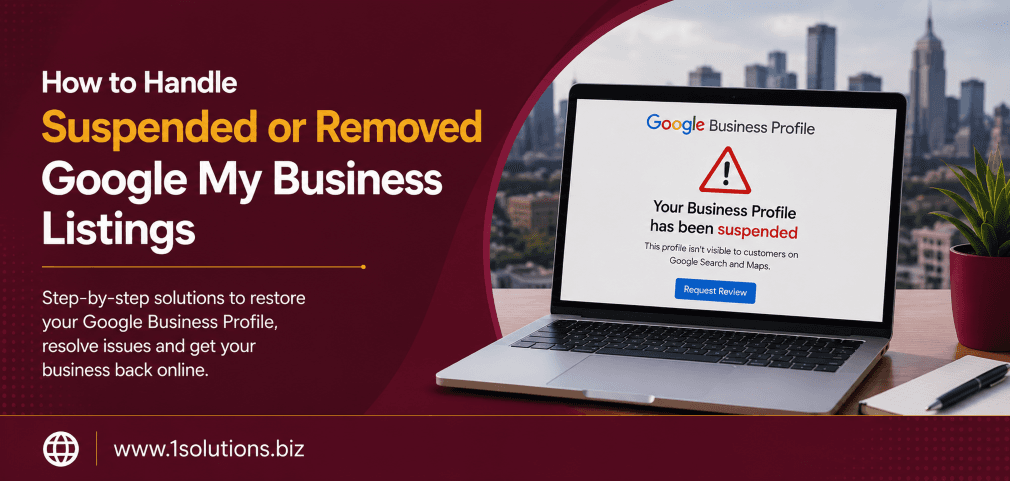
Waking up to find your Google Business Profile suspended or removed is one of the most stressful things that can happen to a local business owner. Your phone stops ringing, your map visibility disappears, and potential customers cannot find you. Knowing how to handle suspended or removed Google My Business listings quickly and correctly is the difference between a two-week setback and a permanent loss of local visibility. This guide walks you through every step, from identifying why it happened to rebuilding your profile so it never happens again.
Google suspends or removes Business Profiles for policy violations, spammy content, or unverified information. To recover, identify the suspension type, fix the underlying issue, submit a reinstatement appeal with supporting documentation, and strengthen your profile to prevent future problems. Acting fast and following Google’s guidelines precisely are the keys to a successful outcome.
⚡ Key Takeaways
- There are two main suspension types: soft suspensions (listing is live but unmanageable) and hard suspensions (listing is completely removed from Maps and Search).
- Common causes include keyword stuffing in business names, mismatched addresses, virtual offices, and policy-violating categories.
- According to BrightLocal (2023), 64% of consumers use Google Business Profiles to find local businesses, making reinstatement a top priority.
- You must fix the root cause before submitting a reinstatement request, or your appeal will be denied again.
- A well-documented appeal with photos, utility bills, and business licenses significantly improves reinstatement success rates.
- Proactive auditing of your GMB profile every quarter reduces the risk of future suspensions.
- If Google denies your appeal, you can escalate through the Business Profile Help Community or request a Google Business Profile specialist callback.
Understanding Why Google Suspends or Removes Business Profiles
Before you can fix a suspension, you need to understand why it happened. Google does not always send a clear explanation, which makes the process frustrating. However, most suspensions fall into recognizable patterns based on Google’s Business Profile policies.
According to Whitespark’s Local Search Ranking Factors report (2023), spammy business name practices and ineligible business models are the two most cited reasons for Google Business Profile suspensions. The platform actively uses automated systems and human reviewers to flag profiles that appear misleading or that violate its terms of service.
Common triggers include:
- Keyword stuffing in the business name: Adding city names or service keywords to your business name when they are not part of your registered legal name.
- Mismatched business information: Address, phone number, or business name that differs across your website, social media, and GMB profile.
- Virtual offices and ineligible addresses: Using a P.O. box, a UPS store, or a virtual office as your primary business address.
- Ineligible business type: Some business models, such as rental properties or businesses that operate solely online, do not qualify for a Business Profile.
- Unverified or recently transferred listings: Listings that were never properly verified or that changed ownership without re-verification.
- Duplicate listings: Having multiple profiles for the same location confuses Google’s systems and can trigger a suspension of all related listings.
- Suspicious review activity: A sudden spike in reviews, especially from accounts with no review history, can flag your profile for investigation.
You should also read our post on 10 Google My Business Mistakes That Hurt Local Visibility to understand the patterns that lead to these issues before a suspension ever occurs.
Step 1: Identify the Type of Suspension You Are Dealing With
Not all suspensions are the same. Knowing the type you are facing changes the recovery path significantly.
Soft Suspension
A soft suspension means your listing still appears on Google Maps and Search, but you have lost the ability to manage it through your Google Business Profile dashboard. You cannot edit information, respond to reviews, or post updates. This often happens after an ownership transfer or when Google detects a policy concern but has not fully deactivated the listing yet.
Hard Suspension
A hard suspension means your listing has been completely removed from Google Maps and Search. Customers searching for your business by name or category in your area will not find your profile at all. This is the more damaging scenario and requires a formal reinstatement appeal.
Listing Removal vs. Account Suspension
There is also an important distinction between a single listing being suspended and your entire Google account being suspended. If your account is suspended, every Business Profile tied to that account is affected. This is less common but significantly more difficult to resolve.
💡 Pro Tip: Before filing any appeal, log into your Google Business Profile dashboard and check the status notification carefully. The wording of the message, whether it says “suspended,” “disabled,” or “removed,” will guide your next steps and the correct appeal form to use.
Step 2: Audit Your Profile Against Google’s Guidelines
Submitting a reinstatement request before fixing the underlying problem is the single most common mistake business owners make. Google reviewers will reject your appeal if the policy violation is still present in your profile.
Work through this audit checklist before you file anything:
- Business name: Does it exactly match your registered business name? Remove any keywords, city names, or descriptors that are not part of your legal name.
- Address: Is it a physical, publicly accessible location? Service-area businesses should hide their address if they do not serve customers at that location.
- Phone number: Is it a local number that matches what appears on your website and other directories?
- Business category: Is your primary category accurate and does it align with what Google’s guidelines consider an eligible business type?
- Website URL: Does your website represent the specific business location listed, not a general corporate page?
- Hours: Are your hours accurate and consistent with what your website states?
- Duplicate listings: Search Google Maps for your business name and address to check if duplicate profiles exist. If they do, request their removal before appealing.
If your website itself has underlying SEO or structural issues that might be contributing to inconsistency signals, it may be worth exploring professional search engine optimization support to align your online presence before the appeal.
Step 3: Gather Supporting Documentation
Google’s reinstatement process requires proof that your business is legitimate. The more evidence you can provide, the stronger your appeal. According to a 2022 analysis by Sterling Sky, appeals that included physical business documentation were reinstated at nearly twice the rate of appeals with no supporting files.
Collect the following documents where applicable:
- Business license or registration certificate showing your registered business name and address
- Utility bills (electricity, water, or internet) addressed to the business at the listed location
- A lease agreement or property deed for your business location
- Photos of your storefront, including exterior signage, interior workspace, and any branded vehicles or equipment
- Screenshots of your business listing on trusted third-party directories like Yelp, Bing Places, or industry-specific sites
- Tax documents that show your business name and address
Prepare these as clear, legible scans or photos. Blurry or incomplete documents will hurt rather than help your case.
Step 4: Submit the Reinstatement Appeal
Once you have fixed the policy violations and gathered your documentation, you are ready to submit your reinstatement request. Here is how to do it correctly.
For a Suspended Listing
- Go to the Google Business Profile Help page and search for “reinstatement.”
- Click on the official reinstatement request form link provided by Google Support.
- Fill in your business name, address, website, and Google account email exactly as they appear in your profile.
- In the explanation field, write a concise, factual description of your business. State what you do, where you operate, and confirm that you have reviewed and corrected any policy violations.
- Upload your supporting documentation files.
- Submit the form and note the case reference number.
What to Write in Your Appeal
Keep your appeal professional and factual. Avoid emotional language or accusations. A strong appeal statement looks like this: “Our business [Business Name] has operated at [Address] since [Year]. We serve customers by appointment at this physical location. We have reviewed Google’s Business Profile policies and have corrected our business name to remove any non-registered keywords. We are providing our business license, utility bill, and storefront photos as supporting evidence.”
Google typically responds within 3 to 5 business days, though complex cases can take up to 2 to 3 weeks.
💡 Pro Tip: Do not submit multiple reinstatement requests for the same listing. Submitting duplicates can reset the review queue and extend your wait time significantly. Submit once, wait the full period, and then follow up if needed.
Step 5: Handle a Denied Appeal or Escalate the Case
If your first appeal is denied, you are not out of options. This is the step most guides skip, which leaves business owners feeling stuck.
Review the Denial Reason
Google may provide a reason for denial in the response email or through your dashboard notification. Read it carefully. If the denial mentions a specific policy, go back to your profile and look for the issue again. Sometimes there are secondary violations that were not obvious in the first audit.
Post in the Google Business Profile Help Community
The Google Business Profile Help Community is a forum moderated by Google Product Experts, who are experienced practitioners officially recognized by Google. Posting your case there with relevant details (but without sensitive private information) can result in a Product Expert escalating your case internally. This is one of the most underused and effective escalation paths available.
Request a Specialist Callback
Through the Google Business Profile support page, you may be able to request a phone callback or live chat session with a Google Business specialist. Availability varies, but when it is offered, use it. Speaking directly with a specialist allows you to explain your case and get real-time guidance on what additional documentation might be needed.
Submit a New Appeal with Additional Evidence
If the denial was due to insufficient documentation, gather more evidence and submit a second appeal. Make sure the new appeal includes everything from the first attempt plus additional materials.
Suspension Type, Likely Cause, and Recovery Path
| Suspension Type | Most Likely Cause | Primary Recovery Step | Typical Resolution Time |
|---|---|---|---|
| Soft Suspension | Ownership transfer, unverified edit | Re-verify listing via postcard or video | 1 to 2 weeks |
| Hard Suspension (Single Listing) | Policy violation in name, address, or category | Fix violation, submit reinstatement form | 2 to 4 weeks |
| Hard Suspension (Multiple Listings) | Bulk spam, duplicate listings, or agency error | Remove duplicates, fix all profiles, file grouped appeal | 3 to 6 weeks |
| Account Suspension | Terms of service violation or fraud flag | Create new Google account, re-verify listing | Varies widely |
| Listing Removed by Google | Ineligible business model or location | Review eligibility, recreate and verify if eligible | 2 to 5 weeks |
Step 6: Rebuild and Strengthen Your Profile After Reinstatement
Getting your listing reinstated is only half the job. The other half is making sure it does not happen again. A reinstated listing is often under closer scrutiny from Google’s automated systems for a period after recovery.
A 2023 BrightLocal study found that businesses with complete Google Business Profiles receive 7 times more clicks than those with incomplete profiles. Use this reinstatement as an opportunity to fully optimize your listing.
Optimization steps to take immediately after reinstatement:
- Add a thorough business description that accurately describes your services without keyword stuffing.
- Upload a minimum of 10 high-quality photos including your exterior, interior, team, and products or services.
- Set up all applicable attributes such as wheelchair accessibility, Wi-Fi availability, or outdoor seating.
- Enable messaging so customers can contact you directly through your profile.
- Post a Google Business update at least once every two weeks to signal active engagement.
- Respond to all existing reviews, both positive and negative, promptly and professionally.
For businesses looking to strengthen their broader online presence beyond the Business Profile, investing in structured local SEO packages can help align all local signals across directories, citations, and your website for a more resilient online footprint.
You may also find it useful to explore local AEO best practices for small businesses to ensure your profile is optimized not just for traditional search but also for the answer-engine experiences that are reshaping how customers find businesses.
💡 Warning: Avoid making rapid bulk edits to your reinstated listing within the first 30 days. Frequent changes to your business name, address, or category shortly after reinstatement can re-trigger Google’s automated review systems and lead to another suspension.
Preventing Future Suspensions: Ongoing Best Practices
The best way to handle a Google Business Profile suspension is to avoid one in the first place. These practices should become part of your regular local marketing routine.
- Audit your profile quarterly: Check that your name, address, phone number, and hours are accurate and consistent with your website and major directories.
- Monitor for unauthorized edits: Google allows the public to suggest edits to your listing. Turn on notifications so you are alerted immediately if someone suggests a change and can approve or reject it.
- Keep your website consistent: Your NAP (name, address, phone number) on your website must match your Business Profile exactly. If you move or rebrand, update everything simultaneously.
- Use the Products and Services sections carefully: Do not use these fields to insert keywords that do not belong. Google reviewers do check these.
- Avoid third-party services that promise review generation: Any service that generates fake or incentivized reviews puts your entire profile at risk.
- Monitor competitor reports: Competitors can and do report Business Profiles they believe are violating guidelines. Regular audits catch issues before a competitor’s report triggers a review.
It is also worth understanding how Google’s broader policy enforcement systems work. Our coverage of the Google March 2026 Spam Update explains how Google’s spam detection has become more aggressive and why keeping your local presence clean matters more than ever.
Additionally, if your business has faced challenges with algorithmic penalties in other areas of your digital presence, our Google penalty recovery services can help you identify and resolve issues across your entire online footprint, not just your Business Profile.
For businesses wondering why certain pages or profiles do not appear in search results at all, the post on why Google is not indexing your page offers related technical insights that apply beyond just Business Profiles.
If you are also looking at how AI-driven search changes are affecting local visibility, the guide on Google AI Mode vs AI Overviews is essential reading for understanding how your Business Profile data feeds into next-generation search results.
Practical Action Plan: What to Do Right Now
Use this priority framework to guide your next steps based on where you are in the recovery process:
- Do This Now: Log into your Google Business Profile dashboard and confirm the type of suspension. Do not make any edits until you understand exactly what triggered the issue. Run a full audit against Google’s Business Profile guidelines and document every policy violation you find.
- Do This Now: Gather your business documentation including license, utility bill, and storefront photos. Fix every identifiable policy violation in your profile before submitting any appeal.
- Worth Doing: Search Google Maps for duplicate listings of your business. If duplicates exist, request their removal through the “Suggest an edit” feature or contact Google Support. Then submit your reinstatement appeal with full documentation.
- Worth Doing: Post in the Google Business Profile Help Community with your case details. Engage with Product Experts who may be able to escalate your case if the standard appeal process is slow.
- Low Priority: Once reinstated and stable for 30 or more days, begin a systematic optimization of your profile with photos, posts, services, and attributes. Set a quarterly calendar reminder to audit your profile and check for unauthorized edits or consistency issues across directories.
Frequently Asked Questions: How to Handle Suspended or Removed Google My Business Listings
How long does a Google My Business reinstatement take?
Most reinstatement requests are reviewed within 3 to 5 business days. Complex cases involving multiple listings, account suspensions, or repeated appeals can take 2 to 6 weeks. Submitting complete documentation with your initial appeal is the best way to avoid delays caused by back-and-forth requests for more information.
Can I create a new listing if my original one was suspended?
Creating a new listing while your original listing is suspended can result in both listings being flagged and potentially permanently removed. It is almost always better to appeal the suspension of the original listing. If your original listing was removed because your business model is genuinely ineligible, then you should review Google’s eligibility guidelines before creating a new profile.
Will a suspension hurt my Google search rankings long-term?
Yes, a suspension removes your Business Profile from local map pack results, which can significantly reduce your local search visibility and traffic during the suspension period. After reinstatement, your rankings may take several weeks to recover as Google rebuilds trust signals for your listing. Strengthening your on-site SEO and maintaining consistent NAP citations across directories can speed up this recovery.
What is the difference between a suspended listing and a disabled account?
A suspended listing affects only the specific Business Profile associated with that location. A disabled account affects all Business Profiles managed under that Google account. Account-level disabling is far more serious and typically requires creating a new Google account, re-verifying your business, and potentially working through Google’s account-level appeals process.
Can a competitor get my Business Profile suspended?
Yes. Google allows users to report Business Profiles that appear to violate its guidelines. A competitor can flag your listing, which may trigger a Google review. However, Google is supposed to investigate reports rather than automatically suspend based on them. The best protection is keeping your profile fully compliant with all guidelines so that even if a report is filed, the review does not find actionable violations.
Recovering from a Google Business Profile suspension requires patience, precision, and a genuine commitment to following the rules. The businesses that recover fastest are those that treat the audit and appeal process seriously, provide thorough documentation, and use the reinstatement as a trigger to build a stronger and more compliant local presence going forward. If you need expert support navigating your recovery and building a local SEO strategy that holds up over time, exploring professional digital marketing services is a practical next step.