If you want local customers to find your business, knowing how to set up Google Business Profile is one of the most important things you can do. A verified, well-optimized profile puts your business in front of people who are actively searching for what you offer, right at the moment they are ready to act. This guide walks you through every step, from creating your account to optimizing your listing for maximum visibility.
Setting up a Google Business Profile is free and takes about 30 to 60 minutes. You will create an account, enter your business details, verify your listing, and then optimize it with photos, posts, and accurate information. Skipping verification or leaving your profile incomplete significantly reduces your local search visibility.
⚡ Key Takeaways
- Google Business Profile is free and directly impacts how your business appears in local search results and Google Maps.
- Verification is mandatory. An unverified listing has limited visibility and cannot be fully managed.
- Businesses with complete profiles are 70% more likely to attract location visits than those with incomplete ones (Google, 2022).
- Choosing the correct primary business category is one of the most important ranking factors in local search.
- Adding photos, responding to reviews, and publishing posts all improve engagement and trust signals.
- Consistency between your profile and your website data, especially your NAP (Name, Address, Phone), is critical for local SEO.
- Avoid common setup mistakes like duplicate listings, mismatched addresses, or selecting too many irrelevant categories.
Why Google Business Profile Matters for Local Visibility
Google Business Profile (formerly Google My Business) is the engine behind the local pack, those three business listings that appear at the top of search results when someone searches for a nearby service. According to BrightLocal, 98% of consumers used the internet to find information about local businesses in the past year. If your profile does not exist or is poorly set up, you are invisible to almost all of them.
Beyond basic visibility, a Google Business Profile acts as a mini-website that users can access without ever clicking through to your actual site. They can call you, get directions, read reviews, view photos, and even book appointments, all from the search results page. That convenience is why businesses with complete profiles get significantly more customer actions than those without.
If you want to go deeper on local discoverability beyond just Google, our article on Local AEO best practices for small businesses covers answer engine optimization strategies that complement your profile setup.
What You Need Before You Start
Before you log in and start filling in fields, gather the following information. Having it ready will save you time and reduce errors that are harder to fix later:
- Official business name: Use the exact legal or trading name. Do not add keywords to your business name. Google can suspend listings that stuff keywords into the business name field.
- Business address: A physical address if you serve customers at your location. If you operate a service-area business, you can hide the address and list your service areas instead.
- Phone number: Use a local number when possible. It builds more trust than a toll-free number in local search.
- Business category: Think carefully about your primary category. It is the most important category field on the form.
- Website URL: Your main homepage or a location-specific landing page.
- Business hours: Including any special hours for holidays or seasonal periods.
- High-quality photos: At minimum, a logo and a cover photo. More photos help significantly.
💡 Pro Tip: Make sure your business name, address, and phone number (NAP) are identical across your website, social profiles, and directory listings. Even small inconsistencies, like “St.” versus “Street,” can dilute your local SEO signals.
Step 1: Create or Sign In to Your Google Account
Go to business.google.com and sign in with a Google account. Ideally, use a Google Workspace account tied to your business domain rather than a personal Gmail. This keeps your business profile management separate from your personal activity and looks more professional to anyone you later add as a manager.
If you already have a Google account for other tools like Google Analytics or Google Search Console, you can use the same account. That said, be intentional about which account holds your business profile, because transferring ownership later requires extra steps.
Step 2: Enter Your Business Name and Check for Existing Listings
Once signed in, click “Add your business to Google” and type in your business name. Google will search for existing listings that match. This step is important. If your business was already added by a user or automatically generated by Google, you may see it appear as a suggestion.
If an existing listing appears, claim it rather than creating a new one. Creating a duplicate listing can cause both to underperform, split your reviews, and trigger a Google suspension. If no match appears, select “Create a business with this name” and proceed.
Step 3: Select Your Business Category
Your primary business category tells Google what your business does and determines which searches your profile is eligible to appear in. This is arguably the single most impactful field on the entire form. Choose the most specific category that accurately describes your core offering.
For example, a company that does plumbing and general home repairs should select “Plumber” as the primary category, not “Contractor,” because “Plumber” is more specific and matches more relevant searches. You can add secondary categories later in your profile settings, but the primary one carries the most weight.
Step 4: Add Your Location or Service Area
Google asks whether you have a physical location customers can visit. There are two paths here:
- Brick-and-mortar or retail location: Enter your full street address. Google will place a pin on Maps, so accuracy matters. If your address does not appear correctly on Maps, you can adjust the pin manually.
- Service-area business (SAB): If you go to customers rather than them coming to you, such as a cleaning service or mobile mechanic, select “No” for a physical location and then define your service areas by city, region, or postal code. You can list multiple service areas.
- Hybrid business: Some businesses do both. A restaurant with delivery, for example, can enter a physical address and also define delivery zones as service areas.
Step 5: Add Contact Information and Website
Enter your business phone number and website URL. Double-check that the phone number is active and that the website URL is live and loads correctly. A broken link on your profile sends a negative signal to both Google and potential customers.
If your website is not yet built or needs improvement, this is a good time to consider working with professionals. Our comprehensive digital marketing services include web strategy and local presence optimization that can make your website a stronger asset alongside your Google profile.
Step 6: Verify Your Business Listing
Verification is not optional. Without it, your profile has severely limited visibility, and you cannot manage most of its features. Google offers several verification methods depending on your business type:
| Verification Method | How It Works | Typical Timeframe | Best For |
|---|---|---|---|
| Postcard by Mail | Google mails a postcard with a code to your business address | 5 to 14 business days | Most business types |
| Phone or SMS | Google calls or texts a verification code | Instant | Eligible businesses only |
| A code is sent to your business email | Instant | Eligible businesses only | |
| Video Recording | You record a walkthrough of your business location | Reviewed within days | Businesses where postcard is not viable |
| Live Video Call | A Google representative verifies via video | Scheduled appointment | Complex or high-value listings |
| Instant Verification | Available if your website is already verified in Google Search Console | Immediate | Businesses with verified Search Console accounts |
The postcard method is the most common but the slowest. If you are eligible for phone, email, or instant verification, take advantage of it. Once your code arrives, enter it in your profile dashboard to complete verification.
💡 Pro Tip: If your postcard does not arrive within 14 days, you can request a new one from your profile dashboard. Do not create a second listing while waiting. That is one of the most common Google My Business mistakes that hurt local visibility.
Step 7: Complete Your Business Profile in Full
Once verified, your real work begins. Google rewards completeness. According to Google’s own data (2022), businesses with complete profiles are 70% more likely to attract location visits and 50% more likely to lead to a purchase than incomplete profiles. Fill in every available section:
Business Description
Write a clear, honest description of what you do, who you serve, and what makes your business different. You have 750 characters. Put the most important information in the first 250 characters, because that is what shows before the “more” link. Avoid keyword stuffing. Write for humans first.
Products and Services
Add individual products or services with names, descriptions, and optional prices. This data can appear in search results and helps Google understand the specific things you offer, which can improve your relevance for detailed searches.
Business Hours
Accurate hours matter. According to BrightLocal (2023), incorrect business hours are among the top reasons customers lose trust in a local listing. Update your hours for public holidays and seasonal changes. Google allows you to set special hours in advance.
Photos and Videos
Listings with photos receive 42% more requests for directions and 35% more website clicks than those without photos (Google, 2022). Add a logo, a cover photo, interior and exterior shots, team photos, and product images. Photos should be high resolution and genuinely representative of your business.
Attributes
Attributes are additional details like “women-owned,” “wheelchair accessible,” “free Wi-Fi,” or “outdoor seating.” These appear on your profile and can surface your listing for specific attribute-based searches. Check all that apply honestly.
Step 8: Set Up Google Posts and Q&A
Google Posts let you publish short updates directly on your profile. They appear in search results for your business and can include offers, events, product highlights, or general news. Posts expire after seven days unless they are event posts, so make a habit of publishing weekly.
The Q&A section lets anyone ask questions about your business, and anyone, including you, can answer them. Monitor this section regularly and answer questions proactively. You can also add your own frequently asked questions before customers ask them, which seeds your profile with useful information.
Step 9: Manage and Respond to Reviews
Reviews are one of the most visible trust signals on your profile. A study by Spiegel Research Center (2023) found that displaying reviews can increase conversion rates by up to 270%. Responding to reviews, both positive and negative, signals that you are an active and engaged business owner.
When responding to negative reviews, stay calm, acknowledge the issue, and offer a resolution. Never argue publicly. Your response is visible to every future customer who reads that review, so it is an opportunity to demonstrate professionalism rather than just damage control.
If managing your online reputation feels overwhelming, our professional reputation management services can help you build and maintain a positive review profile consistently.
Step 10: Add Users and Set Up Notifications
If multiple people in your team will manage the profile, add them as managers or owners from the profile settings. You can assign roles with different permission levels. Set up email notifications so you are alerted when someone leaves a review, asks a question, or Google flags an issue with your listing.
Regular monitoring is not optional if you want to maintain your local ranking. Google can make automated changes to your profile based on user suggestions, and those changes are not always accurate. Check your profile at least once a week.
💡 Pro Tip: Enable the Google Business Profile app on your phone. It makes it much easier to respond to reviews, publish posts, and monitor your listing on the go. Responsiveness is a ranking signal, and faster responses to messages can improve your profile’s placement in local results.
Common Setup Mistakes to Avoid
Even experienced business owners make errors during setup that cost them visibility later. Here are the most common ones:
- Using a virtual office address: Google has cracked down on listings using co-working spaces or mailbox addresses. Use a genuine, staffed business location.
- Adding keywords to your business name: Your business name should match your real-world name. Adding “best” or your city name is against Google’s guidelines and can lead to suspension.
- Selecting too many irrelevant categories: More is not better here. Choose categories that genuinely describe what you do.
- Ignoring the profile after setup: A static profile is a declining profile. Activity and freshness matter to Google’s local algorithm.
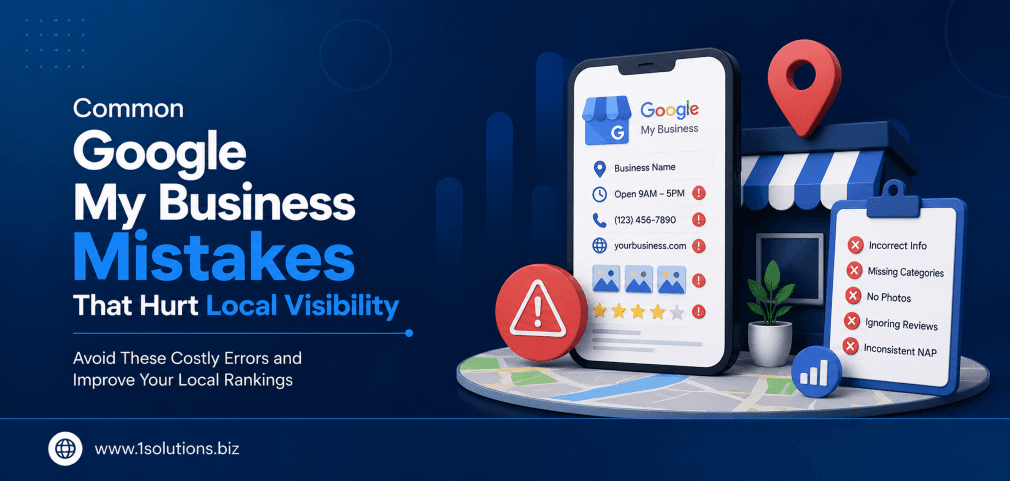
- Inconsistent NAP data: If your address on your website differs from your profile, it creates confusion for both Google and users.
Connecting Your Profile to a Broader Local SEO Strategy
Your Google Business Profile is the foundation of local SEO, but it is not the whole building. To truly dominate local search, your profile needs to be supported by a strong website, consistent citations across directories, a healthy backlink profile, and fresh, relevant content.
Our local SEO packages are built specifically to tie all of these elements together. Rather than managing each piece separately, a cohesive local strategy amplifies the impact of every individual element, including your Google Business Profile.
For businesses that want to understand how AI and evolving search formats are changing local discoverability, our guide on Google AI Mode vs AI Overviews explains how search is changing and what it means for local businesses.
If you are also building content to support your local presence, the strategies in our post on how to boost SEO with page content analysis can help you align your website pages with the signals your Google profile is sending.
Practical Action Plan: What to Do and When
Use this priority framework to work through your setup and optimization efficiently:
- Do This Now: Create and verify your Google Business Profile. Enter your business name, category, address or service area, phone number, website, and hours. Submit for verification immediately. An unverified profile does almost nothing for your local visibility.
- Do This Now: Add your logo, cover photo, and at least five additional photos of your business, products, or team. Profiles with photos dramatically outperform those without them.
- Worth Doing: Write a detailed business description, add your services or products, and fill in all applicable attributes. This data helps Google match your profile to more specific search queries.
- Worth Doing: Set up a weekly routine for publishing Google Posts. Even one post per week is enough to signal an active, engaged listing. Respond to all reviews within 48 hours.
- Worth Doing: Audit your NAP consistency across your website, social media pages, and major directories. Fix any discrepancies you find.
- Low Priority: Add a booking link or messaging feature if your business model supports it. These features are useful but only add value once your core profile is solid.
- Low Priority: Explore Google’s product catalog feature if you sell physical goods. It is a good supplementary visibility tool but not a substitute for a well-maintained core profile.
How to Set Up Google Business Profile: Final Thoughts
Knowing how to set up Google Business Profile correctly gives your business a real competitive edge in local search. The process itself is straightforward, but the details matter. A complete, verified, and actively managed profile consistently outperforms a neglected one, regardless of how competitive your local market is.
Take the time to do it right from the start. Verify promptly, fill in every field honestly, keep your information accurate, and treat your profile as an ongoing marketing asset rather than a one-time task. The businesses that treat their Google profile as a living part of their marketing strategy are the ones that consistently show up when local customers are ready to buy.
If you want expert help making the most of your local digital presence, our team at 1Solutions has been delivering measurable results for businesses for over 15 years. Explore our professional SEO services to see how we can support your growth beyond just the basics of profile setup.
Frequently Asked Questions
Is Google Business Profile really free to use?
Yes, creating and maintaining a Google Business Profile is completely free. Google does not charge for the listing itself. However, if you want to run paid ads through Google or use premium features within the Google ecosystem, those carry separate costs. The organic visibility you get from a well-optimized profile costs nothing beyond your time.
How long does verification usually take?
It depends on the method. Phone, SMS, and email verification are instant if you are eligible. Postcard verification typically takes 5 to 14 business days. Video verification is reviewed within a few days. Instant verification, available if your Search Console is already verified, is immediate. If you are waiting for a postcard, you can still edit your profile, but it will not appear in search until verification is complete.
Can I have more than one Google Business Profile?
Yes, but only if you have multiple genuine, distinct business locations or legally separate businesses. You should never create multiple profiles for the same business at the same location. Google considers that spam and may suspend all related listings. If you manage multiple legitimate locations, you can use the “Business Group” feature to manage them all from one dashboard.
What happens if someone else claims my business listing?
If another person has claimed your listing and you believe it was done in error or fraudulently, you can request ownership through the profile page by clicking “Claim this business” and following the prompts. Google will contact the current owner and give them a set number of days to respond. If they do not respond, ownership can be transferred to you. This process can take several weeks.
Does my Google Business Profile affect my website’s SEO?
Indirectly, yes. A strong Google Business Profile improves your local search visibility, which drives more branded searches for your business. More branded searches signal authority to Google and can have a positive downstream effect on your website’s organic rankings. Your profile also links directly to your website, and a well-optimized profile increases the volume of qualified traffic that visits your site. To understand how this fits into a larger SEO strategy, our guide on local AEO best practices is a helpful next read.